- How To Access the Dark Web – Quick Overview
- How Does the Dark Web Look When You Visit It With Your Phone?
- Staying Safe on the Dark Web
- How to Access the Dark Web on iPhone and Android: Step-by-Step Guide
- Configure Your Dark Web Browser’s Security Settings
- Alternatives for the Tor Browser on iPhone
- Dark Web Sites to Visit on iPhone and Android
- Dark Web on the Go: Wrapping Up
The dark web is a part of the internet that can usually only be accessed using a specialized browser. While it’s infamous for drug-slinging and other criminal activities, people also turn to the dark web for valuable anonymous activities like bypassing censorship, journalism, and whistleblowing.
Accessing the dark web on a mobile device is relatively straightforward, but can be unsafe. In this article, I will explain how you can access the dark web safely on a phone — both iPhone and Android. Antivirus and an excellent VPN are a must.
How To Access the Dark Web – Quick Overview
Visiting the dark web with your phone is easy. However, it is important to take some precautionary measures.
- Installing a VPN is essential to mask your identity when visiting websites on the dark web. I’ve found NordVPN to be best suited for accessing the dark web on a phone.
- Make sure your device is protected with strong antivirus software. My top recommendation is Norton 360.
- Ensure your phone has no sensitive apps when visiting the dark web, such as banking, finance, social media, and messaging apps. It’s best to use a secondary device to access the dark web.
- Check your browser’s privacy and security settings and ensure they are set at the highest level.
Now you are ready to visit the dark web with your mobile device.
- Open NordVPN and connect to a VPN server on the app.
- Open a browser app that lets you access the dark web. There is an official Tor browser app for Android. iPhone users can go for the Onion Browser.
- Click on the connect button on the screen to establish a Tor-connection.
- Wait for the connection to be established. This can take several minutes.
- Once connected, you can access the dark web from your mobile device! Try navigating to an onion website to check if your connection is working.
If you need more help, you can check out my guide for visiting the dark web with Android or my guide for visiting the dark web with iOS.
How Does the Dark Web Look When You Visit It With Your Phone?
Visiting the dark web on a phone isn’t much different from visiting the dark web on a desktop. The dark web looks a lot like the regular internet, although it will be slower and websites might look old-fashioned. Navigating the dark web is also more complicated. The image below shows the hidden wiki on Android. The hidden wiki is a popular dark web page.
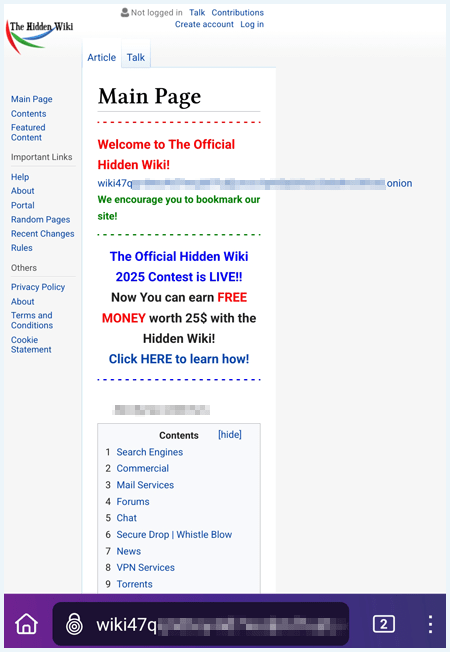
The dark web can only be accessed through the Tor network. It uses “.onion” links, which do not appear on Google or Bing. Furthermore, no entity has authority over the dark web or can impose regulations. This is precisely why the dark web is often linked with unlawful activities.
Keep in mind that most people will visit the dark web with a desktop. That means you are less anonymous when you visit the dark web on your phone. One way to guard your online privacy is by being as similar as possible to other users. In this way you will reduce your browser fingerprint.
It’s also important to note that smartphones, in general, aren’t the most privacy-friendly devices (think GPS tracking) and have plenty of vulnerabilities that can be exploited.
Staying Safe on the Dark Web
When visiting the dark web, you can land on websites that infect your device with malware, such as ransomware and trojan viruses. Furthermore, hackers and other cybercriminals are active on the dark web.
It’s also important to note that browsing the dark web on a mobile device can be more dangerous than on a desktop. Dark web sites can track your location and access other information easily when you’re using a mobile device.
Hence, it’s essential to keep yourself safe when accessing the dark web, especially on a mobile device. Follow the steps below to access the dark web safely on your phone:
- Use a VPN: A VPN server adds an extra layer of protection to your browsing data by encrypting it and changing your IP address. NordVPN prevents your personal details from being leaked when you’re connected to the Tor network with industry-leading encryption.
- Install an antivirus: A good antivirus will detect any potential infection and remove it before your device is compromised. An antivirus will also warn you about potentially dangerous websites. You can browse the dark web without worrying about malware if you have Norton 360 installed.
- Limit the possibility of your data being collected, shared, or leaked by turning off location services and refusing all permission requests from dark web browsers. This can be done by tweaking the privacy settings on Android and iOS.

How to Access the Dark Web on iPhone and Android: Step-by-Step Guide
Getting on the dark web using a mobile device is surprisingly easy. The steps vary slightly for Android and iPhone. But don’t worry, I’ve covered both operating systems below.
How to access the dark web on Android
Android users have to do very little to get on the dark net. In fact, accessing the dark web on your Android device may be easier than on your computer. Here’s how you do it:
- Get a subscription to a virtual private network (VPN) provider. I recommend NordVPN as it has a great Android app, a vast network of servers, and offers excellent security.
- Download the NordVPN app from the Play Store.
- Download the official Tor browser from the Play Store. This is the best dark web browser for Android.

- Open the NordVPN app and sign in with the credentials you created while signing up.
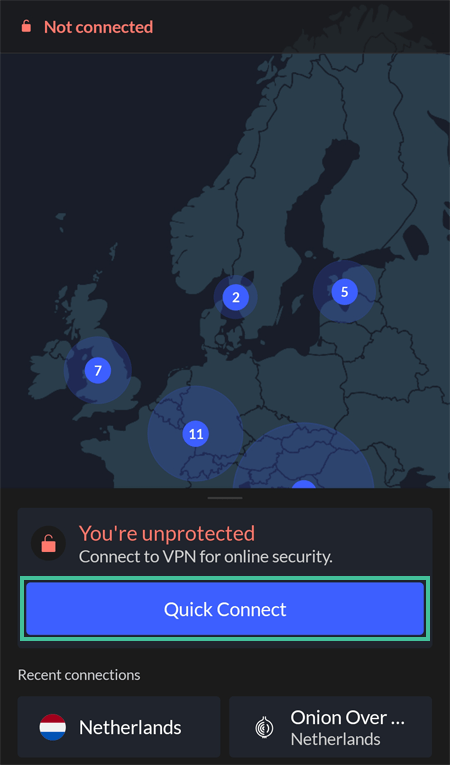
- Connect to a VPN server by hitting the quick connect button. This will connect you to a fast and secure nearby server.
- Open the Tor Browser app.
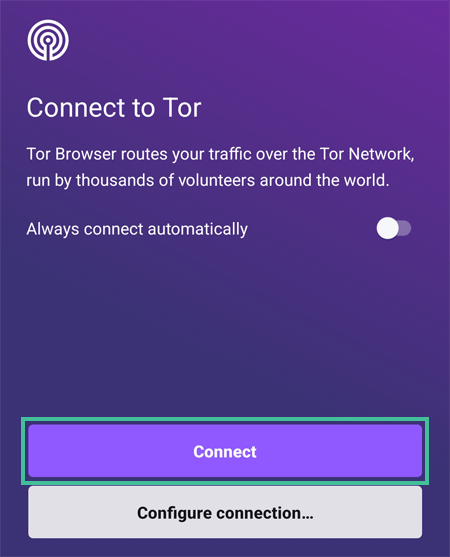
- Click on the large Connect button to connect to the Tor network.
- After this, you’ll be redirected to the browser’s homepage. It looks like any other browser, but you can access any dark website using it.
- Configure the Tor browser’s security settings before browsing further. I provide detailed instructions on how to do this later in the article.
- Use the search bar at the bottom of the screen to look for interesting sites on the dark web. If you need somewhere to start, check out our list of the best news sites on the dark web.
Overall, setting up your device to access the dark web on Android shouldn’t take more than five to 10 minutes.
How to access the dark web on an iPhone
Accessing the dark web on an iPhone is a little more complicated than on an Android device. This is because there’s no official Tor browser app for iOS yet. As a result, you’ll need to rely on other browsers that let you connect to the Tor network.
The Tor project recommends the Onion Browser, which I’m using for this tutorial. Be careful with other browsers on the App Store as they may be fake or contain viruses that will infect your device.
Note:
While it is possible to use iPhone’s Lockdown Mode for extra security while browsing the dark web, I don’t necessarily recommend this. It will impact your device’s performance and your VPN and other Tor apps may not function properly with Lockdown Mode enabled.
- Subscribe to NordVPN.
- Download and install the NordVPN app from the App Store.
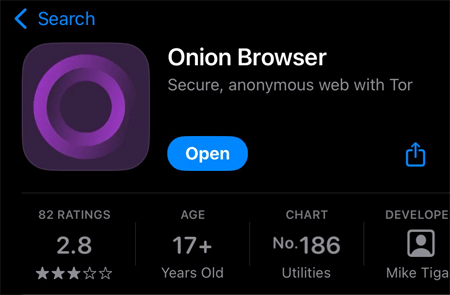
- Download and install the Onion Browser app on your iPhone.
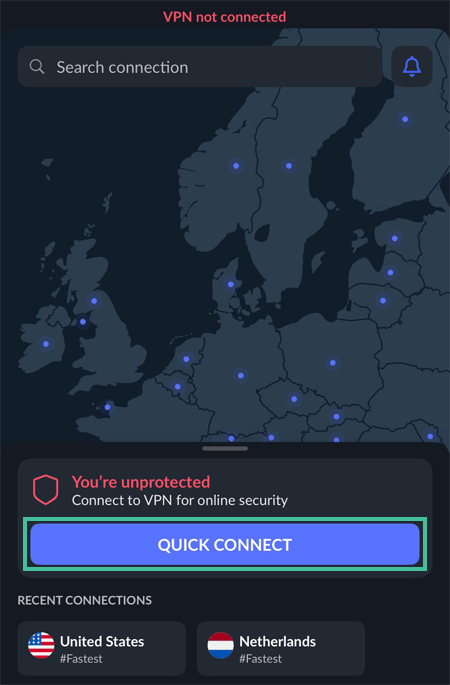
- Launch the NordVPN app and click the quick connect button to securely connect to a fast and secure VPN server.
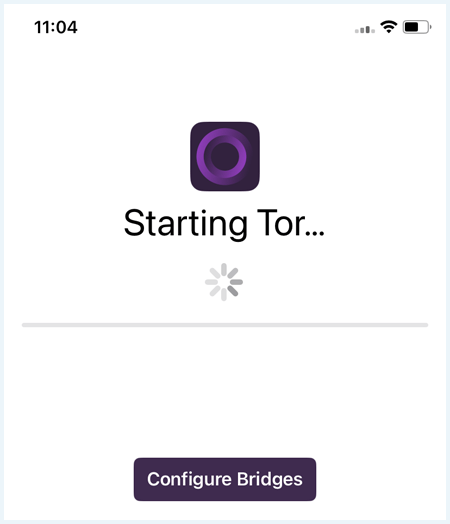
- Open the Onion browser. It will connect automatically to Tor. You can use the ‘Configure Bridges’ button if you are in a country where Tor is blocked.
- Open the Onion Browser app. You should see the homepage with icons of some popular dark websites.

- Configure the browser’s security settings by clicking on the settings gear icon in the bottom right corner of the screen. More instructions on this are provided later.
- Enjoy surfing the dark web safely on your iPhone!
Note:
While there’s no official Tor browser app for the iPhone, the Tor Project, which manages the Tor network used to access the dark web, recommends the Onion Browser. However, if you want to try an alternative, I recommend OrNet Browser, which boasts granular security control features.
How to access the dark web with NordVPN’s Onion Over VPN
Another way to access the dark web is using NordVPN’s Onion Over VPN. This is a feature unique to NordVPN.
When you activate Onion Over VPN, your internet traffic is routed through a NordVPN server and then via the Tor network. As a result, you don’t need to use the Tor browser or any specialized browser to access dark web websites. And it doesn’t matter whether you’re using an Android phone or an iPhone.
Here’s how to get on the dark web on a mobile device with Nord’s Onion Over VPN:
- Download and install the NordVPN app on your device.
- Log into your NordVPN account.
- On the homepage, you should see “Specialty servers” among the options under the blue “Quick Connect” button.
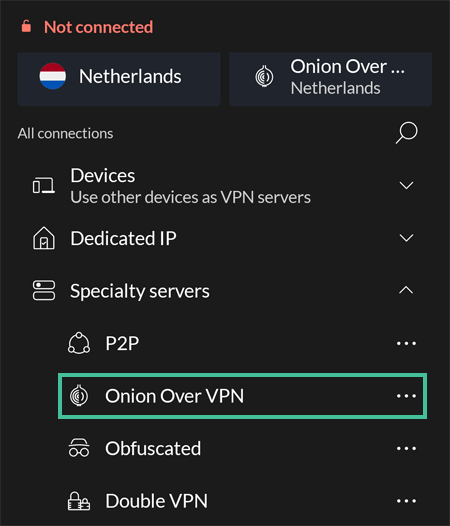
- Click on “Specialty servers” and select “Onion Over VPN” to establish a connection.
- Now, open any browser, put in your onion link, and it should work!
While NordVPN’s Onion Over VPN feature allows you to access the dark web on any browser (including Google Chrome), I recommend using a pro-privacy browser like DuckDuckGo. This is important to block trackers and protect your privacy from snooping third parties.
While Mozilla Firefox can open onion sites, you must tweak its settings first. To do this, open a window, type “about:config” and click “I’ll be careful, I promise” to open the advanced settings manager. Then, type “network.dns.blockDotOnion” and change the value to false. You should be able to open .onion sites on Firefox now.
Configure Your Dark Web Browser’s Security Settings
Both the Tor Browser and Onion Browser offer different levels of security. I recommend choosing the highest security configuration, even if features and elements like videos may not work properly. Here’s how you can change the security settings of the Tor Browser and the Onion Browser, respectively.
Configure the security settings on the Tor Browser
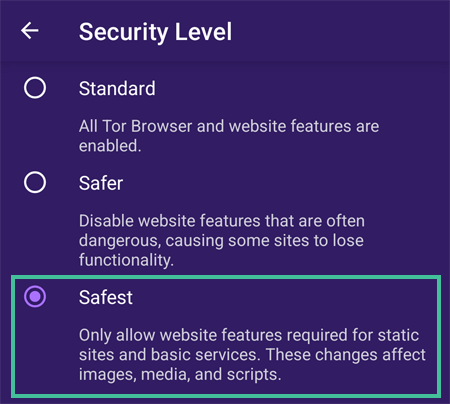
The Tor Browser offers three safety levels: Basic, Safer, and Safest. While all features and scripts are enabled on the basic version, it’s also most vulnerable to attacks, such as a script injection attack.
The Safer option disables some features to increase security, while the Safest option completely disables scripts, often at the cost of functionality and usability. Here’s how you can configure the security settings for the Tor Browser:
- Open the Tor browser Android app.
- Click on the Settings icon on the top right.
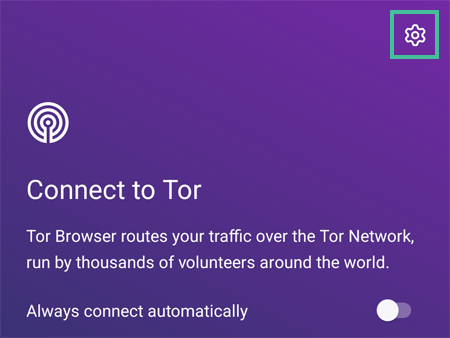
- Select the “Security Settings” option in the Settings menu.
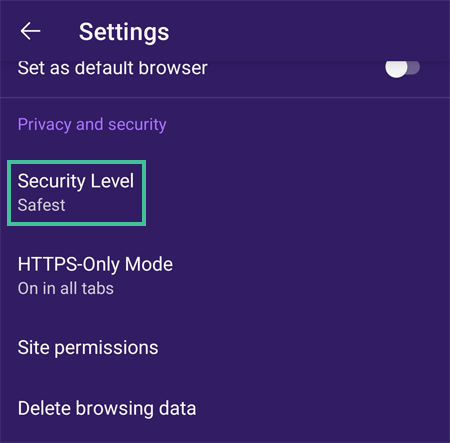
- Choose your preferred security level. The Safest option is ideal if you’ve not explored the dark web before.
Configure the security settings on the Onion Browser
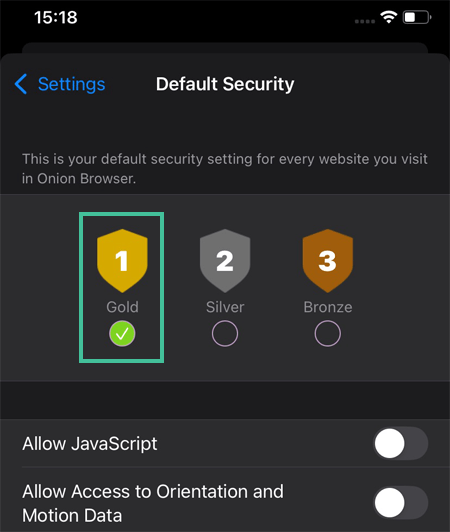
Like the Tor browser, the Onion Browser also offers three security levels: Gold, Silver, and Bronze. Bronze is the lowest security level and enables scripts and access to videos and your microphone by default. Silver disables access to your microphone and other features but allows Java script, while Gold limits all access and scripts.
Here’s how to change your security settings on the Onion Browser:
- Open the Onion Browser app.
- Click on the gear Settings icon at the bottom right-hand of the screen to open the Settings menu.
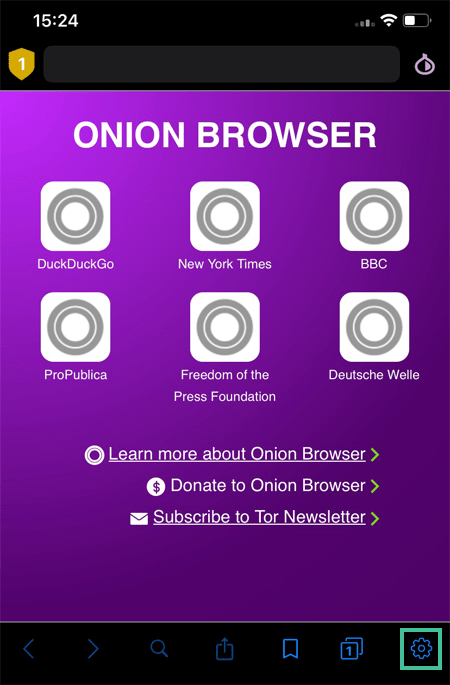
- Choose between the Bronze, Silver, and Gold levels of security from the subsequent menu.
Alternatives for the Tor Browser on iPhone
Since the official Tor app isn’t available on iOS, you will need an alternative to visit the dark web on iPhone. Unfortunately, not all Tor browsers in the App Store are trustworthy. They might contain malware or spyware.
I have tested several options. Based on my experience the Onion Browser and OrNet Browser are the best options.
Onion Browser
The Onion Browser is a secure option for visiting the dark web on iPhone. It’s interface is simple and your are able to connect quickly with the Tor network. Moreover, you can navigate directly from the home page to important dark web pages, such as the New York Times dark web mirror or the Freedom of Press Foundation.
In addition, the Onion Browser has an accessible settings menu which allows you to delete cookies automatically or change the security level.
In my opinion, the Onion Browser is the safest dark web browser for iPhone. The app is open source and was developed in cooperation with the Tor project. Another big advantage is that the app is free of charge.
OrNet Browser
The OrNet Browser is an excellent choice if you want to use the Tor network for your online security. This browser allows you to customize many security settings. For example, it lets you choose the location of the Tor end node.
Ornet blocks trackers and even has a built-in VPN to hide your location. However, access to all VPN locations and other extra security features isn’t free of charge.
Although OrNet has a free version, real cyber security people want to go for the paid version. This paid version has a lot to offer, but is far from cheap. You will pay around $70 a year for this browser.
Dark Web Sites to Visit on iPhone and Android
The dark web can be slightly difficult to navigate for new users. You can’t use Google to search for dark web domains and visit them. After all, the dark web isn’t part of the surface web but the hidden “deep web“.
Luckily, there are a few useful sites and search engines that can improve your dark web browsing experience. The best starting point is The Hidden Wiki, an index of dark web sites, like Wikipedia. You can find it using this URL: http://zqktlwiuavvvqqt4ybvgvi7tyo4hjl5xgfuvpdf6otjiycgwqbym2qad.onion/wiki/index.php/
Check out our full list of dark web sites worth visiting for more dark web links for Android, iPhone, and other devices. You could also use dark web search engines like Torch or DuckDuckGo to find interesting sites.
Important!
Please note that dark web URLs change regularly. When using the dark web, you should always take precautions such as using a VPN and antivirus program, as well as checking your local laws.
Dark Web on the Go: Wrapping Up
It’s very easy to access the dark web browser on your phone, whether you’re using Android or iOS. Just remember that the dark web is no safer on mobile than it is on any other device, so make sure to take all the necessary precautions, including using a VPN.
You can learn more about the dark web in the following articles:
- What is the Dark Web?
- How to Get on the Dark Web
- The Best VPNs for Accessing the Dark Web
- The Best Dark Web Websites Not Listed on Google
You’ll find answers to some of the most frequently asked questions about accessing the dark web on your mobile device below. If there are any questions you’d like answered, please leave them in the comments.
It’s possible to access the dark web on your iPhone. You need a specialized browser, like Onion browser, to access the dark web on iPhone. You could also use NordVPN’s Onion Over VPN and visit the dark web on any browser, like Safari.
There is no official Tor browser for iOS yet. However, you can still access the Tor network using alternate browsers, like OrNet or Onion Browser.
While there’s no official Tor iOS app, other apps, such as Onion browser, are free. These allow you to access the dark web and the Tor network.
Accessing the dark web on Android is fairly straightforward. All you need to do is download and install the Tor browser from the Play Store and connect to the Tor network. You can then access all onion links.
The Tor project has developed a native app for Android users. It can be found on the Play Store and allows you to access different onion links and explore the Tor network.