
Norton Antivirus removes the Yahoo search engine virus by scanning your system for browser hijackers, malicious extensions, and hidden programs that alter Chrome’s settings. It removes these threats and repairs any altered browser settings. Norton then shields your system from repeat infections, keeping your Chrome search engine from being changed again.

If you’ve noticed that Chrome’s search engine keeps changing to Yahoo, you’re likely dealing with a browser hijacker or an unwanted app altering your settings. This might happen through free software installers, aggressive extensions, or malicious programs that modify and force Chrome to redirect your searches.
To get rid of Yahoo search virus on Chrome, you need to check your extensions for anything unfamiliar or suspicious, reset your Chrome browser settings to default, and run a deep antivirus or anti-malware scan to clear out the source of the problem, including any potential threats. This guide will walk you through each step so you can restore Chrome and stop Yahoo from taking over again.
Why does Yahoo keep opening in Chrome
When Google Chrome keeps switching to Yahoo, it’s usually caused by malware, often in the form of a browser hijacker, that has taken control of your search settings. A browser hijacker modifies Chrome’s configuration and forces all your search requests to be redirected to Yahoo – regardless of your chosen default search engine.
This type of malware often enters your computer via bundled installers, unsafe downloads, fake update prompts, or extensions that, at first glance, look harmless but end up altering your browser in the background. Once installed, the hijacker then changes the Chrome browser’s search engine, homepage, and new-tab page. Afterwards, it locks these changes so Yahoo continues to appear every time you browse.
Some variants of this malware go further by adding system-level tasks or registry entries to reinstall themselves after removal attempts, which makes the redirect difficult to stop. The issue isn’t Yahoo itself – it’s the unwanted malicious software controlling your browser. Removing the hijacker, resetting Chrome, and scanning for malware are essential to stopping the redirect.
How to remove Yahoo search from Chrome: step-by-step instructions
If your Google Chrome’s search engine keeps changing to Yahoo, you’re likely dealing with a browser hijacker or malware, and it’s important to remove it quickly. This type of software can negatively affect your privacy by tracking your browsing activity, displaying unwanted ads, slowing down Chrome, and exposing your system to additional malware or phishing attempts. Essentially, it takes over your browser without permission and may collect sensitive browsing data for advertising or malicious use. But don’t worry – while annoying, you can fully remove the Yahoo hijacker from Chrome by following the steps below.
Step 1. Change the default search engine
When Chrome keeps switching to Yahoo, it usually means that a hijacker or an aggressive extension has set Yahoo as your default search engine. To get rid of Yahoo Search on Chrome, the first step is to manually change your default search engine back to a trusted option. Here’s how to do it:
- Open Google Chrome, click the three dots in the top-right corner, and head to Settings.

2. In the left menu, select “Search engine” tab and click on “Manage seach engines and site search”.

3. Find your preferred search engine in the list (like Google Chrome or Duck Duck Go), click the three dots, and select “Make default”.

4. After changing your default search engine, click the three dots next to Yahoo Search and select “Delete”.

Step 2. Remove extensions and programs powered by Yahoo
A browser hijacker can hide inside extensions or installed programs, which then force Yahoo to become your default search engine. These PUPs and unwanted add-ons are often the real reason Chrome keeps redirecting your searches. Getting rid of them is essential if you want to stop Yahoo redirects for good. Here’s how to do it:
How to remove suspicious extensions
- Open Google Chrome, click the three dots in the top-right corner, and select “Extensions” and “Manage extensions”.

2. Look through the list for anything you don’t recognize or didn’t intentionally install.
3. Toggle the switch next to the extension to disable it. This lets you test if Chrome stops redirecting without fully uninstalling it.
4. If the redirect stops, click “Remove” on that extension to uninstall it completely.

5. Repeat this process for any other unfamiliar or suspicious extensions.
How to remove unwanted programs
On Windows:
- Press Windows + R, type appwiz.cpl, and hit Enter to open the Programs and Features panel.

2. Look through the list for anything you don’t recognize, didn’t install, or that appeared around the time Chrome started redirecting.
3. Select the suspicious program, click “Uninstall”, and follow on-screen prompts to remove it completely.
4. Restart your computer to complete the removal.
On macOS:
- Open Finder and go to “Applications”.

2. Scroll through the list and look for unfamiliar apps.
3. Drag the suspicious app to the Trash.
4. Empty the Trash to delete it permanently.
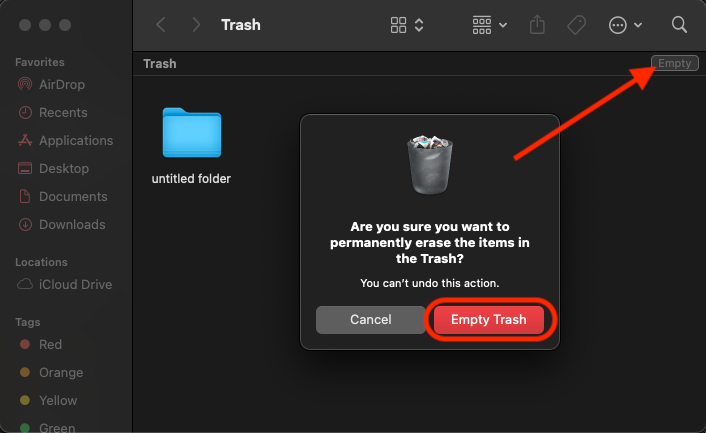
5. Restart your Mac to complete the removal.
Step 3. Use antivirus to remove the Yahoo Search Engine Virus on Chrome
If you can’t change your search engine settings or they instantly switch back to Yahoo, then you’re likely dealing with a browser hijacker virus rather than a simple Chrome issue. This type of malware embeds itself deep in your system and overrides your browser preferences. Using a reliable antivirus, like Norton Antivirus, to scan your entire system is the most effective way to find and remove the hidden files that are responsible for the Yahoo redirects. Here’s how to use antivirus to stop Yahoo from hijacking Chrome:
- Get a reliable antivirus from its official website. I recommend Norton Antivirus, now 60% off.
- Install and set it up on your computer.
- Launch the app and run a Full System Scan.

- Wait for the scan to complete and then remove or quarantine detected threats.
- Restart your device to clear remaining processes and ensure that the malware isn’t still running in memory.
Step 4. Reset Chrome settings
If you notice unfamiliar changes in your Chrome settings, the safest way to fix them is to reset the browser to its default configuration. Resetting Chrome returns all settings to the state they were in when you first installed it, ensuring that no unwanted modifications remain. This process disables all extensions and clears temporary data like cookies. Note that it will not remove your browsing history, saved passwords, or bookmarks. It’s a quick way to remove leftover traces of a hijacker and regain full control of Chrome.
- Open Google Chrome, press the three dots in the top-right corner, and go to Settings.
2. Head to the “Reset settings” tab on the left sidebar and choose “Restore settings to their original defaults”.

3. A confirmation window will appear explaining what will be reset. Click “Reset settings” to complete the process.

4. Restart Chrome and verify that your default search engine and homepage are back to normal.
Prevent the Yahoo search engine virus from returning to your browser
After changing your search engine in Chrome, the next step is ensuring that the Yahoo search engine virus doesn’t take over again. Since browser hijackers often install themselves via extensions, bundled apps, or leftover system files, preventing future redirects is as important as removing the current ones.
Here’s how you can prevent the Yahoo Search virus:
- Regularly check your Chrome extensions. Unwanted extensions are one of the most common ways Yahoo redirects return, so check and remove anything you don’t recognize.
- Avoid installing free software from unverified sites. Many browser hijackers hide inside bundled installers.
- Keep your antivirus or anti-malware software active and up to date. A reliable security tool, like Norton, can block suspicious downloads and prevent hijackers from modifying your search settings again.
- Clear Chrome’s cache and temporary data every now and then. It helps to remove any leftover scripts that may trigger potential redirects.
By taking these precautions, you’ll protect your browser from future Yahoo Search hijacks and keep your search engine settings stable and secure.
How dangerous is the Yahoo redirect virus?
If you’re dealing with the Yahoo redirect virus, it’s important to understand that it is dangerous. Not because Yahoo itself is harmful, but because the malware controlling your browser can put your device and personal information at risk. A browser hijacker works by tracking your browsing activity and collecting data like your IP address, general location, search history, and the websites you visit. This information is often sold to third-party advertisers that create detailed user profiles to target you with intrusive or misleading ads.
Meanwhile, more advanced hijackers go even further by attempting to access personal information that’s stored on your device. Such information can include login details, saved credentials, autofill entries, or any sensitive data that can be monetized or used for malicious purposes. Since these redirects generate constant ads and pop-ups, they can also expose you to malware-infected links that attempt to trick you into downloading unwanted software.
The most dangerous part of this virus is its persistence. Even if you manually restore your preferred search engine, the hijacker often changes it back, preventing you from regaining control of your browser. Left unchecked, it can introduce additional malware that causes more severe system issues. This is why removing the Yahoo redirect virus immediately is very important.
Summary
Chrome usually keeps switching to Yahoo because of a browser hijacker or malware infection that is overriding your browser settings. The Yahoo search engine virus forces Chrome to redirect your queries, collects your browsing data, and may reinstall itself whenever you try to remove it. Therefore, getting rid of it requires a full cleanup: removing unwanted extensions and programs, restoring your default search engine, scanning your entire system with an antivirus, and resetting Chrome to its defaults if the changes keep returning.
Once your settings are restored, prevention becomes just as important. Keeping a reputable antivirus tool like Norton running in the background helps block malicious installers, unsafe extensions, and PUPs that try to modify your browser settings again. With proper cleanup and ongoing protection, you can stop the Yahoo redirects for good and keep Chrome working the way it should.
More malware removal guides from VPNoverview:
- How to Get Rid of Fake McAfee Virus Pop-Ups
- How to stop Bing from taking over Google
- How to Remove Adware From Your Device
- Tips on How to Prevent and Remove Ransomware
- How to Protect Your Devices from Spyware
- How to Protect Your Devices from Trojans
- Tips on How to Prevent and Remove FluBot Malware
FAQ
If Chrome keeps switching to Yahoo, a browser hijacker or malicious extension is likely controlling your search settings. This malware forces Chrome to redirect your searches, installs extensions without permission, and resets your default search engine every time you try to fix it.
Yes, you can remove a browser hijacker. Start by deleting suspicious extensions, uninstalling unwanted programs, and resetting your browser settings. Running a full system scan with a reliable antivirus like Norton helps detect and remove the hidden malware that’s causing the redirects.
The most effective tool for deleting browser hijackers is a reputable antivirus or anti-malware program. A security tool like Norton antivirus can scan your entire system, detect hidden hijacker files, remove malicious extensions, and stop the redirect from reinstalling itself.
You can permanently delete Yahoo from Chrome by changing your default search engine, removing Yahoo from the search engine list, deleting suspicious extensions or apps, and resetting Chrome if needed. If Yahoo keeps appearing, use Norton to scan your system and eliminate the malware that’s behind the forced switch.




Omg this yahoo thingy that was bothering was fixed!! i am so happy to know and learn that i had a virus all along and that you helped me and many more people with the same problem too! thankyou for helping me cause it did really help me get my laptop fixed! thankyou again!!!