VPNs are crucial for the safety of streamers and gamers. They protect you and your internet connection from DDoS attacks, ISP throttling, and more. If you’re worried about doxing, a PS5 VPN is the best way to hide your IP address and remain anonymous.
We’ve tested dozens of VPNs to find the fastest choice for PlayStation gamers. Whether you’re playing Fortnite, Apex Legends, GTA V, or anything else, you want a virtual private network that doesn’t slow you down. But VPNs are notoriously hard to install on consoles. So, which one do you pick, and how do you get it to work with your PS5?
The Best VPN for PS5 – A Short Overview
I shortlisted five VPNs that not only work with a PS5 but that also offer the highest standard of protection, plus top-notch speeds, affordable plans, and other features.
To select the best VPNs for PS5, I’ve used the following criteria:
- Connection speed and ping for uninterrupted gaming
- Ease of installation, including installation on routers
- Server network for unblocking possibilities and high speeds
- Security features to protect gamers from DDoS-attacks
- Smart DNS service, to help you avoid geo-restrictions
- Gaming features, such as dedicated gaming servers
- Price and service, such as a live chat with knowledgeable employees
Quick guide: how to use a VPN on PS5
It isn’t possible to download a VPN app on your PS5. If you want to be protected while gaming, you will need a workaround. With my quick guide you can use VPN on PS5 in no time:
- Get a subscription for a solid VPN. I recommend NordVPN as the best VPN for PlayStation.
- To use a VPN on PS5, you can use one of these options:
- Use your laptop (or another device) as a virtual router. The VPN should be installed on the device you want to use as a mobile hotspot. This is fairly easy and doesn’t require any technical knowledge.
- Use Smart DNS. You will need a VPN that supports Smart DNS to set this up. This is also fairly easy, but slightly riskier since Smart DNS doesn’t encrypt your data.
- Install a VPN on your router. This is the most difficult option and requires technical knowledge.
- Connect to a VPN server. I recommend using the server most nearby for the best connection speed. (This step isn’t needed when you use Smart DNS.)
- Now you are ready to play!
I will explain each of these options more extensively in our guide on how to install a VPN on PS5.

The Best VPN for PS5 – Detailed List
Each one of the VPNs I selected has different tools and perks. Some are easier to set up on routers. Others have dedicated gaming servers. I’ll delve deeper into each of them, and why they’re excellent VPNs for PS5.
1. NordVPN: Best VPN for PlayStation 5

NordVPN is the best PlayStation VPN, thanks to its speed alone. I tested this VPN’s different network with a base internet connection of 180 MBps. On all nearby servers, I only saw a speed decrease of 5 to 10 MBps. That makes NordVPN a wonderful choice if you want a lag-free experience with a VPN on PS.
NordVPN also employs military-grade encryption protocols. When you set up a NordVPN PS5 connection, you’re protected from threats like DDoS attacks. NordVPN’s Threat Protection Pro even keeps you safe from trackers and malware.
A NordVPN subscription comes with NordVPN SmartPlay. In your NordVPN account you can easily allowlist your IP address and activate SmartDNS. If you get bored of Warzone or Apex Legends, you can use SmartDNS to unblock geo-restricted content from streaming services with your PS5.
NordVPN can be installed on Windows, MacOS, Linux, Android, iOS and compatible routers. The provider allows up to 10 simultaneous connections per subscription. This means you can not only protect your PlayStation, but also any other device in your home.
Pros
- Lightning-fast servers for uninterrupted gaming
- High-grade security to protect you from malware and DDoS-attacks
- SmartDNS for streaming with your PS5 available
- Can be installed on routers
- 10 simultaneous connections
Cons
- Sign in goes through the browser, this isn't privacy-friendly
You can try NordVPN risk-free with the 30-day money-back guarantee. If you want to know more first, check out our NordVPN review.
2. ExpressVPN: Best VPN for PS5 to install on your router

ExpressVPN is not as fast as NordVPN, but the difference is very small. I still got up to 95% of my original speed after connecting to nearby servers. The ping was negligible, too, around 7 ms. You do lose more when connecting to faraway ExpressVPN locations. But in all cases, you will enjoy lag-free gaming.
ExpressVPN has another ace up its sleeve: a dedicated firmware that makes it very easy to install and use on routers. No other top-rated VPN has this feature. If you don’t want to install a VPN on your router by yourself, ExpressVPN also offers a range of Wi-Fi 6 routers with built-in VPN. These Aircove-routers are very handy for the less tech-savvy gamers!
Like NordVPN, ExpressVPN has plenty of extra security and streaming features. You’re always safe from DDoS attacks, malware infections, or leaks. Thanks to ExpressVPN’s military-grade encryption protocols, you won’t have to worry about your safety while gaming on the PlayStation.
ExpressVPN has their own Smart DNS service: MediaStreamer. This is a perfect solution to quickly stream geo-blocked content without a VPN connection. Don’t expect all of this to come cheap. ExpressVPN will set you back $ 2.99 per month when you pay for an annual subscription.
Pros
- Fast internet connection speed for lag-free gaming
- Quickest and easiest set-up on routers
- Sells a router with built-in VPN (Aircove)
- Offers Smart DNS for streaming
- Powerful protection against DDoS attacks, malware, or leaks
Cons
- Short 3-day free trial on mobile

ExpressVPN also gives new subscribers a 30-day money-back guarantee. For more details on its features and performance, read our ExpressVPN review.
3. CyberGhost: Best PS5 VPN with dedicated gaming routers

CyberGhost is not the fastest VPN. It’s also not easy to install on a Wi-Fi router. But it has something else going for it: dedicated gaming servers. With CyberGhost, you can connect to servers that have been optimized for online play. No other top PS5 VPN has this feature.
The connection speed is decent. Sure, it’s not as fast as NordVPN, but it’s still fast enough to ensure a lag-free experience. When I tested CyberGhost, I only got 7 ms of ping on servers nearby. You won’t have to worry about lagging while playing Call of Duty: Warzone, Apex Legends, Fortnite, GTA Online, or whatever you enjoy playing on your PlayStation.
Not to mention, CyberGhost has advanced security features. You’re always protected from IP leaks, DDoS attacks, and even malware. And if you ever grow tired of the PSN library of games, you can use CyberGhost’s Smart DNS for quick and easy media streaming of content from the US or the UK.
Pros
- Dedicated gaming servers
- Decent speeds for lag-free gaming
- Offers Smart DNS for easy streaming of content from the US or the UK
- Advanced security features
- Longest money-back guarantee: 45 days
Cons
- Isn't easy to install on a router

To find out more about CyberGhost, read our CyberGhost review. CyberGhost offers a 45-day money-back-guarantee and is very affordable.
4. Surfshark: Affordable VPN for PS5

If you want to save money on your PS5 VPN, Surfshark’s the best choice. It often runs great offers and discounts. During our speed tests, Surfshark could retain up to 96% of the original connection speed. With that speed, you can easily play competitive shooters like Warzone or Fortnite without lag.
Surfshark can be installed on a router. You can find manuals on Surfshark’s website with step-by-step-guidance to install to VPN on compatible routers. The provider also supports Smart DNS. You can use Surfshark’s Smart DNS to stream Netflix, HBO Max, or Hulu on your PS5 with a US IP-address.
Surfshark’s security protocols will shield you from DDoS attacks or IP leaks. Moreover, Surfshark can be used on an unlimited number of simultaneous connections. As a result, this VPN is the perfect choice to protect all devices in your home for a reasonable price.
Pros
- Good VPN connection speed, so you won't lag while playing
- Compatible with Smart DNS for streaming with an US IP address
- Can be installed on a router
- Great protection against DDoS attacks
- Unlimited simultaneous connections
Cons
- A bit slower than leading service NordVPN

If you want to learn more, check out our Surfshark review. If you want to try Surfshark immediately, you can use the 30-day money-back guarantee.
5. Private Internet Access: Secure VPN for PS5

Private Internet Access is not everyone’s first pick for gaming. It just doesn’t have the top speeds of other VPNs. I tested it on multiple servers, and all of them only got about 75% of the speed with VPN. If your internet connection is weak by default, pick a different VPN.
If you have a high internet connection speed by default (over 100 MBps), then PIA can work. And it will be worth it for PIA’s robust security infrastructure. This is ideal if you’re playing any games online with your PS5. It will hide your IP and protect you from DDoS attacks.
PIA can be installed on many devices, including VPN routers. Private Internet Access also supports Smart DNS which is easy to set up in your online PIA-account. You can choose between Germany, the US, the UK, the Netherlands and Japan as Smart DNS-location. This is the most elaborate choice of locations I’ve seen.
Pros
- Robust security infrastructure
- Protection against DDoS-attacks
- Affordable and easy to use
- Can be installed on routers
- Supports Smart DNS for 5 countries
Cons
- Doesn't support IKEv2 which is needed for internet sharing on a Mac

For more info, read our PIA review. You can try PIA 30 days risk-free.

How I Picked the Best VPNs for PS5
Picking a PS5 VPN isn’t easy. You need an app that’s fast enough to avoid lagging. You also need something you can use with your console and that can protect you from online threats like DDoS attacks. And ideally, you shouldn’t have to spend a fortune on it.
So these are our criteria for the best PS5 VPN:
- Internet connection speed: My VPN speed test results were the most crucial aspect when creating this list. I wanted VPNs that didn’t stop people from playing games online. With a decent internet connection, all of the VPNs above should work without interfering with your internet performance.
- Ease of installation: Unfortunately, PlayStations don’t support VPN apps directly. You’ll need a workaround to use a VPN with your gaming console. Installing the VPN on your router or sharing a computer’s internet connection are both popular options. If a VPN makes any of this easier, I rated it higher.
- Server network: Even if a VPN performed well in my tests, it may work worse for you. If the service doesn’t have any nearby servers, you will get a higher ping. I prefer VPNs with a large server network, since they offer a nearby server location for everyone and are great for unblocking.
- Security features: DDoS attacks, IP leaks, and doxing are all real threats when playing on your PS5. This is especially true if you’re a streamer. That’s why I chose VPN services that help you avoid cyber threats.
- Smart DNS: If you want to be able to stream geo-restricted on your PS5, a Smart DNS service might be the right choice for you. I have chosen VPNs that also offer a Smart DNS service.
- Dedicated gaming features: Some VPNs have gaming servers or other add-ons that console users will enjoy. That was important when testing and selecting tools for this list.
- Pricing and service: Speed and extra features are all important. But they don’t mean anything if you have to spend a fortune.
Comparison Between VPNs for PS5
Let’s sum up the features of the best PS5 VPNs, so you can compare my recommendations:
| Editor’s Pick | |||||
| VPN |  |  |  |  |  |
| Servers | 9000+ | Unspecified | 5000+ | 3000-5000 | Thousands |
| Protocols | OpenVPN, IKEv2, WireGuard, NordLynx | OpenVPN, IKEv2, Lightway | OpenVPN, IKEv2, WireGuard | OpenVPN, IKEv2, WireGuard | OpenVPN, WireGuard, L2TP/IPsec |
| Compatibilities |        | | | | |
| Operating systems | Windows, Mac, iOS, Android, Linux | Windows, Mac, iOS, Android, Linux | Windows, Mac, iOS, Android, Linux | Windows, Mac, iOS, Android, Linux | Windows, Mac, iOS, Android, Linux |
| Money-back guarantee | Money-back guarantee, 30 Days | Money-back guarantee, 30 Days | Money-back guarantee, 45 Days | Money-back guarantee, 30 Days | Money-back guarantee, 30 Days |
| Price | $ 3.49 | $ 2.99 | $ 1.99 | $ 2.49 | $ 1.89 |
| Visit NordVPN | Visit ExpressVPN | Visit CyberGhost | Visit Surfshark | Visit Private Internet Access (PIA) |
How to Install a VPN on PS5
PlayStation consoles don’t have support for VPN apps. You can’t just go to the PlayStation store and download NordVPN or Surfshark. The good news is you can still use these apps when gaming on your console. You’ll just need to find workarounds — like installing the VPN straight on your router.
So, let’s cover the three connection methods you can use to get a VPN on your PS console.
Method 1: Set Up a VPN with a Virtual Router
A simple way to connect your console to the internet via a VPN is internet sharing from a macOS or PC. With this method, you turn your computer or laptop into a virtual router. It is fairly easy and only requires an ethernet or LAN cable.
I’ll explain this method for Mac and Windows.
How to share a VPN connection from your Mac
Here’s what you have to do to turn your MacOS device into a proxy server and share your internet connection with other network users:
- Download and install a Mac VPN. Here’s a quick guide to installing a VPN on Mac.
- Connect to the internet via LAN cable (otherwise known as ethernet cable).
- Connect to the VPN service once you’ve established an ethernet connection. Make sure you use an IPSec protocol such as IKEv2.
- Open System Preferences, then click on “Sharing.”

- Select “Internet sharing” in the Sharing menu. When you have done that, the sharing option will appear on the right.
- Click on the dropdown button next to “Share your connection from.” Choose ethernet if you plugged the cable straight in. If you used an adapter, choose USB. Choose “Wi-Fi” under the menu option “To computers using.”

- Click on “Wi-Fi Options“.
- Set up your connection on the screen that pops up. Just choose a name and a password. Don’t skip setting up a password. You don’t want other network users using your connection without your permission! Select “OK” when you are done.

- Finally, check the box next to ‘Internet Sharing” to start sharing your internet.
- Connect your PS5 to the network you just created.
This basically makes your Mac act like a proxy server for your PS5. If you want a detailed breakdown, read our full macOS router guide.
How to share a VPN connection with Windows 11
You can use a Windows PC to do the same thing — turn it into a virtual router. It’s even faster than with a macOS device.
Here’s what you have to do to share your computer’s internet connection:
- Connect to the internet via a LAN cable.
- Download and install your favorite PS5 VPN.
- Connect to a VPN server of your choice. Make sure you use the OpenVPN-protocol.
- Open Command Prompt. You can do this quickly by typing “cmd” in the search bar.
- Copy this line: netsh wlan set hostednetwork mode=allow ssid=XXXXX key=YYYY
- Change the “XXXXX” to the desired network name, and the YYYY to a password.
- Enter the command into Command Prompt. Your new connection is now set up.
- Start the virtual router by typing “netsh wlan start hostednetwork” and pressing enter.
- Connect your PS5 to the new network.
Here is an example of how the command prompt will look like:

Don’t let the weird strings of words scare you. You just have to copy and paste them into a command line. It should all take less than three minutes. If you need any extra guidance, check out our article on how to turn your Windows PC into a virtual router.
2. Set up Smart DNS on your PS5
If you want to use a VPN primarily to change your location, there is another solution. Some VPNs support Smart DNS. Although this doesn’t encrypt your data and doesn’t allow you to change locations quickly, it is fairly easy to set up and might be sufficient depending on your reasons for using a VPN.
Especially for those who want to stream American content on their PS5, Smart DNS is the solution. Here’s what you’ve got to do to set it up:
- Subscribe to a VPN that supports Smart DNS, such as ExpressVPN.
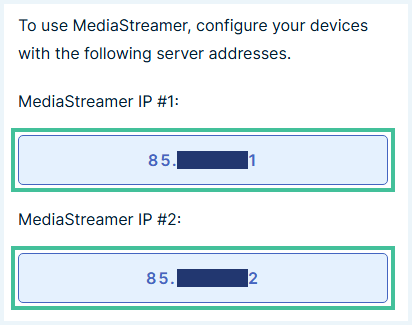
- Get your own Smart DNS address. Visit the website of your VPN provider and log in to your account. Find the DNS settings and register your IP address. Below, you will see how this look like in my ExpressVPN account.

- Now you will get your own Smart DNS IP address. ExpressVPN calls this your MediaStreamer IP. You need this IP to configure your PS5.
- Go to the settings of your PS5 and select ‘Network‘.
- Select ‘Settings‘ in the left menu and choose the option ‘Set Up Internet Connection‘.
- Select the network you PS5 is connected to and click on ‘Advanced Settings‘.
- Select the following options in the next screen:
- IP Address Settings: Select ‘Automatic’
- DHCP Host: Select ‘Don’t Specify’
- DNS Settings: Select ‘Manual’
- Primary DNS: Enter your Smart DNS address
- Secondary DNS: Leave as it is
- Proxy Server: Select ‘Don’t Use’
- MTU Settings: Select ‘Automatic’.
- Select ‘OK‘. You are now ready to start using your MediaStreamer IP.
Make sure you enter the DNS IP address. Changing your primary DNS might mess up your internet connection if you got it wrong. If you need more help, check out our article about changing your DNS-server.
3. How to install the PS5 VPN on your Wi-Fi router
Installing a VPN straight to your router will have the least impact on connection speed. If you intend to stream your playthroughs, you’ll have to use this method. Moreover, this solution is permanent and immediately protects all other devices connected to your VPN router.
But it’s pretty complicated and might mess up your internet connection if you do it wrong. I only recommend this option for the tech-savvy gamers. If you want an easier solution, you could buy a preflashed router. For example, ExpressVPN’s Aircove is a router with a built-in VPN.
To install the PS5 VPN on your router, you’ll have to:
- First, ensure that your router’s firmware supports VPN usage. If that’s the case, you can go ahead to step 3.
- If the firmware does not support VPN usage, you need to replace the firmware with DD-WRT firmware. Download DD-WRT and flash DD-WRT via Web-GUI. This means going to your router interface, installing DD-WRT, and then restarting the router.
- Go to your Wi-Fi router settings.
- Open “Services,” then look for the “VPN” category.

- Fill in the details of your chosen VPN service.
- Click on “Apply Settings.” You should now be connected via the VPN server of your choice. If your PS5 is connected through this router, you’re getting all the benefits of using a VPN on your console!
It’s a tough process. If you want a more detailed guide, read our full article on how to install a VPN on your router.
Free VPNs for PlayStation
Most Free VPNs have all kinds of disadvantages. Some are not trustworthy and might even install malware on your device. If you want to go for a free VPN service, I recommend choosing a freemium version of a premium VPN to stay safe.
Trustworthy free VPNs still have disadvantages such as speed caps and data limits. That can be really annoying if you are gaming. If you insist on using a free VPN, I recommend Proton VPN. Proton VPN doesn’t limit your bandwidth and has router support.
Proton VPN: Best Free VPN for PS5

Proton VPN is a strict no-log VPN based in Switzerland. The provider uses military-grade encryption and secure protocols such as OpenVPN and WireGuard. Proton’s software is open source, which ensures the software is as safe as Proton claims it to be.
Proton VPN allows you to stream or play video games without data limits. It is one of the few trustworthy free VPNs that doesn’t limit the amount of GB you can use. That makes Proton VPN an excellent choice if you’re looking for a free VPN for PS5. Proton VPN can also be installed on routers.
There are however some other disadvantages. Proton VPN Free doesn’t allow you to switch server locations. If you want to avoid geo-restrictions, you need to upgrade to Proton VPN Premium which offers 20700 servers in 149 countries. Proton VPN Premium’s connections are faster since fewer people will use the same servers.
Pros
- Strict no-log VPN
- Offers secure connections to keep you safe
- No data limits, allows uninterrupted gaming
- Can be installed on a router
Cons
- Slower than Proton VPN premium
- Doesn't support Smart DNS
- Automatically connects to a nearby server
- Can't be used to avoid geo-restrictions

Conclusion: The Best VPN for PlayStation
Finding the best VPN for PlayStation is a balancing act. You want good internet connection speeds, easy installation, and a large enough server network. But you don’t want to spend a fortune on a virtual private network. How else are you going to buy all the games you want to play?
NordVPN fits the mold perfectly. It’s not the easiest VPN to install on a router, and it’s not the cheapest option either. But it is the fastest, which is what truly matters for an avid gamer. It ticks all the other boxes without a hitch, too. Moreover, it offers some great discounts for new subscribers.
If you want more tips on how to make the most out of your entertainment devices, check out these articles:
- Best Free VPNs for Twitch
- Best VPN for a Smart TV
- Best VPN for Roku
- Best VPNs For Warzone
- Best VPN for Minecraft
- Best VPNs for Xbox: Level up Your Console
Installing and using a PS5 VPN is complicated. If anything’s unclear after reading our article, check out this FAQ section.
PS5 doesn’t support VPN apps directly. So you can’t just download them from the PlayStation Store. However, you can install a VPN on your router or use another device as a virtual router. In this way you can hide your IP address while gaming on a PS console.
You can’t use NordVPN directly on a PS5. However, you can install NordVPN on your router, and secure your connection like that. If you install a VPN on your router, your connection is secure whether you use a PS5, laptop, or any other device.
If you don’t want to use a computer or another device as a virtual router, you have to install a VPN on your wi-fi router. In this way, all devices connected to it will be protected, including your PS5.
If your PS5 is connected to a (virtual) router with a VPN, you have to change the VPN server you’re connected to. The server location chosen will influence the IP address of your PlayStation. Alternatively, you can also use Smart DNS.
My favorite VPN for PS5 is NordVPN. This VPN can be installed on your router and supports Smart DNS. Moreover, NordVPN has excellent speed to game lag-free. NordVPN only costs $ 3.49 a month.