Fake McAfee pop-ups are a common tactic used by scammers known as “scareware.” They use a fake McAfee logo and alarming warnings to trick you into clicking links. However, to stop these alerts, you need to clear your browser’s notification settings, remove suspicious extensions, and run a scan with the Norton antivirus tool to ensure your system is clean.
Have you ever received a pop-up with the McAfee logo claiming your device is infected or that your protection has expired? Be careful, this warning may be fake. Scammers often use these pop-ups to scare users into clicking the link, hoping they will enter credit card details or share personal and confidential information. If you follow these, this can lead to identity theft or financial loss. To learn how to identify and remove these annoying pop-ups, keep reading.
Norton Antivirus: the best tool for removing McAfee scam pop-ups because it quickly detects fake alerts, scareware, and hidden adware. It scans your device in real time, blocks fake notification requests before they reach your screen, and protects your personal data.

What is the McAfee pop-ups virus?
The McAfee pop-up virus is a fake security warning that tricks you into thinking your computer is under threat. It usually shows the familiar McAfee logo and claims your device is infected or that your protection has expired. However, its real goal is to manipulate you into acting quickly out of fear, such as clicking a button, downloading malicious files, or entering sensitive personal information.

If you accidentally click the “Get Protection” or “Renew Now” button, you’re taken to a scammer-controlled subscription page. On this page, the scammers will ask for your personal and financial information, including your full name, home address, and credit card details. Once scammers have this data, they may use it to make unauthorized purchases or commit identity theft, such as opening fraudulent accounts in your name. Similarly, your private information may be sold or leaked on the dark web, leaving you permanently vulnerable to future cyberattacks and data breaches.
How to identify a fake McAfee pop-up?
Watch for urgent language, spelling mistakes, requests to call a phone number, or demands for quick payment to spot fake McAfee pop-ups. Real McAfee alerts only come from the antivirus app you installed, not your web browser. If you are not sure, open the McAfee app yourself to check your security status and do not click any links or call numbers in suspicious pop-ups. However, here are the common “red flags” that signal a McAfee pop-up is a scam:
- Browser-based. Fake McAfee alerts appear as notifications in your web browser (such as Chrome, Edge, or Safari), whereas real warnings come directly from the application icon on your desktop or system tray.
- Urgency and fear. Scammers use high-pressure tactics, such as countdown timers or alarming phrases like “Your computer is at risk!” and “Immediate action required!” to rush you into clicking before you have a chance to think.
- Requests to call/remote access. Genuine antivirus software will never ask for remote access to your device or insist that you call a phone number for “technical support.”
- Poor quality. McAfee fake virus alert may contain poor grammar, spelling mistakes, low-quality graphics, or pixelated logos.
- Unusual URL links. The web address in the browser bar will look slightly off or completely unrelated to McAfee (mcafee.com).
Nonetheless, it’s important to know where the fake McAfee virus pop-up comes from. This type of scareware can reach your device in different ways, such as through free software that installs unwanted programs, malicious websites, spam emails, or tricky pop-up ads you might click by mistake. Overall, understanding how it got there can help you avoid similar problems later, but the main thing now is learning how to remove it safely.
How to remove fake McAfee pop-ups?
Fake McAfee pop-ups are tricks from bad websites, spam emails, or unwanted programs that try to get you to download dangerous software or pay for things you do not need. To remove McAfee pop-up scam, clean your browser, delete any suspicious add-ons or apps, block push notifications, and scan your device with a trusted antivirus program, such as Norton. Here are the steps to follow how to remove fake McAfee pop-ups:
Step 1. Clear your browser data and reset settings
Fake McAfee pop-ups often rely on stored cookies, cached data, or changed browser settings to keep showing up. Clearing and resetting your browser removes these traces and stops repeated alerts. Here’s how to do it:
- Open your browser settings (Chrome, Edge, etc.).
- Go to Privacy and security.
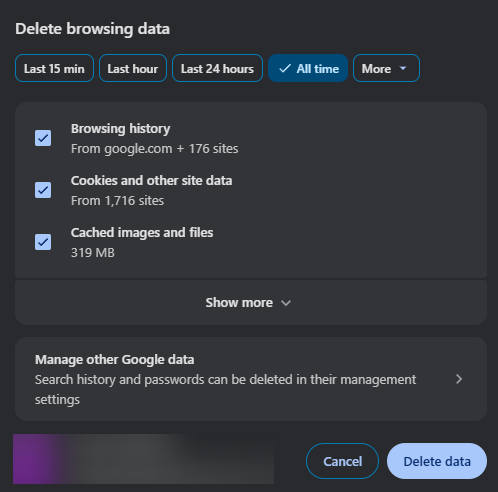
- Select Delete browsing data.
- Check Cookies, Cached images/files, and Site data, choose All time, and press Delete data.
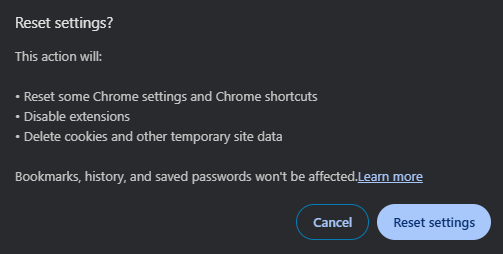
- Then, in the menu, select Reset settings.

- Select Restore the browser to its default settings.
On your Mac: Open Safari, go to History > Clear History, and select All History. You can also go to Safari > Settings > Privacy > Manage Website Data and click Remove All.
On your iPhone/iPad: Go to Settings > Apps > Safari, tap Clear History and Website Data. Select a timeframe (e.g., All History), toggle Close All Tabs to on, and confirm it with Clear History.
Step 2. Remove suspicious extensions and apps
Sometimes, these fake McAfee alerts are powered by sneaky “hijacker” extensions or apps hiding on your device. By deleting these suspicious programs, you’re cutting off the problem at the source and physically removing the tools scammers use to spam your screen. Follow these steps to remove suspicious extensions:
- In your browser, go to Settings and press Extensions (or type chrome://extensions).
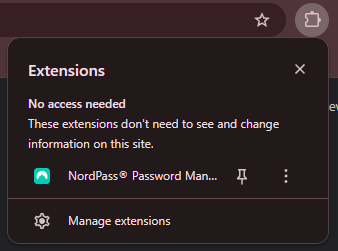
- Look for anything you didn’t personally install and click Remove.
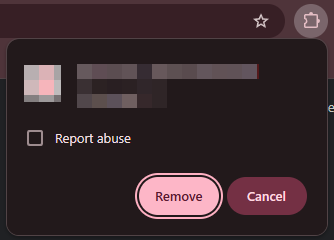
For Apps (Windows): Open the Start menu, go to Settings > Apps > Installed apps. If you find any software you don’t recognize or that was installed right before the pop-ups started, click the three dots and select Uninstall.
For Apps (Mac): Open Finder, click Applications, and drag any suspicious apps to the Trash.
Step 3. Block push notifications
This is the most common way fake alerts appear. By blocking these notifications, you are revoking the “backstage pass” you might have accidentally given a website to send messages directly to your desktop. Here’s how to stop it:
- Open your browser Settings and press Privacy and Security.
- Select Site Settings.
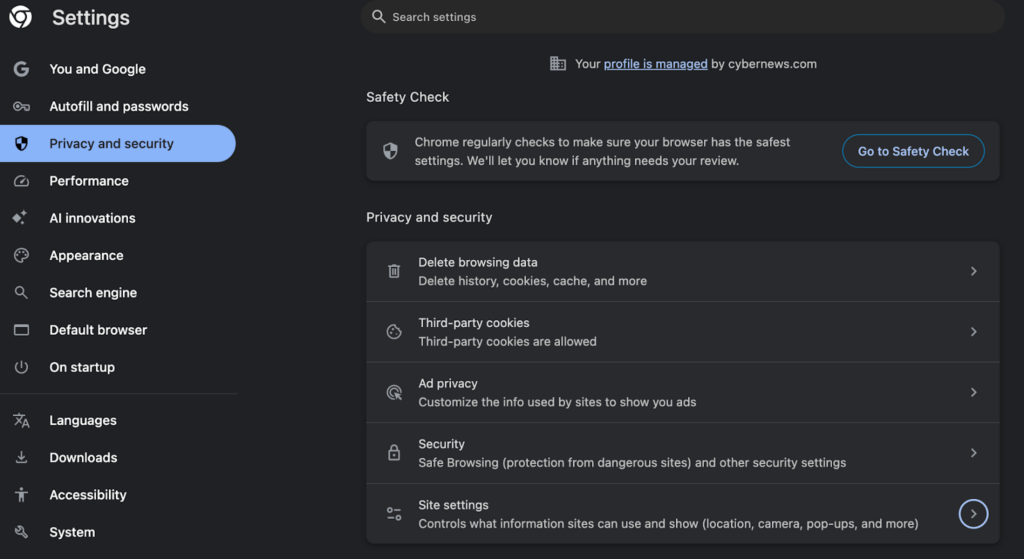
- Go to View permissions and data stored across sites. If you see any weird website URLs (like security-check.xyz), click on the bin.
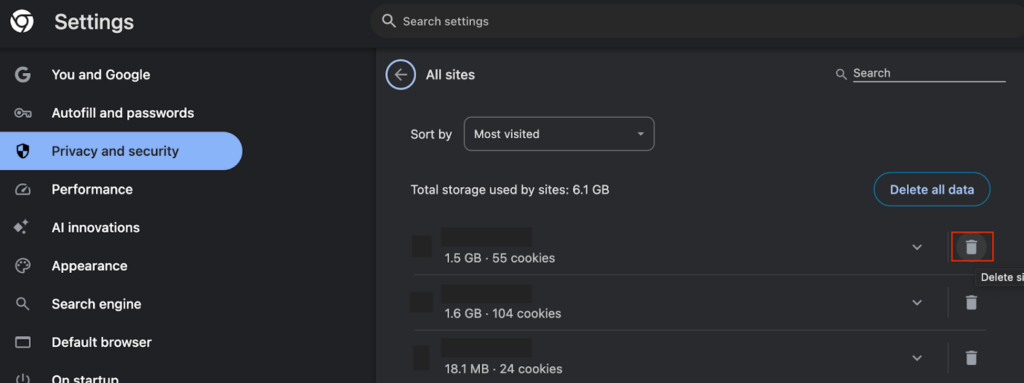
- Once you delete all suspicious apps, go back to Site Settings and scroll down to Notifications.
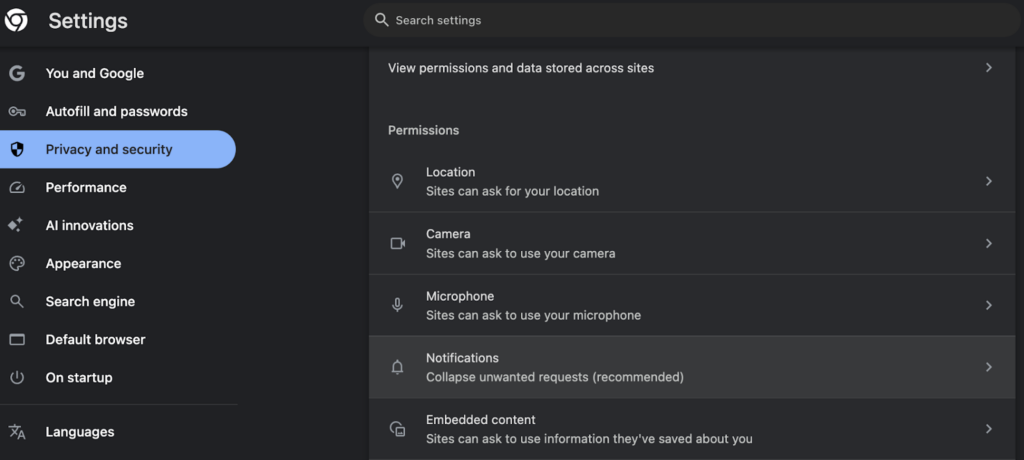
- Under Default behavior, toggle the setting to Don’t allow sites to send notifications.

Step 4. Run an antivirus scan
Even after manual cleaning, tiny pieces of malicious code could still be hiding in your system folders. Running a full scan helps get rid of fake McAfee pop-ups for good. That’s why I recommend Norton antivirus because it features built-in, real-time protection specifically designed to stop these scams before they even reach your screen. In addition, Norton uses AI-powered protection to distinguish between real security alerts and “scareware” scripts, blocking all McAfee pop-ups. Here’s how to run a Norton antivirus scan:
- Open your Norton app and click on Security.
- Select Scans and then Full System Scan.

- Let the scan finish and follow the prompts to Remove or Quarantine any found threats.
Reasons your device shows fake McAfee virus alerts
Fake McAfee virus alerts are a common form of scareware designed to trick you into buying unnecessary software or giving away sensitive data. They are triggered by things like shady websites, misleading ads, browser notifications you accidentally allowed, or unwanted apps or extensions on your device. These outside sources exploit your browser or device settings to display alerts that appear to be system warnings but are actually scams. Here are the primary reasons these fake McAfee alerts find you:
- Abused browser notifications. This is the most common cause. If you ever clicked “Allow” on a notification prompt or a “verify you are not a robot” box. This gives that site a “backstage pass” to send messages directly to your desktop or phone at any time, even when your browser is closed.
- Malicious websites or redirects. Visiting untrustworthy sites, such as illegal streaming pages, torrent sites, or some adult content, can trigger a McAfee pop-up virus or other scareware pop-ups. These pages often show fake infection warnings to pressure you into reacting quickly.
- Adware and PUAs. Potentially Unwanted Applications (PUA) or adware can be installed without you noticing, often bundled with “free” software downloads. These programs run in the background and generate constant streams of fake alerts to promote affiliate scams.
- Malicious browser extensions. Unverified or sketchy browser extensions can hijack your browsing session and display intrusive, fake McAfee security warnings.
- Affiliate scams. Scammers abuse legitimate affiliate programs by creating fake ads. Their goal is to scare you into “renewing” your McAfee subscription via their unique referral link to earn a commission on your payment.
If you accidentally clicked a link or shared information with a McAfee pop-up scam, immediately change all your passwords, especially your email and banking, check your accounts for any suspicious activity, and run a full malware scan with a trusted antivirus. Moreover, remove any unknown apps or browser extensions and report the scam to McAfee and the relevant authorities. However, if you shared financial details, monitor your credit closely and stay sharp to avoid similar traps in the future.
How to prevent McAfee pop-up scams in the future?
To prevent McAfee pop-up scams, focus on building safe browsing habits. Following a few simple steps can help you avoid fake virus alerts in the future.
- Only download legitimate software. Always download apps and programs from official websites or trusted app stores, such as Google Play Store or Apple App Store. Free software versions from random sites often include hidden adware that triggers fake McAfee warnings.
- Stay away from suspicious websites. Websites with pirated movies, cracked software, or illegal streams often spread scareware. Visiting these sites even once can cause pop-ups to appear on other websites you visit.
- Close pop-ups carefully. If you see a suspicious alert, avoid clicking “OK,” “Cancel,” or the “Close” button inside the ad, since these might be fake. Look for the small X in the top corner, or use a keyboard shortcut like Ctrl + W (Windows) or Command + W (Mac) to close the tab safely.
- Clear cookies and cache regularly. Scammers can use tracking cookies to remember your device and keep sending you targeted scareware ads. Clearing your browser’s cache and cookies every few weeks helps protect your privacy by removing the data these sites use to track you.
- Use a reliable antivirus. A reliable antivirus blocks malicious sites in real-time and alerts you if a website is trying to hijack your browser notifications. Make sure that the antivirus is up to date.
- Use an ad blocker. A trustworthy ad blocker can stop harmful ads from loading. Many premium VPNs also have Threat Protection features that block scam websites and malicious pop-ups, so you never see these scareware attempts.

Final thoughts
The McAfee pop-ups virus is a fake alert designed to scare you into clicking links, downloading malicious files, or giving away personal and financial information. These fake alerts manipulate your browser’s notification system to mimic official security warnings, making you think there is a huge problem with your device, but in reality, it’s not that serious.
To remove it, avoid clicking on the pop-ups, clear your cookies and cache, delete suspicious extensions, and run a full scan with a reliable antivirus. In this case, I recommend Norton Antivirus, as it offers built-in real-time protection to block malicious ads and fake alarms. Moreover, it uses AI-powered Scam Protection to analyze website behavior and browser notifications to distinguish real security alerts from “scareware” scripts, blocking the malicious source entirely.
You may also like to read:
- What is antivirus software and how does it work?
- Best antivirus for Chromebook
- Best free antivirus software
- Best antivirus for Windows 11
- Best antivirus for Mac
- Best antivirus with VPN included
FAQ
No, McAfee itself is not a scam, but fake McAfee pop-ups are a common scammer tactic. Scammers copy the McAfee logo and branding to make their alerts look real and pressure users into clicking scareware links. These pop-ups do not come from the actual McAfee software and are designed to steal money or personal information.
McAfee keeps popping up on your computer because you likely accidentally granted a suspicious website permission to send you “push notifications.” This often happens after clicking “Allow” on a suspicious site or installing bundled software with adware. These pop-ups usually come from your browser or from malicious extensions hidden within it, not the real McAfee program. You can get rid of a McAfee pop-up virus by using a reliable antivirus for your computer, which will detect and remove any malicious code.
To stop McAfee pop-ups on Windows 11, block suspicious browser notifications, and remove any unwanted apps or extensions that may be causing the alerts. Check your browser’s notification settings and disable sites you don’t recognize. Then run a full scan with a reliable antivirus, such as Norton, to remove adware or malware that’s triggering the pop-ups.
McAfee pop-ups on your iPhone are most often fake tech support scams designed to panic you into clicking links that steal your data or install malware. These aren’t real system alerts but are usually triggered by malicious websites you’ve visited that use Safari to send deceptive notifications or “scareware” messages. To stop them, clear your browser history, block pop-ups in Safari settings, and cancel any suspicious website permissions.
To stop fake McAfee pop-ups on your iPhone, you should start by clearing your Safari browser data to remove the malicious scripts triggering them. Go to Settings > Apps > Safari, then tap Clear History and Website Data to delete the “scareware” cookies scammers use. You should also ensure that Block Pop-ups and Fraudulent Website Warning are enabled in your Safari settings to prevent future redirects. Finally, check your Calendar settings to delete any unfamiliar “Subscribed Calendars” that might be pushing fake virus alerts directly to your home screen.