
- What is Google Lead Services?
- How did Google Lead Services end up on your device?
- Is Google Lead Services malware dangerous?
- How to get rid of Google Lead Services with an antivirus
- How to remove Google Lead Services manually from a PC
- How to remove Google Lead Services manually from mobile
- How to prevent Google Lead Services malware from coming back
- Conclusion
- FAQ
Google Lead Services malware causes pop-ups, fake alerts, and redirects, but it can be safely removed using an antivirus or manual steps. This guide explains how to do so on Windows, macOS, Android, and iOS.
Use Norton Antivirus to detect and eliminate Google Lead Services malware quickly and safely. It scans your system for hidden adware, blocks malicious redirects, and cleans unwanted browser extensions automatically. Restore speed, privacy, and security to your device with just a few simple clicks with Norton.
Google Lead Services malware often hijacks your browsing with pop-ups, fake alerts, or annoying browser redirects. If you’ve seen suspicious windows suddenly pop up or your searches sidetrack off to unfamiliar or unasked-for pages, you’re not alone – this is a common issue that many users encounter.
The good news is that it can be removed safely, either with a reputable antivirus or by manual cleanup. In this guide, I’ll cover steps for Windows, Mac, Android, and iPhone to help you reclaim your device and restore normal browsing behavior. Stay for the read and take away practical, straightforward fixes that you can implement today.
What is Google Lead Services?
Google Lead Services might sound like something official, but it’s not connected to Google at all. In reality, it’s a deceptive adware program or browser-based hijacking scam that gets your attention by pretending to be a legitimate service. Cybercriminals use the trusted Google brand name to trick users into clicking on misleading ads or fake alerts. Once it infiltrates your device, you might notice an increase in pop-ups claiming your system is infected, unexpected redirects to unfamiliar pages, or constant requests to allow browser notifications. These are all tactics designed to push unwanted ads, gather your data, or convince you to install fake “security” tools. While it may look harmless at first, this type of malware can slow down your browser performance, compromise your privacy, and expose your device to other threats. Identifying it quickly and removing it is the best way to keep your digital experience safe and smooth.
How did Google Lead Services end up on your device?
Finding Google Lead Services on your computer or phone can be unexpected, yet many users encounter this frustrating malware. This unwanted software often sneaks in quietly and can affect anyone who spends time online. It doesn’t need hacking skills or special tricks – just a few innocent clicks and it’s there. Here’s how it typically happens:
- Clicking fake alerts or ads. Pop-ups that warn about viruses, offer free scans, or promote fake “Google services” often hide links that install adware instead of protecting you.
- Visiting unsafe or cloned websites. Some malicious pages automatically trigger downloads or load harmful scripts when you open them.
- Allowing suspicious browser notifications. Clicking “Allow” on an unknown site often enables constant spam alerts that lead to malware or phishing pages.
- Installing free software with hidden extras. Some “free” tools or bundled downloads secretly include adware like Google Lead Services.
Even experienced users can fall into these traps because scams are specifically designed to look harmless. Knowing how this happens is the first step toward preventing it from returning in the future.
Is Google Lead Services malware dangerous?
While it may start as a mere inconvenience or frustration, Google Lead Services can put your privacy and security at risk if ignored. It’s not technically a virus, but this adware behaves in ways that can expose you to real harm. It tracks your browsing activity, floods your screen with misleading ads, and may redirect you to phishing or scam sites designed to steal personal data. In some severe cases, it can even open the door to more serious malware infections that compromise your entire system. Because of these risks, I strongly recommend removing Google Lead Services as soon as possible and protecting yourself with trusted antivirus software going forward.
How to get rid of Google Lead Services with an antivirus
The quickest and most reliable way to remove Google Lead Services malware is by using a trusted antivirus program. A strong antivirus will detect hidden files, suspicious browser extensions, and adware and malware components that manual cleaning might miss. Norton Antivirus is my top recommendation because it offers real-time protection and powerful scanning tools. It’s also an antivirus with a built-in VPN, which is important for all-around digital protection and online privacy. Here’s how to get rid of Google Lead Services:
1. Go to Norton’s official website and download the antivirus app for your device.
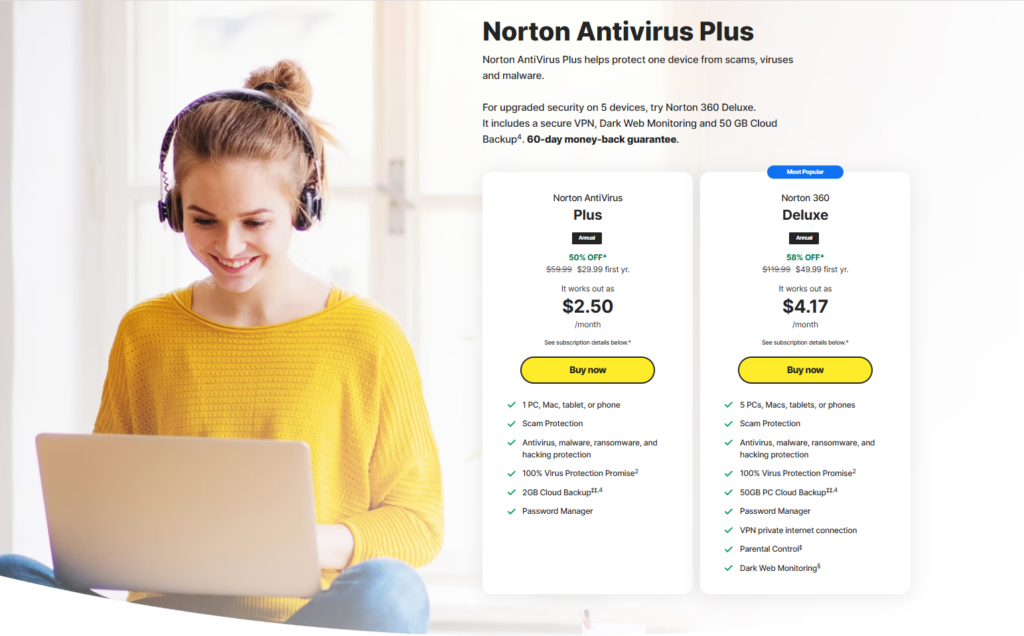
2. Install the program and follow the on-screen setup instructions.
3. Launch Norton and run a Full System Scan to detect Google Lead Services malware.

4. When the scan completes, choose Remove or Quarantine for any detected threats.

After removal, Norton will continue to block similar threats automatically, keeping your system protected at all times.
How to remove Google Lead Services manually from a PC
If you prefer not to use antivirus software, you can also remove Google Lead Services manually. This unwanted program usually affects browsers like Chrome or Safari by adding extensions or changing settings. By carefully following the steps below, you can easily clean it up yourself.
Chrome (for Windows)
To remove Google Lead Services from Chrome on a Windows PC, start by cleaning up unwanted extensions and data that may be causing pop-ups and redirects.
1. Open Chrome and click the three dots in the top-right corner, then go to Extensions. Remove any unfamiliar or suspicious add-ons you don’t remember installing.

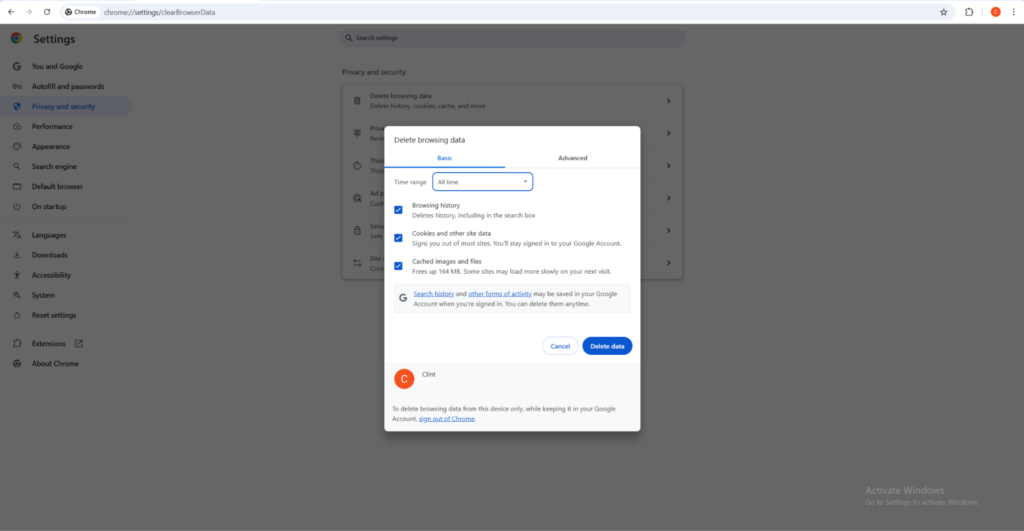
2. Go back to the menu, open Settings, and under Privacy and security, choose Delete browsing data. Select browsing history, cookies, and cached images/files, then confirm to clear.
3. In Settings, scroll to Search engine. Remove any strange homepages or search engines and restore your preferred options.
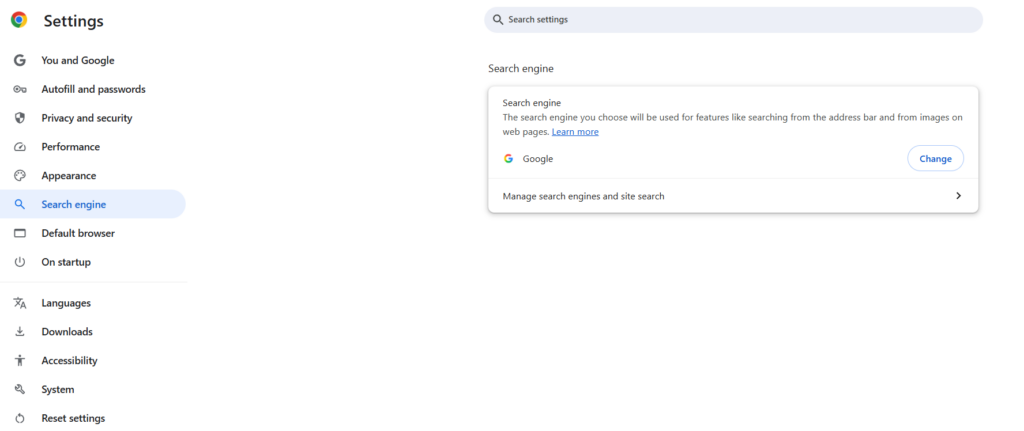
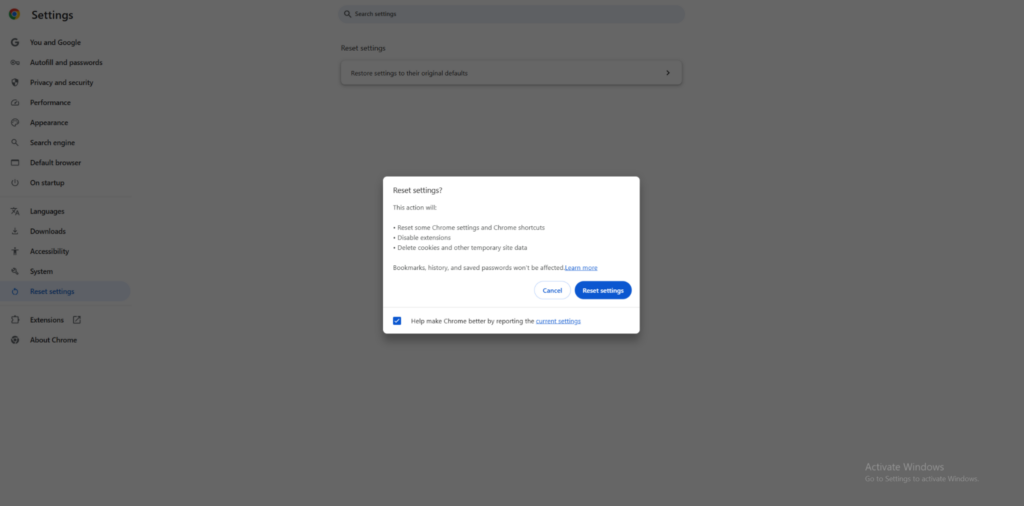
4. If issues persist, in Settings, search for Reset settings and confirm the original defaults.
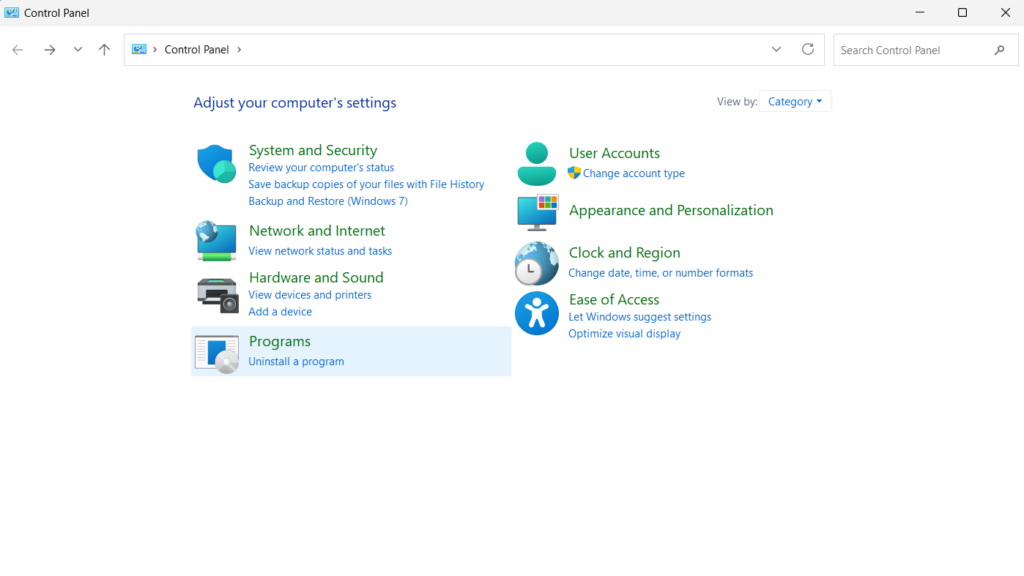
5. Finally, open the Control Panel and go to Programs and Features (or Apps & features in Settings). Carefully review the list and uninstall any unknown, recently installed, or suspicious programs that might be linked to unwanted ads or redirects.
After these steps, running a full system scan with a reputable Windows antivirus like Norton Antivirus will help catch any remaining malware components and prevent Google Lead Services from coming back.
Safari (for macOS)
To remove Google Lead Services from Safari on macOS, you need to clean up unwanted extensions, data, and apps that may be causing redirects and pop-ups.
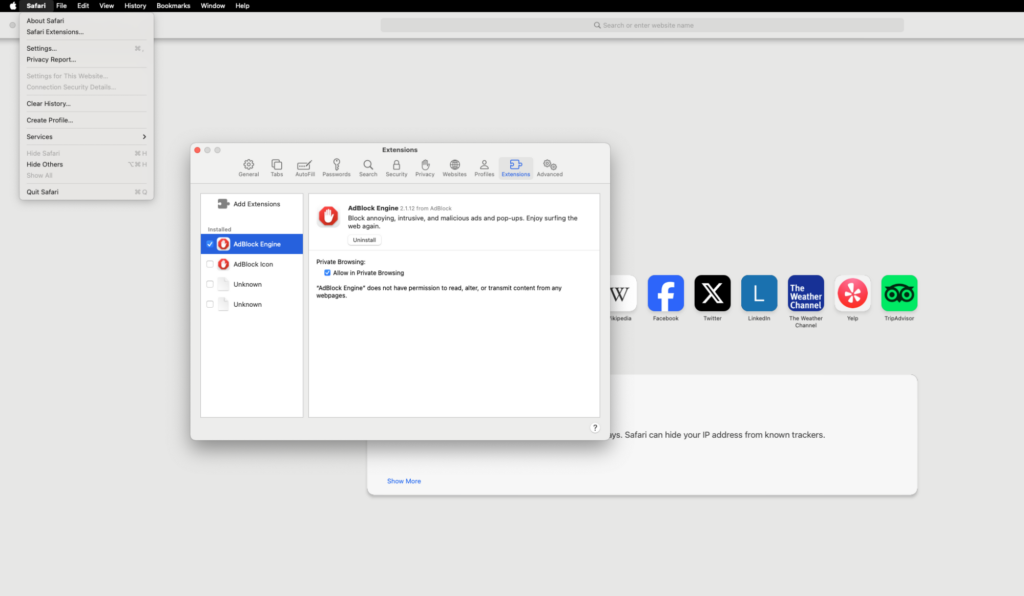
1. Open Safari and go to Settings (or Preferences on older macOS), then open the Extensions tab. Remove any extensions you don’t recognize or no longer use.
2. While in Settings, click Privacy, then Manage Website Data. Click Remove All and confirm once more.

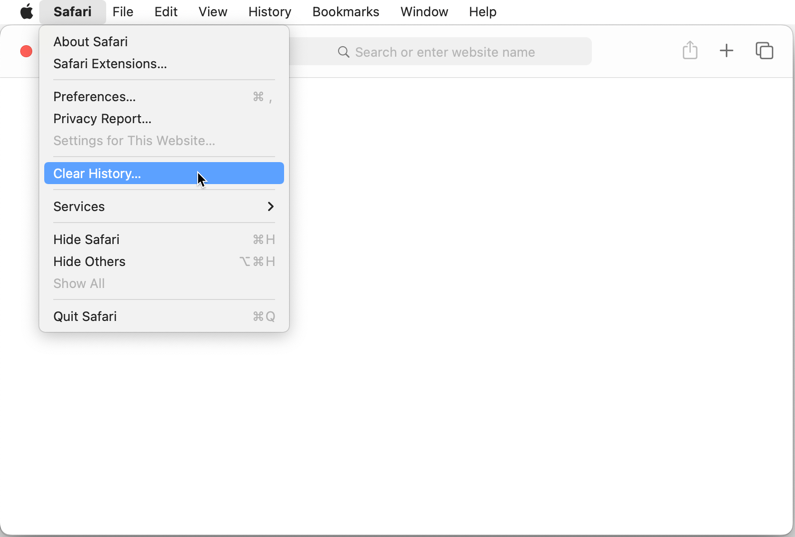
3. In Safari, select Clear History, choosing all history, and confirming to clear cookies and other stored website data linked to unwanted ads or redirects.
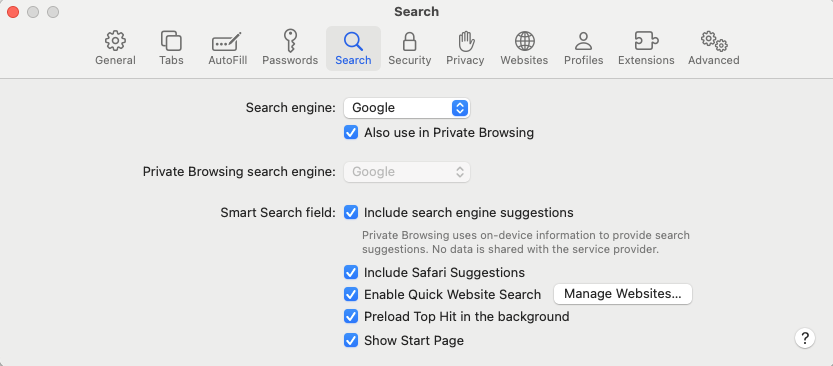
4. Back in Settings, go to General and Search. Make sure your homepage, new tab, and default search engine are set to trusted options, not unknown sites.
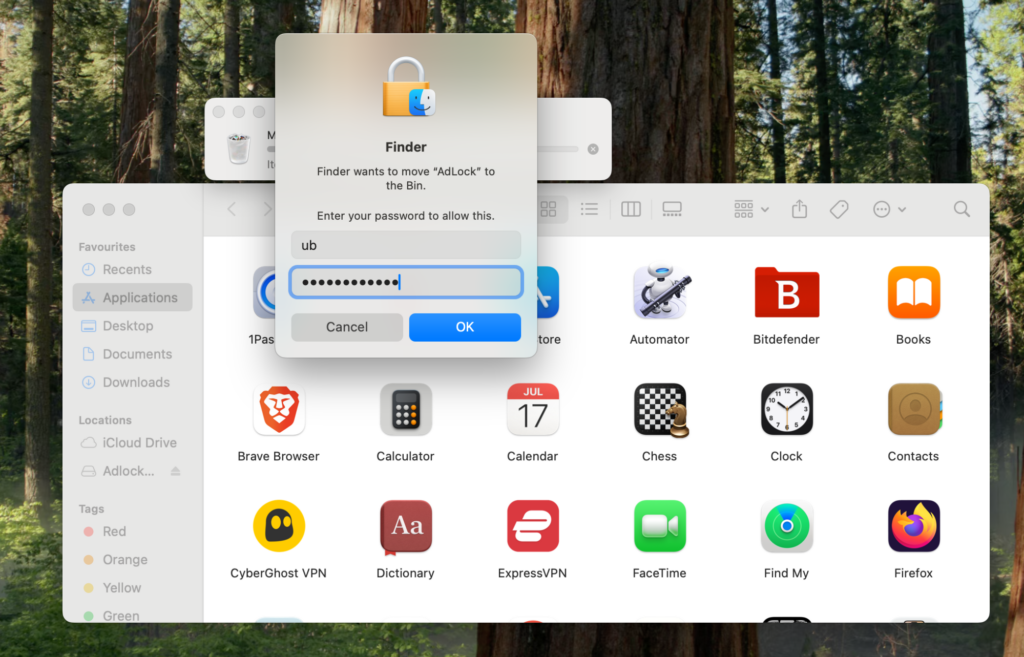
5. Open Applications in Finder and uninstall any suspicious or recently added apps by moving them to Trash, then empty the Trash.
After completing these manual steps, I recommend running a full system scan with a trusted antivirus, such as Norton Antivirus, to detect leftover adware files and help prevent Google Lead Services or similar threats from returning.
How to remove Google Lead Services manually from mobile
Removing Google Lead Services from a mobile browser takes a few careful steps, but it’s absolutely manageable on both Android and iPhone. Focus on resetting your browser, clearing data, and removing any suspicious apps, then use a trusted antivirus to catch anything you might have missed.
Chrome (for Android)
- Open Chrome, tap the three dots, and go to Notifications under Settings. Block notifications from unfamiliar or suspicious sites.
- Go back to Settings, go to Privacy and security, choosing Clear browsing data. Select history, cookies, and cached files, then tap Clear data.
- Back in Settings, go to Homepage and Search engine to restore your preferred options if they were changed.
- Under Settings, open your device’s Apps, find Chrome, tap Storage, then choose Clear cache (and Clear data if redirects persist).
- In Apps, uninstall any recently installed or unknown apps that might be linked to intrusive ads.
Safari (for iPhone)
- Go to Settings in Safari, then tap Clear History and Website Data and confirm.
- In the same menu, tap Advanced, then Website Data, then Remove All Website Data to clear tracking and adware-related entries.
- Return to Settings in Safari and make sure options like Block Pop-ups and Fraudulent Website Warning are enabled.
- Check your installed apps under Settings, General, iPhone Storage. Then, delete any suspicious or recently added apps associated with unwanted ads.
After finishing these manual steps, run a full device scan with reliable antivirus software for mobile, such as Norton. It will detect leftover adware components and reduce the risk of Google Lead Services or similar threats returning.
How to prevent Google Lead Services malware from coming back
Once you’ve removed Google Lead Services, taking a few precautions can help ensure it doesn’t return. Adware and scams often rely on simple mistakes, so practicing safe browsing habits is key to staying protected. Here are a few tips to keep your device safe and malware-free:
- Don’t click on suspicious links. Avoid pop-ups or ads claiming your device is infected or needs scanning – these often redirect to fake security tools or scam pages.
- Download files from official sites and app stores. Trusted sources like Google Play or the App Store screen and test apps for safety, lowering your infection risk.
- Don’t allow random notifications. Only grant permission to sites you trust, as spam notifications often hide malicious links.
- Keep your device system updated. Regular updates patch security weaknesses that malware can exploit.
- Use trusted, reliable antivirus software. Antivirus tools like Norton automatically detect and block adware, keeping threats like Google Lead Services from returning.
Conclusion
Google Lead Services is a misleading adware threat that poses as a legitimate Google service but floods your browser with unwanted ads and redirects. You can remove it safely using antivirus protection or through manual cleanup steps. To stay secure, avoid suspicious sites, limit notification permissions, and keep your software updated.
For the simplest, most reliable protection, consider using Norton Antivirus – it blocks similar scams and prevents reinfection automatically. With strong antivirus tools like Norton and safe browsing habits, you can restore control of your device and enjoy a cleaner, safer online experience.
Related articles:
How to remove Bing redirect virus
Antivirus software versus a firewall
What is spyware? How do you protect your devices
The best free antivirus software
How to get rid of fake McAfee virus pop-ups
What to do if your phone is hacked
What is ransomware? Tips on how to prevent and remove it
How to spot and remove Geek Squad scam
What are trojans? How can you protect yourself from them
FAQ
Google Lead Services is a fake service that mimics Google’s name to appear trustworthy. It’s actually adware that causes pop-ups, redirects, and spam notifications to promote scams or collect data.
Yes, and while Google Lead Services is not a virus, it can track your browsing activity. In worst-case scenarios, it can also expose personal details and redirect you to phishing or malicious websites.
You can remove it using a reputable antivirus like Norton – the simplest and most reliable way to do it. You can also do it yourself by manually uninstalling suspicious apps, extensions, and resetting your browser settings.
Norton Antivirus is one of the most effective tools to detect and eliminate Google Lead Services. Apart from hidden adware files and browser hijackers, it also effectively deals with viruses and other malicious software that’s always ready to infect your system.
Yes, you can remove Google Lead Services by deleting unwanted programs, disabling extensions, and clearing browser data. That said, the antivirus software ensures complete, safer removal.
The reason that Google Lead Services is on your device is that it likely came from clicking on fake alerts. A few other reasons may include downloading free software with bundled adware or granting permissions to unsafe websites.