Google tailors the content on its Play Store based on your country or region. This means you could be missing out on Android apps, games, and other content just because of where you live. Also, you could be paying significantly more for apps than users in some other countries.
Changing your Play Store country could allow you to access more content and save money. It could also come in handy if you’re traveling and want access to the same apps on the Play Store. If this sounds interesting, keep reading to learn how to change your Google Play Store region or country.
There are temporary and permanent methods available. We will tell you all about this in the article below.
How to Change Your Country on Google Play Store
Google determines your location based on your IP address. This allows the company to enforce its geo-blocking restrictions, preventing users from outside of authorized countries or regions from accessing particular content.
You can change your Play Store country by masking your real IP or moving to a different region. Let’s call these temporary and permanent ways to change your Google Play Store country.
Clicking the links will take you right to the desired method’s detailed instructions with screenshots.
- Changing your country temporarily: You can use a VPN to change your country temporarily in the Play Store. A VPN allows changing your IP address, making it appear as though you’re in a different country.
- Changing your country permanently: This is only recommended if you’re moving to a different country as you can only do it once a year.
If you just want to download geo-restricted apps and access platforms like Netflix or Hulu, we recommend going with option number one. A VPN lets you switch between different countries as much as you want, and you can always return to your actual region simply by turning it off.
How to change your Google Play country with a VPN
A VPN hides your real IP and encrypts your traffic. In other words, it’s a perfect geo-spoofing tool and can prevent Google from “seeing” your real IP. NordVPN is the best VPN for Google Play. It’s the most secure service on the market and one of the topmost options in our rankings. NordVPN offers amazing speeds and unparalleled geo-unblocking capabilities.
You can connect to servers all over the world and get IPs from these respective regions. This will allow you to access content that would otherwise be unavailable in your country.
Important!
Read through all the steps before following along.
- Subscribe to a good VPN like NordVPN.
- Download and install the VPN on your Android device.
- Connect to a VPN server in the country you want.
- Open “Android Settings” and go to “Apps“ > “Manage Apps” > “Google Play Store“.
- Tap on “Force stop” > “Clear data“.
- Go to “App Permissions” and select “Allow only while using the app”.
- Open Google Play Store and browse or install apps available in the region you selected.
Here’s how to bypass Google’s geo-restrictions with a VPN on Android, in detailed steps:
- Subscribe to a good VPN like NordVPN and install it on your Android device.
- Log in with your chosen credentials (usually username and password).
- Connect to a server in the selected country with the apps you need, for example the United States.

- Open “Android Settings” and go to “Apps“.
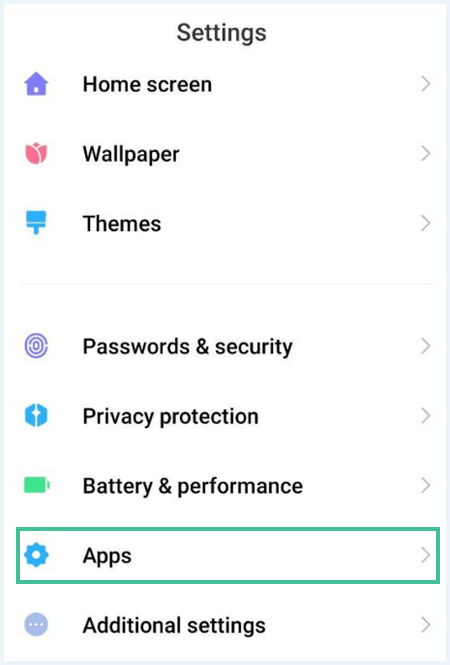
- Go to “Manage apps” and select “Google Play Store”.
- Tap on “Force stop”.

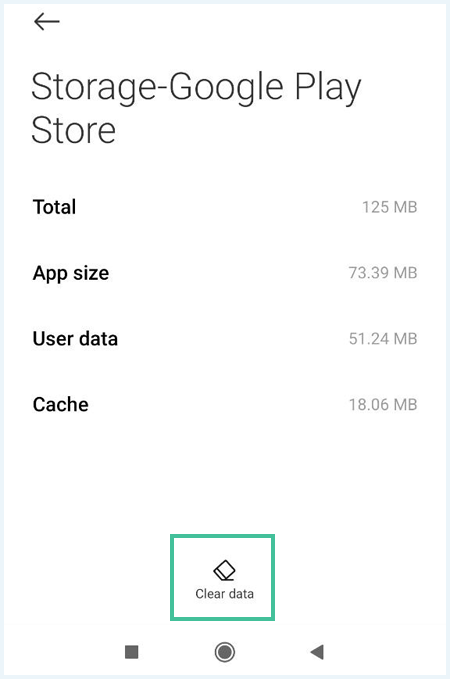
- Select Storage and click Clear Data to clear your cache for the Play Store.
- Go to “App Permissions” and select “Allow only while using the app”.

- Launch Google Play Store and check the results.
After you’re done, check the paid apps and pay attention to the currency symbol. If it corresponds to your chosen VPN server location, you’ve successfully changed your Play Store country. You can repeat this process with different locations as often as you wish.
VPNs will temporarily change your country in Google’s eyes. You can turn the VPN off at any moment and return to your original Play Store country. With that said, picking the right VPN is important.
Note:
Google doesn’t have a ban on using VPNs to change your location to access geo-restricted content on the Play Store. However, the publishers of the apps and games you’re accessing may have policies against this. We recommend you look at each app’s user agreement to determine if you’re violating their user agreement.
How to change your Google Play Store country permanently
Google allows you to change your country once every 12 months. It’s very important to think this through since you can’t revert the change for an entire year.
Important:
If you make a mistake here, you’ll have to create another Google account and try again. This can be quite annoying since you probably have many services tied to your main Google account. Read through all the steps below, before following along.
Here’s what happens when you switch the country in your Play Store permanently:
- One change per year limit: You won’t be able to go change your country again for a full year.
- Google Play Balance: Your Google Play Balance is linked to your current country. If you change it, you won’t be able to use it until you switch back.
- Google Play Pass: If Play Pass isn’t available in the new country, you won’t be able to browse or install any additional Play Pass apps.
Here are the steps you’ll have to go through to change your Play Store country permanently:
On your Android device
- Launch the Google Play Store app.
- Tap your avatar in the top-right corner.
- Go to Settings > General > Account and device preferences.

- Find your country under “Country and profiles“.
- Add your new payment method.
- Wait for the change to take place (it can take up to 48 hours).

On desktop devices
Google recommends this change only if you’re moving to a different country. It’s not a “temporary fix” to access unavailable apps and services.
Important!
Before changing your Play Store country permanently, you’ll have to delete your current payment method. Then, you’ll need to add a billing method available in the new country.
- Go to pay.google.com.
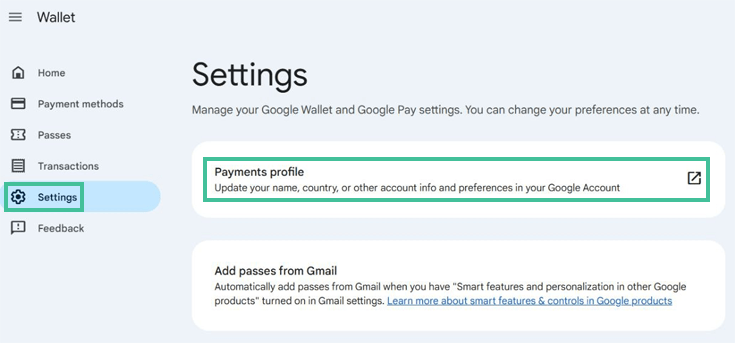
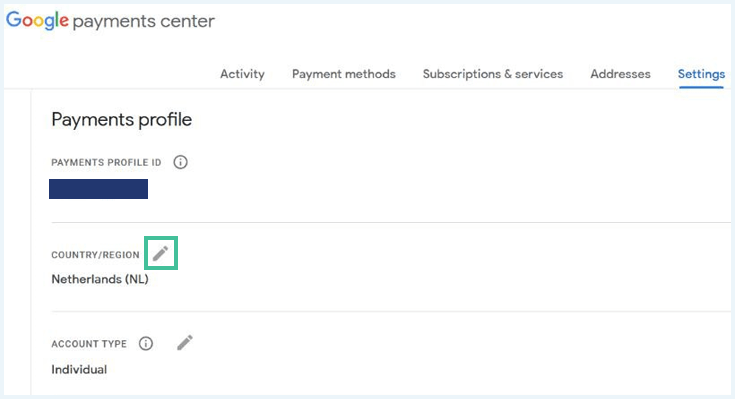
- Log in and go to “Settings”.
- Go to “Payments profile”.
- Click the pen icon next to “Country/Region”.
- Click “Create new profile”.
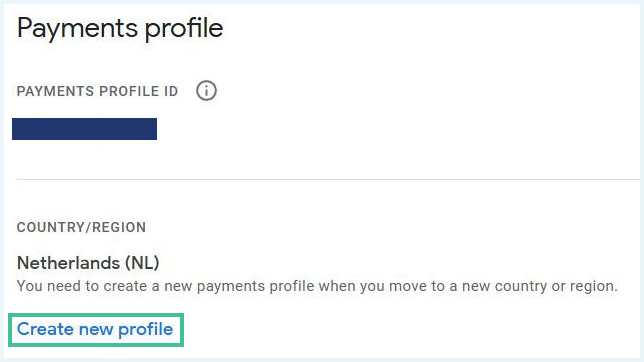
- Follow the instructions to complete the change.
Note: You can’t use this option if you have a Family Link library. In other words, if you’re managing your child’s account, you’ll be locked to their current country.
Why am I unable to change my country in the Play store?
Changing your Google Play Store country can give several common issues. Here’s a list of those common issues, along with how to fix or work around them:
| Issues | How to fix it |
|---|---|
| If you’re using Google Family Link or are part of a supervised account, you cannot change your country. | You can ask the family manager to remove restrictions or use a separate Google account that isn’t supervised. |
| Any active subscriptions (e.g., YouTube Premium, apps) tied to your current country prevent switching. | You can cancel your active subscriptions or wait until they expire. |
| If your Google country has recently changed, you can’t change it right away. Google only allows 1 country change per year per account. | You can wait for 1 year or use a different Google account to bypass the restriction. |
| VPN IP and device location (GPS) don’t match. | Use both a VPN and a GPS spoofing app with the same country data. |
Using a Secondary Google Play Account
One effective way to utilize a VPN to access region-specific content or services that may be restricted in your home country is by creating a local Android account tied to that region. This method allows you to seamlessly switch between accounts depending on what services or content you wish to access, such as local app store offerings.
- Sign up with a VPN provider like NordVPN. This VPN has an extensive server network and is great for unblocking.
- Download and install the VPN on your Android device.
- Open the VPN app and log in.
- Connect to a server in a country you want to appear as though you’re located in.
- Sign up for a new Google account while connected to the VPN. Make sure you select a local address, phone number, and payment method that corresponds to the country you’re in.
- Once your local Android account is set up, you can easily switch between it and your main account whenever needed. Just choose the account that matches the country whose apps or services you want to use.
Tip!
Use an old/secondary Android device for this account so you don’t have to constantly switch accounts on your main device.
Why Would You Change Your Play Store Country?

There are several reasons you may want (or need) to change your Google Play Store country, including the following:
- Traveling: If you want to keep accessing the same apps while abroad (this is true for online banking apps).
- Geo-restrictions: If you want access to apps and other content unavailable in your country. For example, streaming services like Hulu and BBC iPlayer.
- Censorship: If your government blocks access to Google’s platforms, like in China.
- Pricing: If you want to save money on apps that are cheaper in other regions.
Before changing your Play Store location, you’ll need to identify your goal (i.e., why you need to change your country). Then, you can pick the techniques that best suit your needs.
The Best VPNs for When You Want to Change Your Country in Google Play Store
We’ve tested 23 different VPN services to find the best providers for the job. We paid special attention to their server networks, performance, security, and ease of use.
Here are the top three VPNs for Google Play Store:
1. NordVPN: Effective and fast

NordVPN offers 8900 servers in 149 countries, which makes it an excellent choice for geo-unblocking. It’s the best VPN to change country on Google Play.
The sheer size of the network guarantees minimal server crowding and great speeds. In short: you’ll be able to use Google Play from a virtual location anywhere in the world without having to deal with lag.
When it comes to security, NordVPN is the best option available today. It supports the most secure VPN protocols, blocks malware, and supports obfuscation to deal with restrictive firewalls. It also has a zero-log policy.
Pros
- Excellent speeds
- The best security package on the market
- Beginner-friendly
- Lets you change your Google Play location
Cons
- Login through browser

This provider has a 30-day money-back guarantee, which you can use to test NordVPN for free.
2. Surfshark: Cheap VPN with GPS spoofing for Android

Surfshark offers 4500 servers in 100 countries, meaning you have plenty of choice when it comes to changing your Google Play location. It’s also one of the fastest VPNs with the lowest latency values. This is especially important if you’re planning to connect to distant servers.
Surfshark can unblock popular geo-restricted content abroad and works well with all the major streaming services like Netflix and Hulu. Surfshark offers GPS spoofing on Android. You can enable this feature to automatically match your GPS location to your chosen server’s location.
Surfshark supports the best protocols (including WireGuard), offers solid encryption, and maintains a strict no-logging policy. It supports obfuscation with its “camouflage mode,” which can help you beat online censorship all over the globe.
Pros
- One of the fastest VPNs available today
- Unlimited simultaneous connections
- Beginner-friendly and affordable
- Lets you bypass Play Store region lock
Cons
- A little slower than NordVPN

You can take advantage of its 30-day money-back guarantee to test Surfshark cost-free.
3. Proton VPN: User-friendly for Google Play users

Proton VPN is an excellent option if you are looking for a secure VPN to bypass the Play Store region lock. It supports solid protocols, blocks ads and malware, and has a solid zero-logging policy.
Proton VPN works perfectly for changing your Google Play Store country, while allowing you to do so much more. Proton VPN lets you bypass censorship and access websites that might be blocked in your country.
This fast and reliable VPN is an excellent option to change your country in Google Play Store. Proton VPN is based in Switzerland, a country known for strong privacy laws. This privacy-friendly location ensures your data stays protected from intrusive surveillance.
Pros
- Good speeds
- Solid security
- Fast VPN
- Based in a privacy-friendly country, ensuring further privacy
Cons
- No dedicated IP's

Conclusion: Changing Your Google Play Location
Due to licensing agreements, Google limits the content you see on the Play Store depending on your country or region. You may be missing out on some great apps and discount deals just because of your geographical location. You can change your Google Play location in the app store.
You can change your country permanently or you can use a VPN to change your country temporarily.
Beyond changing your Google Play location, a good VPN has many other benefits. It can help you score amazing discounts and save money, access streaming content from other countries, and so much more. Check out these insightful articles below to learn more:
- How to Change Your Apple Store Country
- Save Money With a VPN – Unlock Massive Discounts!
- Bypass Online Censorship: How to Freely Access the Internet
- Unblock YouTube Videos: How to Watch YouTube Anywhere
Do you have questions about changing your Play Store country? Click one of the questions below to see an answer.
You can either change the country in your Google settings permanently, which is only recommended if you’re moving to that country. Alternatively, you can use a good VPN to change your country temporarily. VPNs will change your IP address, which will make Google “think” that you’re in a different country.
There are several potential reasons for this, including:
- You’ve changed your country within the last year (you can only do it once a year).
- You’re not physically in a new country (Google monitors your IP to determine this).
- You’re a part of a Family Library.
VPNs hide your IP address and replaces it with another one. This makes Google “think” you’re in a different country. To do this, simply purchase a VPN and connect to a server in your desired country.
We recommend going with NordVPN. It offers top-notch security, excellent speeds, and unparalleled geo-unblocking capabilities. It’s the best VPN for changing your Google Play region at the moment.