- Why does using a VPN slow down internet speeds?
-
How to increase your internet speed while using a VPN
- 1. Choose a different VPN server
- 2. Change your VPN protocols
- 3. Enable Split tunneling
- 4. Opt for a different VPN provider
- 5. Change from a wireless connection to a wired connection
- 6. Close unnecessary background apps
- 7. Temporarily disable your antivirus and firewall
- 8. Reboot your device
- 9. Double-check your internet connection
- Final thoughts
- FAQ
Since a VPN encrypts and reroutes your traffic, it’s completely normal to experience a slight decrease in speed while using it. However, with reputable VPNs, the difference shouldn’t be noticeable. In case it is, try the following methods to boost your connection when using a VPN:
- Choose a different VPN server
- Change your VPN protocols
- Enable Split Tunneling
- Opt for a different VPN provider
- Change from a wireless connection to a wired connection
- Close unnecessary background apps
- Temporarily disable your antivirus and firewall
- Reboot your device
- Double check your internet connection
For the fastest VPN on the market, look no further than NordVPN. It offers blazing-fast speeds and a 30-day money-back guarantee, so you can try it risk-free.

This article dives deeper into the methods that speed up your connection when using a VPN, so be sure to stick around to learn more.
Why does using a VPN slow down internet speeds?
A VPN works by tunneling your internet activity through an encrypted tunnel to an external server. Rerouting your internet traffic through an external VPN server increases security and privacy by preventing other parties, such as your internet service provider (ISP) or the government, from snooping on your online activity or exposing your IP address.

However, the process of encryption and rerouting also increases the time taken for internet packets to travel from your device to the destination. As a result, you are likely to experience a slowdown in your internet connection when using a VPN.
Usually, the reduction in your internet speed should not be significant. But, if you’re experiencing a constantly slow VPN connection, then it may be time to try out some of the methods listed below to make your VPN faster:
How to increase your internet speed while using a VPN
The methods listed below should help improve slow VPN connection speeds for most users. In some cases, you may have to try out a combination of two or more methods to improve your VPN speed.

1. Choose a different VPN server
As we’ve explained above, a VPN sends your encrypted data to an external server from where it is forwarded to the destination address. The further away the server is from your location, the longer it’ll take to transmit data to the external VPN server.
Hence, an easy way to increase your VPN speed is to switch servers and opt for one that’s closest to your geographic location. Choosing the closest server reduces the distance your data has to travel and should improve your internet speed.
Most premium VPNs, like NordVPN and Surfshark, usually automatically select the fastest VPN servers available for your coordinates. You should really only change the VPN server if you’re looking to access content that’s unavailable in your location or available only in a specific region.

Sometimes your speed may not improve despite selecting the server located closest to you. This can happen because of the high server load. In such situations, choose a different server that’s less congested to get a faster connection. A server in another country also lets you access geo-restricted content.
2. Change your VPN protocols
A VPN protocol simply refers to the system that is responsible for encrypting your data before forwarding it to an external server. The protocol you’re using impacts the level of security and privacy as well as the VPN speed. We’ve compared the different VPN protocols in a previous article. Be sure to check it out before playing around with VPN protocol settings.
The OpenVPN protocol is the most commonly used protocol by VPN providers. It offers high-level encryption to safeguard your online activity. However, such strong encryption usually takes away from your VPN speed.
However, other protocols, like WireGuard and KEv2/IPsec, prioritize VPN connection speeds, with a lesser focus on security. The WireGuard protocol, which is future-proof, combines security and increased speed, offering the best of both worlds.
So, another way to boost your internet speed when using a VPN is to change your protocol settings. Almost all of the VPN providers that feature on our rankings of the best VPNs for 2026 offer the ability to switch between different protocols. If you’re looking for a VPN provider that supports the WireGuard protocol, then NordVPN should be your pick.
However, NordVPN also supports other protocols, so you need to know how to change it for maximum speeds.
Follow the steps listed below to switch to WireGuard on NordVPN:
- Click the settings icon in the NordVPN app. On a computer, the icon is usually located in the top right corner. On mobile devices, it should be at the bottom right of your screen.
- Navigate to the “General” tab on your laptop and the “Location and protocol” tab on your mobile device.
- Disable automatic selection of the VPN protocol and server.
- Select NordLynx from the drop-down menu.
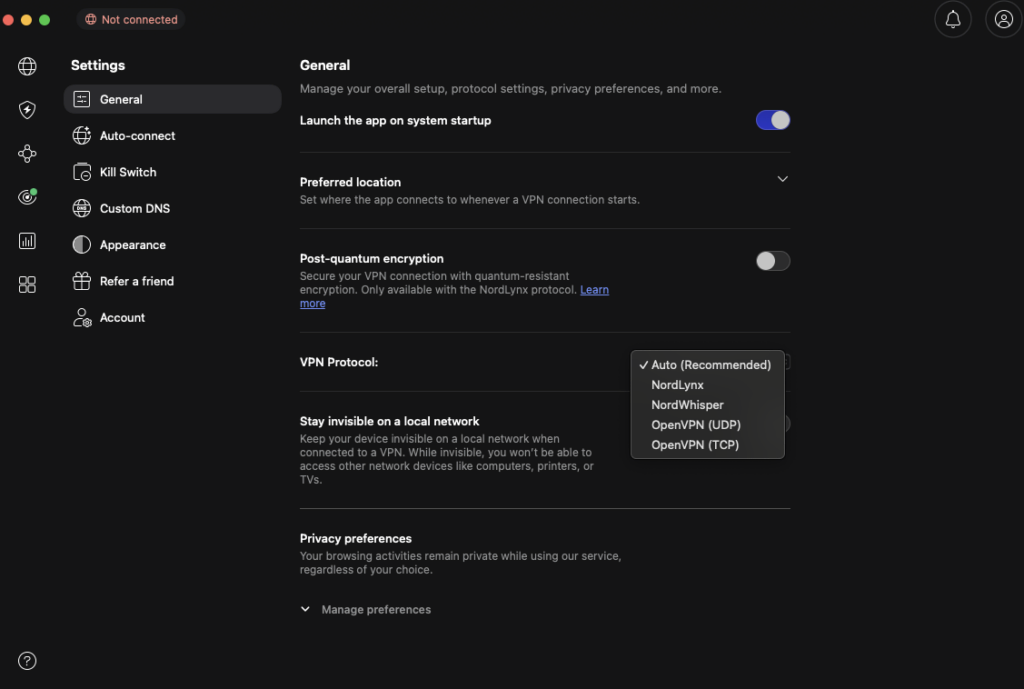
You can also try changing certain settings within each individual protocol. This includes, for instance, changing the port your VPN service uses by default. Port 443 is recommended as it’s used for encrypted web traffic and rarely faces bandwidth throttling by your ISP.
3. Enable Split tunneling
Most VPN services tunnel and encrypt internet traffic from all apps and software installed on your device by default. If you happen to be running multiple apps that use a lot of bandwidth, your connection speed will usually be slow.
Luckily, most VPN providers provide an in-built solution that lets you pick which sites, apps, and networks you want to run through the VPN, and which ones you’d like to access directly. This is known as split tunneling. Here’s a graphical understanding of how split tunneling works:

By choosing to tunnel traffic only from apps with privacy implications, such as your Mail app, you can increase VPN speed without compromising on security. Follow the steps below to enable split-tunneling on Surfshark:
- Open the Surfshark app and go to settings.
- Select Bypasser from the menu.
- You’ll be presented with two options: “Route via VPN” and “Bypass VPN”. Toggling the former allows you to select which apps will be routed through the VPN. The latter enables inverse split tunneling, which means you can restrict certain apps from running through the VPN.
- You can also use the “Bypass VPN” option under Website/IP address to enable inverse split tunneling for URLs.
4. Opt for a different VPN provider
Some VPN providers may be unable to deliver fast speeds in your location, even after changing servers and protocols. In such cases, you may need to change the VPN service you’re using.
We’ve put some of the best VPNs through a speed test to identify the fastest ones. NordVPN emerged as the VPN with the best speeds for servers located nearby and far away. In fact, NordVPN offered faster VPN speeds for some foreign servers in comparison to local ones. This is truly remarkable!
The other two VPNs that offer relatively fast internet speeds are Surfshark and Proton VPN. Both also happen to be our highest-rated VPNs, too. So you can comfortably choose either without worrying too much about any VPN speed issues. You could even try out Surshark and Proton VPN using their money-back guarantee without committing to a full subscription. Find one that best works for you, and go for it!
At this stage, we’ve broadly covered all the changes you can make to your VPN settings to get faster speeds. If none of these worked for you, then it’s perhaps time to consider making changes to settings on your device or router.
5. Change from a wireless connection to a wired connection
There’s no doubt that WiFi is the most preferred form of connecting to the internet today. You can access the web from anywhere in your house without the hassle of wires and cables. But did you know that the speeds you get on wireless connections are usually slower than a wired connection?
This is because data packets travel between your device and the router through radio signals, which are prone to interference and disruption. Packet loss will impact connection speeds. Moreover, wireless connections use a shared channel to transmit data to multiple devices at the same time, which makes your internet slow.
If your device has ethernet ports and you have an ethernet cable lying at home, then it’s probably a good idea to use a wired connection for faster internet speeds.
6. Close unnecessary background apps
At any given time, there’s probably a bunch of apps and programs running quietly in the background on your device. While these apps aren’t shown in the user interface, they still consume processing power and bandwidth.
If you have several such apps running in the background, your connection speed will be quite slow. This is why it’s important to occasionally check your background apps and close the ones that aren’t required. Doing this on a regular basis should help increase VPN speed.
You can usually close background apps and processes using the Task Manager on Windows and Activity Monitor on a Mac. But be careful when doing this, as some processes are essential to keep your system running. We’ve provided detailed steps for closing background apps on Windows below:
- Press Ctrl + Shift + Esc to bring up the Task Manager.
- You’ll be presented with a list of apps and background processes running on your laptop (see the image below)
- Choose the app or process that you want to close and click on End Task.
- Be careful when closing background processes, as this could affect your device’s functionality. Do not close any Windows processes!

7. Temporarily disable your antivirus and firewall
Now we don’t generally recommend that our readers disable their antivirus and firewall. Both are crucial to keeping your system secure. Turning them off makes you more vulnerable to being affected by malicious elements, like viruses, worms, keyloggers, and trojans.
But if you’re downloading something from a trusted source and need to increase your VPN connection speed by a bit, then you could consider temporarily disabling your antivirus and firewall. All traffic passing through your computer is filtered by the antivirus to detect malicious elements. This can have an impact on your connection speed. Follow the steps below to turn off the Windows Defender firewall on your Windows laptop.
- Search for “Windows Defender” using the search icon in the taskbar.
- Open the Defender app and select “Firewall & network protection.”
- Here you’ll see the status of your firewall on Public Networks, Private Networks, and Domain Networks.
- You can click on each to disable the firewall. Do bear in mind that you’ll have to provide User Account Control permission to disable your firewall.

In any other situation, please do not turn off your antivirus. It’s better to sacrifice higher speeds for enhanced security and safety.
8. Reboot your device
Restarting or rebooting a device when it’s malfunctioning is probably one of the most popular fixes out there. I’m sure you’ve simply hit the restart button on your laptop or mobile device to resolve any problems it was facing.
Well, there’s no reason that the same trick can’t be used to speed up your VPN connection as well. A reboot helps resolve internal system errors that could be slowing down your VPN connection.
You could also consider rebooting your router, in addition to your computer or mobile device, to see if that makes a difference.
9. Double-check your internet connection
If none of the above steps have helped improve your VPN connection speed, then maybe the problem is with your internet connection itself. Even a premium VPN can’t give you high speeds on a slow internet connection.
You can ascertain whether the problem lies with your internet connection by running a speed test. If the speeds are below what you usually get or what your ISP has promised, then it’s a clear sign that your network connection is performing sub-optimally.
Rebooting your router can sometimes resolve underlying connectivity issues and get your speed back up. But if the problem persists, then you may need to take it up with your ISP or switch to an internet plan with higher bandwidth.
Final thoughts
While encrypting and rerouting your data to protect you from digital threats, a VPN may slightly decrease the speed of your internet. The first steps you should take when encountering such an issue are to change the VPN server or the VPN protocol and enable Split Tunneling. If this doesn’t help, refer to the additional methods above, which should boost your internet speed in no time.
For more information on staying safe online, check out some of the following articles:
- How to Browse the Internet Anonymously
- What is Phishing? Be Wary of Fake Emails and Other Scams!
- How To Keep Your Children Safe Online: The Definitive Guide!
FAQ
Nowadays using a VPN is critical to staying safe and secure online. But it can sometimes affect your internet connection speed. Our FAQ section provides some quick tips and solutions that you can use to speed up your VPN connection speed.
A VPN works by encrypting your traffic and rerouting it through an external server. This process takes a little time which can slow down your internet connection.
Usually, the reduction speed is not significant and shouldn’t affect common activities like browsing or streaming. But if you’re experiencing very slow speeds, then you should check out the top 9 methods to increase your internet speed when connected to a VPN mentioned above.
When it comes to connection speeds, no VPN performs better than Surfshark. We put some of the top VPNs through a speed test and Surfshark emerged as a pretty clear winner for servers that are nearby and far away.
You don’t have to take our word for it, check out Sursfshark’s speed for yourself by using its 30-day money-back guarantee.
There are a few things that you can try to increase your internet speed when connected to a VPN:
- Switch to a different VPN server location
- Try a different VPN protocol
- Turn on split tunneling
- Change your VPN service provider
- Close any unnecessary background apps
- Use a wired ethernet connection
- Temporarily disable your antivirus and firewall
- Reboot your devices
- Double-check your internet speed without a VPN