
- How does split tunneling work?
- When do you need VPN split tunneling?
- Different types of VPN split tunneling
- Pros and cons of split tunneling
- Is VPN split tunneling worth the security risks?
- How to set up VPN split tunneling on different VPNs
- Create your own split tunnel
- Is split tunneling the ideal solution?
- FAQ
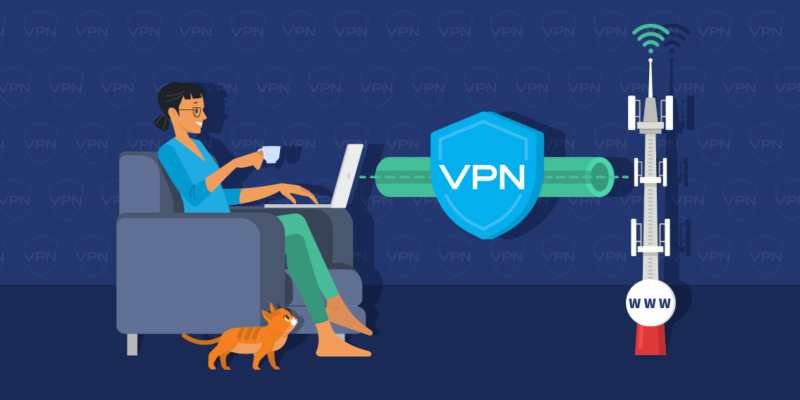
Split tunneling is a VPN feature that lets you divide your internet traffic into two paths. Some apps or websites go through a secure, encrypted VPN connection, while others connect to the internet normally. Think of it like choosing which apps use VPN and which don’t. Instead of sending everything through the VPN, you decide which data needs extra privacy and which can use your regular connection.
This means you don’t have to turn your VPN off completely just to use certain services. Turning off a VPN exposes all of your activity to your internet provider, networks, and other third parties. Split tunneling lets you keep your VPN on while allowing specific apps or websites to bypass it.
Split tunneling can be helpful when you want to:
- Access websites or services that block VPN connections.
- Use local devices on your network, like a printer or smart TV.
- Load certain websites faster when they don’t need VPN protection.
Based on my research and testing, I recommend NordVPN for its easy-to-use split tunneling feature, fast and reliable connections, and strong privacy protections, making it simple to choose which apps use the VPN and which connect normally.

How does split tunneling work?
VPN split tunneling is a software that splits your internet connection into two. When activated, your VPN provider creates two connections for you to use online: one that uses a secure VPN tunnel to encrypt all your data and another that allows you to connect directly to the internet.

By default, VPNs route traffic through a secure, encrypted VPN tunnel. Doing so hides all your online data and activity from would-be watchers and changes your IP address. VPN split tunneling is a feature offered by many of the best VPN providers. It lets you choose which sites, apps, and networks you want to run through the VPN, and which ones you’d like to access directly. Think about it as keeping one foot in and one foot out of your VPN tunnel.
Let’s look at Wikipedia as an example. The online encyclopedia behemoth doesn’t allow editors to make changes to Wikipedia pages while using a VPN or proxy. So, if you want to make an edit, you have to add their site to your VPN split tunneling list so you can change a Wiki page without completely turning off your VPN.
Another example is Deliveroo, a food delivery app. These kinds of apps don’t work when your VPN connection is active. You can use VPN split tunneling to ensure that your VPN doesn’t interfere with the app. That way, you won’t need to connect and disconnect from your VPN server continuously.
When do you need VPN split tunneling?
Whether or not you need the split tunneling feature is entirely up to you. You probably won’t need to use it every moment of your day, but VPNs that offer split tunneling can help you get extra benefits without paying more for your subscription.
Here are a few common situations where split tunneling can help you out:
- Access to LAN devices: A Local Area Network (LAN) is a network of devices (such as your printer) within the same building. VPNs bypass these networks by default — which means they might not connect properly. Split tunneling allows you to access these devices anyway.
- Simultaneous access to local and foreign content: You could be losing access to local websites while using a foreign VPN server. With split tunneling, you will still be able to reach those websites. For example, split tunneling would allow US users to stream a German Netflix series while accessing local websites at the same time.
- Increased bandwidth usage: A VPN’s encryption can consume a lot of bandwidth, slowing your connection (a known disadvantage of some VPNs). You may need increased speed on certain sites, such as streaming platforms. Split tunneling works by freeing up some space to let you download safely while surfing at optimum speeds.
NordVPN’s split tunneling feature is perfect for any of these scenarios. Its settings are incredibly versatile, allowing you to pick and choose exactly where you want your regular connection to run and where you want NordVPN to take over. If you’re looking for a good VPN provider with split tunneling, we recommend NordVPN.
Different types of VPN split tunneling
There are several ways to set up VPN split tunneling. Each major VPN provider has a slightly different variation, but the idea is more or less the same. You’re either selecting which apps and websites to run through the VPN or whitelisting them to bypass the VPN.
Below, we’ve broken down the different types of split tunneling and which VPNs are best for using them:
| Type of split tunneling | Description | VPN |
|---|---|---|
| Inverse split tunneling | Inverse split tunneling is like whitelisting. You specify which apps and URLs bypass the VPN and connect directly to the internet. The VPN will remain active for everything else. | NordVPN, Surfshark, Proton VPN, TotalVPN, Norton VPN |
| App-based split tunneling | This feature lets you choose the specific apps that you want to go through the VPN. Any other internet traffic goes through your regular network. | NordVPN, Surfshark, Proton VPN, TotalVPN, Norton VPN |
| URL-based split tunneling | This is similar to app-based split tunneling, but instead of apps, you specify which URLs will be encrypted through the VPN tunnel. All other internet traffic goes through your regular network. | This kind of split tunneling examines all of your traffic and, on a case-by-case basis, determines whether it should be sent through the VPN. It is often used in workspaces to separate intranet traffic from public websites. |
| Dynamic split tunneling | This kind of split tunneling looks at all of your traffic and determines on a case-by-case basis if it should be sent through the VPN. It is often used in workspaces to separate intranet traffic from public websites. | Often found in corporate networks |
App-based and URL-based split tunneling can also be combined with inverse split tunneling, so the apps and URLs you have chosen will be excluded from the VPN connection instead. The type of split tunneling you use will depend on the functions you need the feature for.
Pros and cons of split tunneling
Split tunneling is a reliable feature, but it does come with some drawbacks. For some, it has been a lifesaver, but for others, it has been more of a hindrance. Ultimately, you need to consider the benefits and drawbacks of split tunneling yourself to decide whether it’s useful for you. Take a look at the pros and cons below.
Pros
- Improved performance
- Bandwidth conservation
- Easy access to apps
- Flexibility
Cons
- Security risks
- Potential exposure to threats
- Not possible on iOS/Mac
Is VPN split tunneling worth the security risks?
Since split tunneling means you’re disabling the VPN for some websites, you may be exposing your devices to external threats. These split tunneling security risks are mostly the same as when you go online unprotected:
- Compromised data security
- Potential for malware attacks
- Exposure to malicious websites
- Tracking by your ISP and other third parties, like hackers, trackers, and other online snoops
- Increased chances of cyberattacks when using public Wi-Fi
However, it’s still safer than turning off the VPN entirely.
Split tunneling vs. full tunneling
To use split tunneling safely and securely, you will need to decide exactly when to use split tunneling vs. full tunneling.
Full tunneling means you’re running all your internet traffic through your VPN. This is standard VPN use and ensures that all of your data is subject to the same level of security. If you want to maximize your security and protect your privacy and network, make sure to use full tunneling encrypted VPN connections. This is especially important when entering sensitive information or downloading online.
When using split tunneling, the risk of a cyberattack increases because you’re running some apps and websites outside of your VPN. You should use split tunneling only on sites you completely trust or that have advanced security measures like SSL encryption. You can also use split tunneling on websites or apps where you’re not inputting any of your personal information or credit card details.
For more information about online safety and security measures, you can have a look at our article on encryption.
How to set up VPN split tunneling on different VPNs
If you want to enable split tunneling VPN on your Android phone or Windows desktop, just check the settings in the desktop or mobile VPN app. Unfortunately, iOS and Mac split tunneling remains very limited on iOS due to Apple’s strict security rules, though you can often use a VPN browser extension as a clever workaround.
I’ll show you how to configure split tunneling for our all-time favorite VPNs below.
Note:
Before you can use split tunneling with any of these VPNs, make sure you have subscribed to and downloaded the VPN software.
NordVPN split tunneling
NordVPN is one of the best VPNs currently available on the market. Its split tunneling feature is incredibly user-friendly, allowing you to quickly add or remove apps from the list.
Here’s how you can activate it:
- Open the NordVPN app and press on Account.
- Click on the Settings.
- Click on Split Tunneling.
- Toggle the split tunneling switch to On.
- Under Type, you have two options:
- Disable VPN for selected apps: Select the apps you’d like to disable VPN for on your device. All other internet traffic will run through the VPN (app-based inverse split tunneling).
- Enable VPN for selected apps only: Select specific apps to run through the VPN. All other internet traffic will be routed through the direct connection (app-based split tunneling).
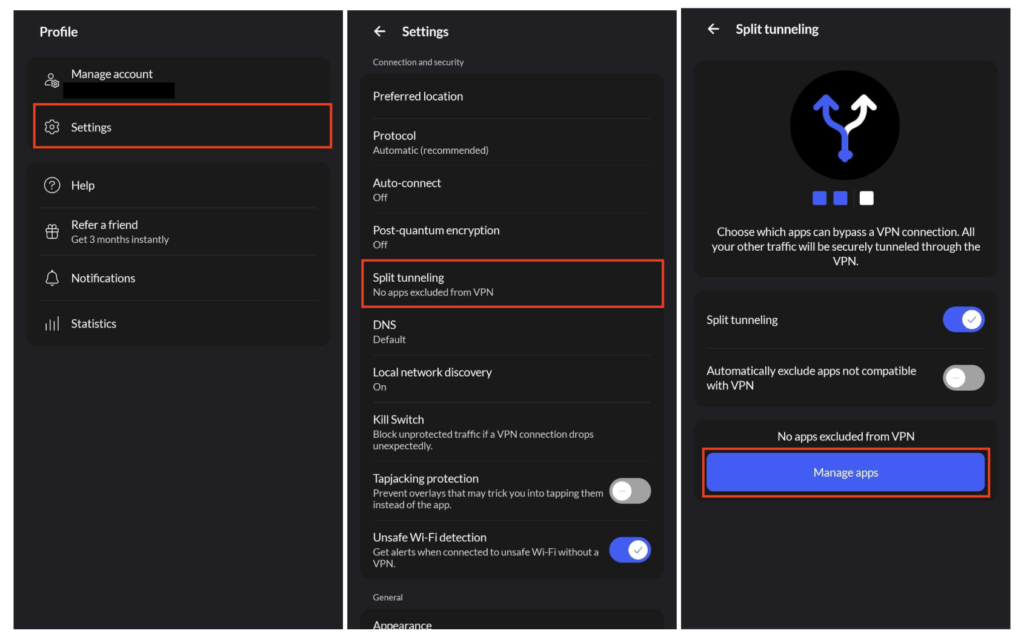
Surfshark’s Bypasser
Surfshark’s split tunneling feature might be a little hard to find, since it’s named “Bypasser” instead of split tunneling. Here’s how you can activate it in seconds:
- Open Surfshark and click on the cogwheel (Settings).
- Click on VPN Settings.
- Scroll down and click on Bypasser.
- Choose from these three options:
- Route via VPN: Select specific apps to run through the VPN. All other internet traffic will be routed through the direct connection (app-based split tunneling).
- Bypass VPN (under App): Decide which apps you’d like to disable the VPN for on your device (app-based inverse split tunneling). All other internet traffic will run through the VPN.
- Bypass VPN (under Websites/IP Addresses): Add websites and IP addresses you’d like to whitelist (URL-based inverse split tunneling).

Pro Tip:
If you can’t decide which VPN is best for you, read our NordVPN vs. Surfshark comparison for more details.
Proton VPN split tunneling
Proton VPN offers highly flexible split tunneling features. The platform offers both IP-based and app-based routing, and as of 2026, macOS has been added to its robust lineup of Android and Windows apps. Here is how you can customize your Proton VPN experience:
- Open your Proton VPN app.
- Go to the Settings tab.
- Select Features (on Windows) or simply scroll down to Split Tunneling.
- Toggle the Split Tunneling switch to On.
- Choose your Mode from the following options:
- Exclude mode: All traffic goes through the VPN except for the apps or IP addresses you select.
- Include mode (inverse): Only the specific apps or IP addresses you select will use the VPN; everything else stays on your regular connection.
- Click Add app or Add IP to select the programs or specific web addresses you want to manage.
Create your own split tunnel
You can actually set up your own split tunnel without touching any complex settings, simply by using two different browsers. For example, you’re in the US and want to watch a British mystery show that’s only available in the UK. At the same time, you want to keep a tab open for your local college basketball game, which is blocked by anyone outside of your home state.
Here is how you can do it in 3 easy steps:
- Open your Chrome browser. Install the NordVPN browser extension. Turn it on and connect to a UK server. Now you can watch the British show through a secure tunnel in this browser.
- Open your Firefox browser. Do not install a VPN extension here. Use this browser to head straight to your local sports site.
- Enjoy both. You now have two windows side-by-side – one living in London and one staying right at home.
Note.
Note. With this DIY setup, the VPN only protects Chrome activity. Anything you do in Firefox (or other apps like Spotify or email) will use your regular, unencrypted home internet.
Is split tunneling the ideal solution?
It’s uncomfortable to constantly toggle your VPN on and off just because a banking app blocks you or your printer suddenly disappears. The worst part is forgetting to turn it back on later, leaving your data exposed when using public Wi-Fi in a café or airport.
Split tunneling lets you choose which apps and websites use your secure VPN tunnel and which ones use your regular, high-speed network. With this tool, you’ll never have to worry about manual switching again.
Based on my testing, I recommend NordVPN for the most seamless experience on Windows and Android. It allows you to easily whitelist specific apps so they stay on your local network while the rest of your browsing stays private.
FAQ
Split tunneling is a VPN feature that lets the user decide which internet traffic is routed through the VPN’s encryption and which traffic is connected directly to the internet. This essentially allows you to choose which apps use your VPN and which don’t.
There are many reasons why you might need split tunneling on your VPN. It can help you:
- Access your local printer through a VPN
- Browse local and foreign content at the same time
- Visit websites that use VPN blocks
- Make apps that use your IP address run smoothly
- Increase your bandwidth
Split tunneling is safer than disconnecting from the VPN altogether, since some of your traffic remains protected by the VPN’s security. This way, you’re not exposing yourself entirely. Whether it is worth the security risks depends on the goal you wish to use it for. It can be incredibly useful, as long as you make sure that you trust the apps and sites you visit without the VPN’s protection.