
- Our recommended VPNs to change location on iPhone
- Why change your iPhone location?
- How to change your location on iPhone
- Comparing methods how to change location on iPhone: which should you use?
- How to turn off your location on iPhone
- Why is my VPN not changing my location on iPhone?
- Can you fake your location on Find My iPhone?
- Final verdict
- FAQ
- VPN is the easiest way to change your iPhone’s location by switching your IP address.
- GPS spoofing tools change your phone’s physical location for apps that rely on GPS.
- Changing your Apple ID region lets you access different App Store content.

Your iPhone uses multiple types of location tracking, including your IP address, GPS location, and the Apple ID region you chose when setting up your device. If you want to know how to change location on iPhone, there are 3 different methods to change your IP, GPS, or Apple ID region, but a VPN is the safest and easiest solution for most iPhone users.
Changing your iPhone location with a VPN addresses most needs, including access to geo-blocked websites and streaming platforms, cheaper deals on flights, hotels, and subscriptions, and stronger online security. Based on my tests, NordVPN is the best VPN to change iPhone location thanks to its 8900+ servers in 149+ countries.
Our recommended VPNs to change location on iPhone
-
1.NordVPN: overall best VPN to change location on iPhone
-
2.Surfshark VPN: fast, reliable VPN to change iPhone location on unlimited devices
-
3.Proton VPN: privacy-first iPhone VPN to change IP address securely
-
4.TotalVPN: affordable VPN to change location on iPhone with solid basic security
-
5.Norton VPN: VPN to change iPhone location with extended money-back guarantee
Try it first: NordVPN is the overall best VPN to change location on iPhone, and Android users can start a 3-day free trial through the Google Play Store. It’s an easy way to check performance and reliability before purchasing.
Why change your iPhone location?
Depending on what you’re trying to access, changing your iPhone location, GPS location, IP address, or Apple ID region can unblock international content, get you better deals on flights and hotels, and improve your privacy and online security. Here are the most common and popular reasons to change your iPhone location:
- Unblock geo-restricted streaming sites. Many streaming platforms limit content based on your location. Changing your iPhone location with a VPN lets you access libraries from other countries. For example, you can unblock BBC iPlayer in the UK or access Hulu in the US.
- Download region-blocked apps. Some apps and games are only available in specific App Store regions. When you change your Apple ID country or connect to a VPN server in another country, you can download apps that aren’t usually available in your country.
- Play location-based games. Some mobile games, like Pokemon GO, use your GPS location for features or matchmaking. Adjusting your GPS location can give you access to region-specific events or features.
- Get cheaper online pricing. Prices for flights, hotels, and subscriptions often vary by country. Changing your IP address can often get you lower prices by allowing you to sign up from an inexpensive region.
- Improve online privacy and security. One of the most common reasons to change your iPhone location is security. A VPN hides your real IP address, encrypts your traffic, and helps protect you from tracking, especially if you’re using public Wi-Fi.
How to change your location on iPhone
There are 3 methods that you can use to change your iPhone location, depending on what it is that you’re trying to achieve:
- Use a VPN to change your iPhone location
- Change your iPhone’s GPS location
- Change your Apple ID country or region on your iPhone
Using a VPN is the easiest way to change your iPhone location, as it replaces your real IP address with one from another country. This works across all apps, browsers, and streaming services. However, it doesn’t alter your phone’s GPS location, so if you need to spoof your precise GPS, you’ll need a separate tool. Alternatively, if you want to download region-locked apps or access a different App Store catalog, you’ll need to change your Apple ID country or region. Below, I’ve broken down all three methods step by step so you can choose the one that matches what you’re trying to do.
Method 1. Use a VPN to change your iPhone location
Using a VPN is the simplest way to change your iPhone location because it changes your IP address location, which is the location most websites and apps use to figure out where you are. When you connect to an iPhone VPN server in another country, your traffic is routed through that server. This means that platforms see the server’s location instead of yours.
However, a VPN doesn’t change your GPS coordinates. In other words, while this method works well for unblocking streaming platforms, browsing region-locked websites, or getting cheaper prices, it won’t usually trick apps that rely on GPS, such as Google Maps, Find My, or games like Pokemon GO.
- Open the App Store, and get a reliable VPN. I recommend NordVPN, now up to 75% off.
- Download and install the app on your iPhone.
- Log in using your account credentials.
- Connect to a VPN server in the country you want to change your iPhone location to.
- Now, you’ve changed location on your iPhone and can access region-specific websites and streaming services.
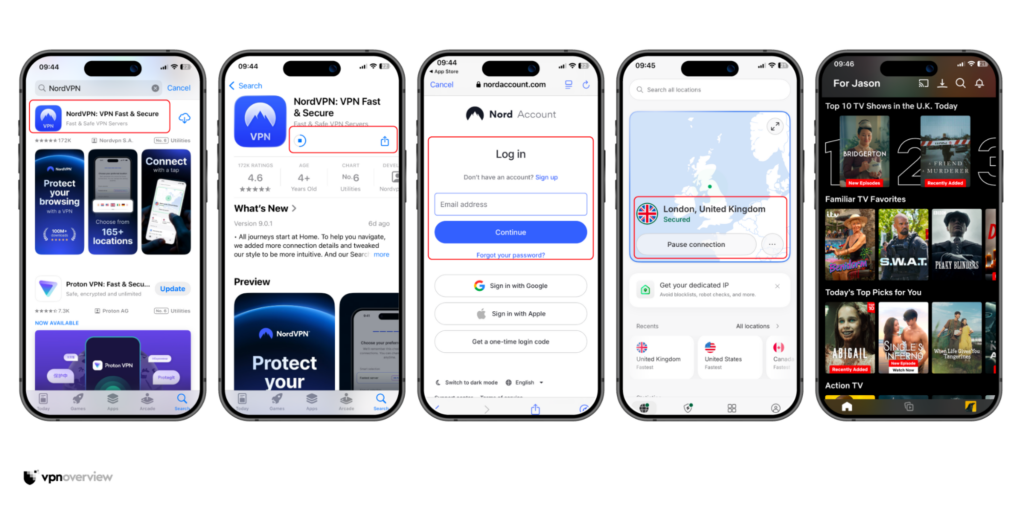
Changing your iPhone’s location with a VPN is useful if you want to unblock geo-blocked websites and streaming libraries, browse with security on public Wi-Fi, find cheaper regional pricing abroad, and ensure you’re not locked out of your usual services at home when traveling. In my example above, I was able to get a US IP address quickly within minutes.
Based on my tests, NordVPN is the best VPN to install on your iPhone thanks to 8900+ servers in 149+ countries that make it easy to get any IP address worldwide. What’s more, it offers the best security tools for public Wi-Fi networks and the fastest streaming speeds for unblocking international content without lag.
Method 2. Change your iPhone GPS location
If you need to change your GPS coordinates, you will need a dedicated GPS spoofing tool. Unlike a VPN, which only changes your IP address, this method changes the location your iPhone reports to apps that use GPS data. It means you can test apps in different regions or access location-based features in games. Bear in mind that changing GPS data can affect how other apps function, and some apps actively detect spoofed locations.
- Download a GPS-spoofing app. Well-known apps that work on iPhone include iAnyGo, Dr.Fone, and iMyFone.
- Connect your iPhone to your desktop computer via USB. Unlock the device and tap on ‘Trust this computer’ if asked.
- Open the third-party app you downloaded in the first step.
- Locate the GPS-spoofing feature in the app and click on it.
- Choose your preferred location and confirm the changes to change your iPhone’s GPS location.
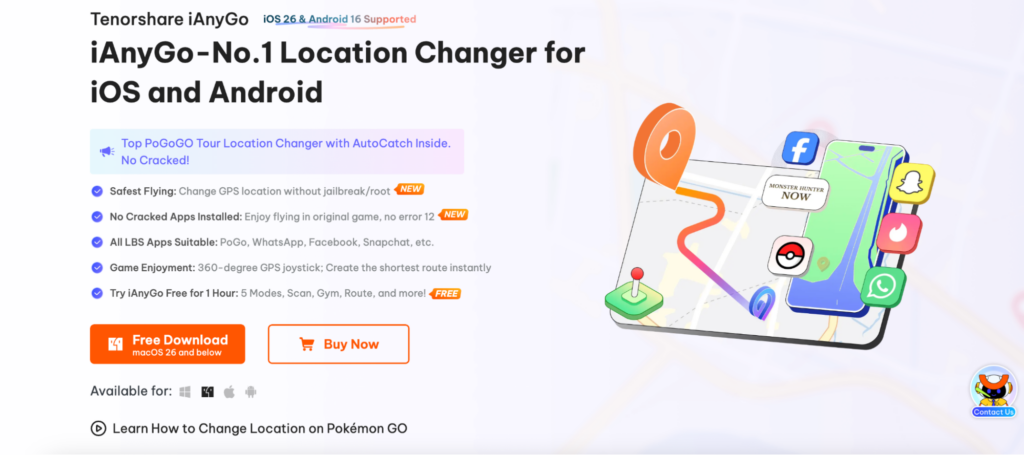
Before you download any third-party GPS-spoofing apps, I recommend installing a reliable iPhone antivirus such as Norton 360 to protect yourself against malware. While I’ve named some reliable and well-known GPS-altering tools above, third-party apps can pose more of a security risk, so you should take care when installing them.
Disclaimer:
Only use official third-party apps that you trust to change your iPhone’s GPS location. Changing your GPS location on an iPhone can affect how your other apps function, and you should always adhere to app policies and local laws in your region.
Method 3. Change your Apple ID country or region on iPhone
If you want to access a different App Store library and download region-locked apps, you will have to change your Apple ID country or region. This method won’t affect your IP address or GPS location, but it is useful if you’ve moved countries, you’re studying abroad, or you want to download apps that aren’t available in your current region for any other reason. However, Apple has certain requirements you must meet before switching regions.
- Open Settings on your iPhone and tap your Apple ID at the top of the screen.
- Tap on Media & Purchases, then View Account.
- Choose Country/Region, then choose your preferred country.
- Tap Continue in the Change Country or Region screen.
- Agree to the Terms and Conditions and enter a payment method.
- Tap Done to confirm.
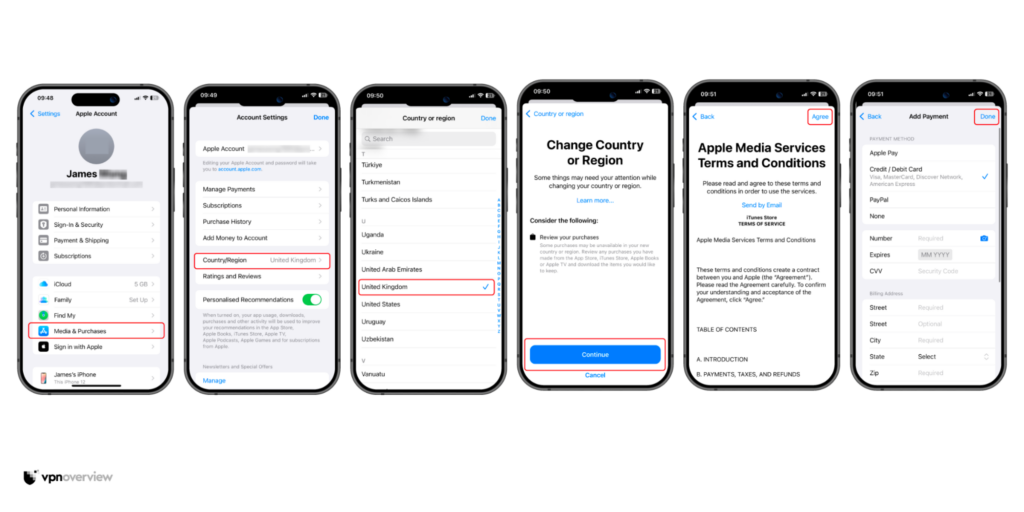
Changing your Apple ID region is more permanent and restrictive than using a VPN. It won’t hide your IP address, improve your privacy, or unlock region-blocked streaming platforms. If you just want to access geo-blocked websites or browse more privately on your iPhone, using a VPN like NordVPN is the easier option.
Why can’t I change my Apple ID region?
You may not be able to change your Apple ID region due to existing balances or subscriptions, payment methods, or other aspects of your account. Check the following before you try to change your Apple ID’s country or region:
- Clear your Apple ID balance. Spend any remaining credit on your Apple ID account, as you can’t change your location if you have a positive balance.
- Cancel active subscriptions. You won’t be able to update your Apple ID region if you have existing subscriptions in your current region.
- Cancel other memberships or rentals. If you have any other memberships, rentals, season passes, or active preorders, they’ll need to be canceled or expire first.
- Check your payment method. Make sure that you have a payment method that’s valid in your preferred region, otherwise you won’t be able to change it.
Comparing methods how to change location on iPhone: which should you use?
There are 3 different ways to change your iPhone location, including using a VPN, spoofing your iPhone’s GPS, or changing your Apple ID region. However, they don’t all achieve the same result. Eavch method uses a different kind of location data, so the right method to use depends on what you want to achieve. I compared the main 3 methods to change location on iPhone below:
| Method | What it changes | How it works | Best for | Difficulty level |
| 1. Use a VPN to change your location | Device IP address (geographical location) | Reroutes your internet traffic through the destination server in another country | Unblocking geo-restricted streaming services and other websitesGetting cheap travel dealsProtecting yourself on unsecured networks | Easy |
| 2. Change your iPhone’s GPS location | Device’s physical GPS location data | Uses a third-party app to hide your device’s true GPS location | Accessing location-based apps, such as mobiles games, dating apps, and navigation apps | Medium to Advanced |
| 3. Change your Apple ID country or region | Apple App Store country and billing region | Updates your device’s Apple settings to a new country | Accessing the App Store in a specific region Downloading region-specific mobile apps | Medium |
Our verdict:
Using a VPN to change your iPhone location is safest for most users, as it’s quick, easy, and carries no risk of causing problems with your device or existing applications. GPS spoofing is a more niche method for location-based services, while changing your Apple ID region is only useful if you need to access specific apps in another country. Based on my experience, I recommend using NordVPN as the best VPN for changing iPhone location.
How to turn off your location on iPhone
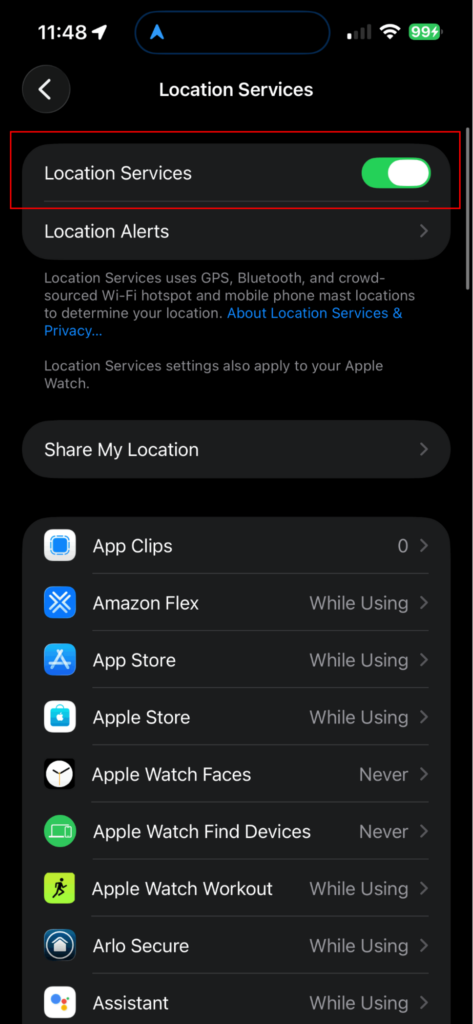
In some cases, you may not need to change your device location but rather turn off your location on iPhone. For example, you may want to avoid ad tracking or to prevent GPS from eating through data in the background while traveling. Here’s how you can disable your iPhone’s location services:
- Open the Settings app.
- Tap on Privacy & Security.
- Go to Location Services.
- Tap on the apps you want to stop seeing your location data.
- Change your preference to Never.
Alternatively, you can simply disable all location services by using the green toggle at the top of your screen. This will prevent any apps from accessing your location until you choose to turn it back on again.
Why is my VPN not changing my location on iPhone?
If your VPN is connected but your real location is still showing, it’s usually caused by a technical issue, cached data, or the app using GPS instead of your IP address. Below are the most common reasons your VPN may not be changing your location on iPhone:
- The app is using GPS instead of your IP address. Some apps, like Maps, weather apps, or Uber, rely on your iPhone’s GPS data, not your IP address. A VPN changes your IP address but doesn’t affect your GPS location. In this case, you need a third-party app such as iAnyGo, Dr.Fone, and iMyFone.
- Your app or browser cached your old location. Some websites store old location data in the browser. Try closing the app and clearing your browser cache, then open the website in a private browsing tab alongside your VPN.
- You’re connected to the wrong server. Make sure you’ve chosen a server in the right country. If a streaming service still shows your original region, try to connect to a different server in case the original has been flagged.
- Location Services are overriding results. Safari and other apps can use Location Services in combination with detecting your IP address. Go to Settings > Privacy & Security > Location Services, then disable location access for the app or set it to “Never.”
- Your VPN connection dropped. Sometimes, your VPN may disconnect in the background. Check for the small “VPN” icon in your status bar or open your VPN app to check if you’re still connected.
- IPv6 or DNS leak issues. Your iPhone could leak IPv6 traffic outside the VPN connection if you’ve chosen a low-quality provider. Make sure your VPN has built-in leak protection enabled, which is built into NordVPN and other premium VPNs by default.
Can you fake your location on Find My iPhone?
Yes, you can fake your location on Apple’s Find My application by spoofing your GPS with a third-party app or by using another phone. These methods essentially replace the phone’s original GPS data, displaying a fake location. However, note that if you use these methods to fake your location on Find My, they could leave you exposed to malware or a damaged device:
- Third-party apps such as iOS Location Changer, Dr.Fone, and iAnyGo. These let you connect your device to a desktop computer or Mac via USB and choose a fake location, which tracks in real-time across all apps.
- Replacement iPhone: If you log into your iCloud account on another iPhone, set it to allow location sharing, then leave it at the preferred location, Find My will track that location instead of your own.
- Xcode on Mac. Developers with sufficient technical knowledge can use Xcode to simulate false Find My locations, which is more reliable than the above methods but too advanced for the average user.
- Jailbreaking: Jailbreaking has been around since the original iPhone and lets you install third-party apps that can more effectively hide your location, but this can damage your device and invalidate your warranty.
Disclaimer:
We don’t recommend nor condone jailbreaking your iPhone, as this voids your warranty with Apple and puts you at risk of malware that could endanger your personal data. Only download apps from the official App Store to avoid exposing yourself to malicious third-party applications.
Final verdict
If you want to know how to change your location on iPhone, there are 3 different methods. Using a third-party GPS spoofing tool lets you change your GPS data to access location services in other countries, but it offers no data protection and can’t unblock websites. Changing your Apple ID region or country lets you download foreign apps, but it can be hard to achieve and cause issues with your apps at home.
The easiest way to change your iPhone’s location is by using a VPN to change your IP address. This lets you unblock websites in any country, provides protection on unsecured networks, and can get you cheaper deals on international hotels, flights, and subscriptions. I recommend using NordVPN, now up to 75% off, which offers 8900+ worldwide servers in 149+ countries to get a new IP address on your iPhone. It offers a native app from the App Store and the fastest streaming speeds for unblocked international content libraries.
Related articles:
What’s my IP? Find out your IP address and location
How to change VPN location and IP on any device
FAQ
Yes, changing your iPhone’s location is generally legal, but it isn’t condoned by Apple and could breach the terms of service of some apps, such as games, dating apps, and gambling services. Changing your App Store location is allowed, but using third-party apps to spoof your GPS or change your IP address is riskier, and you should use a reliable antivirus like Norton 360 to protect your device if you choose to do so.
Yes, you can change your location on iPhone by using a VPN, using a GPS-spoofing app, or changing your Apple ID location. I recommend using a VPN like NordVPN to change your IP address, as it’s the fastest and simplest way to update your iPhone’s location. Alternatively, you can spoof your GPS location with a third-party app, or update your Apple ID country or region in the Settings app.
Change your current location on your iPhone by using a VPN to get a new IP address, spoofing your GPS location with a third-party app, or updating your Apple ID country or region. Using a VPN is my recommended method, as it offers the greatest benefits in unblocking geo-blocked websites, protecting your privacy, and giving you access to cheaper deals abroad. I recommend NordVPN, which offers native apps for iOS, the fastest speeds, and 8900+ servers in 149+ countries to change your location.
Yes, you can use a free VPN to change your iPhone’s location by connecting to a VPN server using a reliable free VPN service. However, many free VPNs fail to change your location due to poor-quality infrastructure or limited server availability. Instead, I recommend trying a VPN free trial and 30-day money-back guarantee from a reliable provider like NordVPN.
The easiest way to make your location appear elsewhere on your iPhone is by using a VPN to change your IP address and trick websites into thinking you’re in another location. Get a reliable VPN, like NordVPN, connect to a VPN server, and your IP address will be updated. If you want to trick location-based services like mobile games or dating apps, you’ll need to spoof your GPS location with a third-party app.
Yes, you can fake your location on iPhone by using a VPN to change your IP address, spoofing your GPS with a third-party app, or changing your Apple ID region. Using a VPN is the safest and easiest way to change your iPhone’s location and unblock international platforms, get cheaper pricing in more affordable regions, and stay secure on public Wi-Fi networks. Based on my tests, I recommend using NordVPN, which has 8900+ servers in 149+ countries.