

The Domain Name System (DNS) is a core service powering the internet. When you type a website URL like vpnoverview.com into your browser, DNS translates it into the numerical IP address that computers use to locate the correct server.
Most users rely on the DNS servers provided by their internet service provider (ISP) without even thinking about it. However, ISP DNS servers can often be slower, less reliable, or log more internet data than you might like. To avoid these risks, you can switch to third-party DNS providers to potentially improve performance and privacy.
Popular public DNS services include Google Public DNS, Cloudflare, and OpenDNS. However, changing DNS servers alone doesn’t fully protect your browsing activity from network observers. For stronger privacy and encrypted traffic, I recommend using a reliable VPN with secure DNS, such as NordVPN, which can route your DNS requests through its own protected servers while encrypting your internet connection.

What is DNS?
When you type a website address such as vpnoverview.com into your browser, the Domain Name System (DNS) translates that domain name into a number-based IP address that computers use to identify the right server to which the website belongs.
Every device and website on the internet has an IP address. However, these addresses aren’t easy for humans to remember, so DNS solves this problem by linking each IP address to a more easily memorable and readable domain name, such as vpnoverview.com.
When you enter a URL like this into your browser, your device sends a DNS request to a DNS server. That server checks the IP address against a list of domains and returns it to your browser, letting the website load. Without DNS, you would have to remember and enter the numerical IP address of every site you want to visit.
What is a DNS server?
According to Verisign, there were 386.9 million domain registrations as of the end of 2025. These domain names and corresponding IP addresses are stored on servers across the globe called DNS servers. DNS servers are devices or programs that answer domain queries from desktop or mobile devices, called DNS clients. So the DNS servers provide this service to DNS clients.
Since DNS servers are constantly bombarded with DNS queries, the servers are always communicating with each other so they can catch redundancies and update data about websites. With the DNS system, it doesn’t matter if the IP address or hosting of our site changes, as DNS servers will always bring you back to the correct IP address.
Why would I change my DNS server?
If you don’t know what DNS server you’re using, it likely belongs to your internet service provider (ISP). Though many internet users may never leave the DNS server provided by their ISP, others might opt to switch to a free, third party public DNS server instead for a variety of reasons.
Faster service
Third party providers often have more power behind their DNS servers, and provide a faster internet user experience. DNS server performance can depend on physical distance between the server and your Wi-Fi router, so using a server located geographically closer to you could improve page load speeds.
Privacy
If you’re on your ISP’s DNS server without a VPN, a service that allows you to change your IP and the server you use, your ISP can see your online activity. The best way to prevent this is by using a reliable VPN to hide your online activity, otherwise you could be tracked by your ISP and other third parties.
Reliability
A server provided by your ISP might not only be slower, but could face downtime more often. Users often switch to third party DNS providers because of uninterrupted uptime and more reliable service.
Filtering content
Your ISP’s DNS provider may not have sufficient parental controls. With some third party DNS servers, like OpenDNS, you can block inappropriate or explicit websites, as well as entire categories of websites at the source.
Security
With all the malware, phishing sites and other scams that increase in number year on year, security is more important than ever. You don’t want to accidentally access a server controlled by a hacker. Some public DNS servers promote their advanced security and encryption protocols.
Can I change my DNS server?
Changing your current DNS service to a more secure DNS provider won’t harm your device or network. Your actions are reversible, and you can try different ones to see which works fastest for your specific location. Before you change your DNS settings, make sure to write down the current server addresses or settings somewhere, if there are any. If you do need to revert, you’ll need these numbers for backup.
Change your DNS server in Windows 10
- Open the Control Panel.
- Under “Network and Internet” select “View network status and tasks.”
- Select “Change Adapter Settings.”
- Right click “Network Adapter” and select “Properties.”
- Select “Internet Protocol Version 4 (TCP/IPv4)” and then “Properties.”
- Enter your preferred and alternate DNS server IP addresses (provided later in this article).
- Select “OK” when done.
- Test your browser with a new website query. Make sure your browser isn’t pulling from the cache by clearing it or browsing incognito. It may take ten to thirty seconds or so to lock in with the new DNS server.

Change your DNS server on a macOS
- Select the Apple menu.
- Select “System Preferences“, then click “Network“.
- Select the connection you wish to configure (Wi-Fi or Ethernet), then click “Advanced“.
- Select the DNS tab.
- Click “+” to add a new IP address, or replace an address listed. Enter your preferred and alternate DNS server IP addresses (provided later in this article).
- Select “OK“, then “Apply” when done.
- Test your browser with a new website query. Make sure your browser isn’t pulling from the cache by clearing it or browsing incognito. It may take ten to thirty seconds to lock in with the new DNS server.


Which public DNS servers are best to use?
If you think it might be time to switch to a third-party DNS service provider, there are plenty to choose from. Some focus strictly on security and speed, while others offer different features. The DNS server that a user selects, completely depends on what they’re looking for. If you want to switch to any of the DNS servers below, you just have to change the server’s IP address in your router. There’s no sign up or registration necessary, unless you want to upgrade to a paid plan or use features like content filtering.
Though public DNS servers are able to track and store your every website query, and see every domain you request, there’s a reason for this. It’s so the servers can pull up your favorite sites from the cache faster by memory, and improve your user experience. Providers may log your internet activity for further use, however, so that’s something to consider for the privacy-conscious.
Google Public DNS

You’re likely familiar with Google Search, Google Chrome, the Android OS and plenty of other Google products. Behind these applications is Google Public DNS, one of the fastest DNS servers available. It’s been available free for users for the past 10 years or so, with the easy-to-remember IP addresses of 8.8.8.8 and 8.8.4.4.
While you’re likely protected from hacks and cyber-attacks from the security a tech giant brings to the table, keep in mind Google is an advertising company which could track and monitor your activities for marketing purposes.
OpenDNS

OpenDNS has been offering their free public servers for around the past fifteen years. The company does store your DNS web browsing activity and IP address information when you use their servers. Though OpenDNS does this for personalization and bettering the user’s overall experience, it’s something to consider for privacy-conscious users. They promote a free Family Shield server plan that households can use to block out content not suitable to children. Similar servers are also available for small businesses to block out malicious, inappropriate or even time-wasting sites.
Cloudflare

Though newer to the scene than the other two big players, Cloudflare has made a name for themselves in the DNS space. Cloudflare provides DNS servers to some of the largest and most innovative companies today and include IBM, Shopify, Loreal, Doordash and Labcorp, among others. They offer heightened security and protection at the easy-to-remember IP addresses of 1.1.1.1 and 1.0.0.1. They have a free public DNS server, with the option to upgrade to monthly plans with paid add-ons starting at $20 and going up to the hundreds.
Uncensored DNS

Two public DNS servers based in Denmark have been available for use since 2009, free of charge. Thomas Steen Rasmussen – who used to administer censored DNS servers for ISPs to comply with Danish censorship requirements – funds and runs Uncensored DNS as kind of a pet project, and says the servers neither store any information about users nor how they use the system. They have encryption protocols against hackers, such as DoH and DoT, on their servers for extra security, though you’re essentially entering a handshake agreement that no one will log your info.
Quad9

Quad9 is another free public DNS server that touts speed and top notch security, and has been active since 2017. Run by the Quad 9 Foundation based in Switzerland, their mission statement is “to provide a safer and more robust Internet for everyone.” The service blocks lookups of malicious host names from a constantly updated list of threats. They reportedly make 60 million of these blocking actions per day.
Comodo DNS

Users can simply change their DNS server to Comodo’s IP address 8.26.56.26 or 8.20.247.20 for free service, or sign up for a free package that offers up to 300,000 DNS queries a month. If users want to upgrade to a business plan, there’s plenty of options to use additional features like full DNS traffic encryption, content filtering and advanced malware protection.
| Free Public DNS Servers | IP Addresses (IPv4) | IP Addresses (IPv6) |
|---|---|---|
| Google Public DNS | 8.8.8.8 8.8.4.4 | 2001:4860:4860::8888 2001:4860:4860::8844 |
| OpenDNS | 208.67.222.222 208.67. 220.220 | 2620:119:35::35 2620:119:53::53 |
| Cloudflare DNS | 1.1.1.1 1.0.0.1 | 2606:4700:4700::1111 2606:4700:4700::1001 |
| Uncensored DNS | 91.239.100.100 89.233.43.71 | 2001:67c:28a4:: 2a01:3a0:53:53:: |
| Quad 9 | 9.9.9.9 149.112.112.112 | 2620:fe::fe 2620:fe::9 |
| Comodo DNS | 8.26.56.26 8.20.247.20 |
Should I use paid DNS or a free DNS service?
When you sign up for internet service, your ISP will provide you with a DNS server. Most free public DNS servers, like Google DNS, Cloudflare or OpenDNS, provide the average user the security and speed they need.
If you’re registering a domain for your own website, the registrar will also provide you a DNS server. Paying for premium is up to the user. You can imagine a DNS service provider like any other premium service. A paid service is going to give your website better, faster and more reliable service, and increased security.
If you’re a freelancer running a portfolio site to get more clients, it may not be necessary to pay for a premium service. But if you’re running a business or commercial site with high traffic that needs constant uptime and additional security for customers, you might benefit from premium features. Especially since basic services can be just a few extra dollars a month.
Which DNS server is the safest?
When it comes down to it, it’s really a matter of personal preference which DNS server you choose. Google Public DNS provides the speed and cybersecurity at the possible expense of storing your internet activity for later use. If you’re willing to trade speed for discretion, you could try Uncensored DNS.
If you need to block explicit content or sites you don’t want your children using, OpenDNS might make the best choice.
What’s of the utmost importance is finding a secure DNS server. If you’re using a server that’s vulnerable to hacks, you could fall victim to DNS cache poisoning, DNS spoofing or other DNS-related cyber-attacks.
The dangers of an unsafe DNS server
Unfortunately, savvy hackers have been known to breach insecure DNS servers, and tap into security holes in the Domain Name System. There’s a variety of cyberattacks that can be used on vulnerable servers and DNS caches.
DNS cache poisoning and DNS spoofing
Your DNS cache is where your prior DNS queries and searches are temporarily stored on your operating system or browser. Keeping that local DNS information allows the OS or browser to more quickly and efficiently pull up and resolve a domain and IP query.
DNS cache poisoning will trick servers into connecting to a malicious IP address by blitzing a DNS resolver cache with fake addresses that correspond to a DNS query. If successful and once in the cache, the user could be taken to a fake site, such as a fraudulent PayPal site, where they might enter sensitive and personal financial information. At this point, the scam is also known as DNS spoofing, since you’ve now been lead to a “spoofed” site and your cache has been “poisoned.”
This is why it’s necessary to keep an eye on your browser when you visit sites that require sensitive personal information. The spoofed URL in the browser won’t actually say PayPal.com, but rather a variation like yourbestpaypall.com or something different altogether.
DNS hijacking and redirection
DNS hijacking is when hackers physically change DNS settings using different methods. DNS spoofing could be accomplished this way. There are several ways DNS hijacking can occur:
- Hijacked DNS Server — cybercriminals can hack an insecure DNS server, and change settings and records to redirect DNS requests to malicious sites. At this point, anyone using this DNS server is using one that’s been taken over by a hacker.
- Hijacked DNS Router — perpetrators can take over a router and change DNS settings. This would affect any devices using the router and redirect them to dangerous sites.
- Hijacked Local DNS — hackers install Trojan malware on a user’s device and alter local DNS settings. This will take users to malicious sites.
Some ISPs can even use a form of this method to hijack a user’s DNS requests, collect data and then return advertising. Some authoritarian governments use forms of DNS hijacking to enforce censorship and redirect users to government-approved sites.
All of the third party DNS services providers mentioned above have extensive security to avoid attacks like this, but your ISP’s DNS server may not.
DNS leaks
A DNS leak refers to a situation where a user’s VPN connection has functioned improperly, and the user’s data is now transmitted out of the secure connection. This means that the user’s data can be accessed by their ISP or another third party.
If you use a VPN server, your DNS request is sent to an anonymous server through the VPN, which prevents your ISP from monitoring your actions. However, in a DNS leak, your browser will bypass the VPN and send your request to your ISP’s server. The danger is that users are typically unaware that a leak has occurred and think their private data is safe, even when it’s not.
What causes a DNS leak?
There are several reasons for DNS leaks, some more common than others:
- Misconfigured VPN — Most commonly, a DNS leak is caused by a VPN service that was configured incorrectly on a device or operating system. For this reason, users should select a VPN service with cross-platform compatible clients.
- OS incompatibility — Many OS devices have features that can meddle with DNS requests. In some, the problem may result from an improperly configured network or DNS server setting.
- DNS hijacking — There’s also the possibility that a cybercriminal hacked into a user’s server, router or local device to send their data outside of the VPN tunnel, though this scenario is far less common.
How do I know if I have a DNS leak?
Generally, it’s difficult to tell if your computer is directing DNS requests through your ISP’s server instead of your VPN’s server. However, you can easily identify a DNS leak by using an online leak test. There are many different DNS leak tests available, such as www.dnsleaktest.com and www.ipleak.net. These tests are simple to run. With dnsleak.com, you just navigate to the website and locate the “Standard Test” or “Extended test” button.

Either of these options will work, but the extended version runs a more in-depth test. Click on your preferred test, and the test will run and then display a results page. On the results page, you will see a list of DNS server IPs. If any of the IPs belong to your ISP, this indicates that your ISP can see your connection and track your private data or online actions. However, if the IP addresses belong to your VPN provider, this indicates that there is no DNS leak and your traffic is safe.
How do I fix a DNS leak?
If you’ve determined that you are experiencing a DNS leak, there are a variety of different methods you can use to stop the leak and prevent them from happening again.
- Change your DNS server — Switch over to Google Public DSN, OpenDNS, Cloudflare or Uncensored DNS if you’ve got a leak. If you’re concerned about your ISP or third parties eyeing your activity, they won’t be able to on more secure servers.
- Use DNS servers from VPN providers — Some VPN providers, like NordVPN and Surfshark, allow you to use their own private, encrypted DNS servers in addition to providing a private browsing tunnel.
- Use a VPN with DNS leak protection — Some premium VPN providers have features that notify users when there are DNS leaks. Check the settings on the VPN and set it for protection.
What is SmartDNS?
Smart DNS is a technology that unblocks websites and digital media unavailable to your country or geo-specific location. So if you’re visiting a European country this summer, you can watch American Netflix, Amazon Prime, or Disney Plus while back in your hotel room, or stream Pandora music from your poolside deck chair. Alternatively, if you’re living in a country that blocks Facebook, you’ll be able to set up an account.
This concept sounds similar to a VPN, but works in a different way. Instead of masking your IP address like a VPN, SmartDNS redirects your DNS queries to its content-friendly DNS servers, unblocking the blocked content while drawing no suspicion to your activity.
Users might opt for SmartDNS over a VPN to avoid automatic security and bot checks that get set off when a user logs in repeatedly from different IP addresses. With its streaming content focus, one benefit includes potential increases to your internet speed. Since a VPN uses some bandwidth to encrypt all of your internet activity, SmartDNS can offer faster speeds, though it comes at the cost of privacy.
Overall, a VPN provides more online security and is a better choice for unlocking content as it protects your identity and activity while performing the same duties.
Conclusion
The Domain Name System has a crucial role in how you access websites and online services. However, the provider of the DNS servers you use to translate domain names into IP addresses can affect browsing performance, privacy, and security. If you’re experiencing slow loading times or connection issues, switching to a public DNS provider can sometimes improve stability. Popular options include Cloudflare, Google Public DNS, OpenDNS, Quad9, Uncensored DNS, and Comodo DNS.
Note that changing DNS servers doesn’t entirely hide your browsing activity from your internet service provider or other third parties. If you want stronger privacy protections and encrypted traffic, using a reliable VPN such as NordVPN alongside a secure DNS provider offers a much higher level of protection.
FAQ
DNS, or the Domain Name System, is like an online directory for domain names (like VPNOverview.com) and their corresponding IP addresses. Computers only know numbers, and humans are better with easily-remembered domain names, so the system matches domain queries with their IP addresses.
DNS servers are devices or programs that handle DNS queries from desktop and mobile devices. With more than 386 million registered domains and corresponding IP addresses, this information is stored on DNS servers around the world. Servers communicate with each other constantly to update data on websites.
In 2026, the safest and most popular DNS servers are available from third-party DNS services like Google Public DNS, OpenDNS and Cloudflare, each with robust security features and fast connection speeds. robust security features and strong connection speeds. However, you can also get reliable DNS servers from VPNs that simultaneously encrypt and hide your data, such as NordVPN.
Yes, you can change DNS servers, and switching to a more secure DNS provider from your current DNS service won’t hurt your device or network. You can reverse any changes you make, and try different servers based on your location. You simply enter new primary and secondary DNS IP addresses into your router’s settings.
A DNS attack targets vulnerable areas in the Domain Name System. This could be attacking insecure DNS servers, performing DNS cache poisoning and DNS spoofing, or DNS hijacking. If a hacker manages to override DNS settings or queries, internet users can be redirected to malicious sites.



I'm using proton's free vpn for a while now and have had no issues. I regularly check for web RTC and IP leaks and DNS leaks. Also I use Iceraven browser and Carbon browser which I will be replacing with mull or mulch browser shortly. Carbon is just too exact to chrome for my comfort. Used to use quaid9 DNS service. But read on reddit.com that with android version 12 quad9 was not working correctly and that a VPN service was not possible to use at the same time. Now I'm reading different advice for this question. Can I use quad9 DNS service and a VPN service (proton)at the same time???
The honest answer is "it depends." You can use Quad9 DNS in combination with a VPN service, but whether or not it works depends on a lot of factors having to do with your setup, router, etc.
I have read and researched for almost a year and this is by far the cleanest and most informative piece I have ever read - thank you Mr. Moore!
Do you have anything written on targeted attacks, or actual device breaching? Is there a program you can run to see if you are being redirected, or if they are cached or poised sites? A clean up tool so to speak (besides the norm virus scans)?? I haven’t tried all of the suggestions mentions here yet, but some and it seems as if no matter what I do, it continues. It’s exhausting and frustrating, and particularly intrusive.
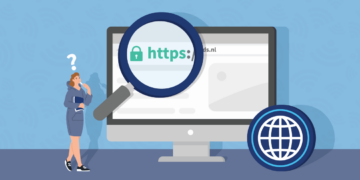
Thanks for the kind words! Glad we could make it clear for you. The better anti-virus programs (https://vpnoverview.com/antivirus/best-antivirus/) will stop you from entering those spoofed and poisoned pages before it's too late. You also want to keep an eye on your URL and browser -- make sure you always see the "HTTPS" (not HTTP) protocol and the locked padlock if you're on a site entering login credentials or any sensitive data.
Here are a few targeted attack pieces we've worked on lately if you're interested. Phishing and social engineering attacks can lead you to those compromised sites.
https://vpnoverview.com/internet-safety/cybercrime/phishing/
https://vpnoverview.com/internet-safety/cybercrime/what-is-social-engineering/