
Looking for a password manager? With Keeper and 1Password, you can’t really go wrong. With affordable plans, excellent security features, and great app designs, both are among the best password managers in the world. But which one is the winner?
For this comparison review of Keeper vs 1Password, we put both password manager apps through extensive testing. We compared each password manager’s security features, tested password importing and various browser extensions, and reviewed overall usability.
Read our results below to find out which one is best for you!
Keeper vs. 1Password: Summary

Both Keeper and 1Password are excellent password managers that will optimize your digital security. With plenty of features and affordable plans, we highly recommend both.
If you’re purely focused on security, Keeper might be the password manager for you. It offers more MFA options than 1Password and doesn’t collect nearly as much personal data as 1Password. Other Keeper benefits include its secure messaging app, account recovery options, and affordable plans. However, a downside to Keeper is that certain features come at an extra cost.
1Password is comparable in price but offers a lot more value-for-money. It upholds the same security standard as Keeper and does everything a password manager is supposed to do. On top of that, you get access to highly advanced features such as Travel Mode and virtual credit cards.
Moreover, we find 1Password’s design and user experience better than Keeper’s. When the margins are slim and differences small, it really comes down to which password manager is nicest to use — and in our experience, 1Password takes the cake.
Feature overview
Do you know what you’re looking for in a password manager? Have a look at our comparative overview of different features to see which app meets your needs best.
| Feature | Keeper | 1Password |
|---|---|---|
| Two-factor authentication (2FA) | ✔ | ✔ |
| Bio-metric authentication | ✔ | ✔ |
| Encryption | AES 256-bit, PBKDF2 | AES 256-bit, PBKDF2, 128-bit secret key |
| Encrypted file storage | ✔ (select plans) | ✔ |
| Data breach monitor | ✔ | ✔ |
| Emergency access | ✔ | ✖ |
| Website |  |
For a more in-depth look at these password managers, we’ve organized our review in four different sections:
- Security: encryption, MFA, audits, privacy, storage
- Ease of use: browser extensions, mobile app, desktop app, password importing, password generator
- Pricing: Keeper plans, 1Password plans
- Customer support: Keeper support, 1Password support, account recovery
Security: Keeping Secrets a Secret
When it comes to your personal credentials and sensitive data, high-end security features are of the utmost importance. After all, if you’re putting your faith in a password manager, you want to be ensured that your information is actually safe.
We’ve compared 1Password and Keeper on the basis of their encryption ciphers, their authentication options, independent audits, and privacy and storage features.
Encryption
Both 1Password and Keeper uphold the highest standard of encryption with AES 256-bit encryption. This is the same level of encryption that is used by the military, banks, and government institutions and is essentially considered unbreakable.
Keeper enhances the 256-bit cipher with a PBKDF2 key to protect against brute-force attacks. Sparing you the technical details; with a PBKDF2 key added to the standard encryption, password cracking becomes much more difficult.
However, 1Password still takes things one step further: like Keeper, they’ve also added a PBKDF2 key to their standard encryption. In addition, however, they also offer a 128-bit secret key that is created on your own device and unique to your 1Password. It’s not possible to log in without it.
While this gives 1Password a slight advantage here, it’s also good to know that both password managers have a zero-knowledge architecture in place. This means that absolutely no one, not even the companies’ employees, have any access to your data.
MFA
A solid indicator of a password manager’s security is the way in which you can get access to your vault. With multi-factor authentication (MFA) you have to verify your identity in various ways, besides your password and username.
Overall, Keeper has the most varied MFA options available:
- Authenticator apps like Google Authenticator and Microsoft Authenticator
- Hardware tokens such as electronic key fobs or USB flash drives
- U2F-based physical keys (for example YubiKey)
- Apple Watch and other smart wearables
- SMS verification
Even so, 1Password has excellent MFA features, including different authenticator apps and bio-metric login options (Windows Fingerprint or Apple FaceID).
Audits
An independent audit report provides great insight into a password manager’s security. Both Keeper and 1Password have undergone extensive security audits in recent years.
Keeper is compliant with Service Organization Control (SOC 2), which looks at security, availability, processing integrity, confidentiality, and privacy. The password manager is also ISO 27001 compliant and falls within the EU-US Privacy Shield Framework.
1Password is certified according to the SOC 2 as well, and has passed audits from Recurity Labs, Cure53, and Secfault Security. Overall, each of these password managers have been independently reviewed by reputable organizations and pass with flying colors.
Privacy
How much information do these password managers collect? We’ve taken a look at the privacy policies of each dedicated password manager app and can confirm that Keeper takes the win on the privacy front.
The following information gets collected by Keeper:
- username
- phone number (for verification and 2FA)
- aggregate user statistics for service improvement
1Password has a longer list, which features more personally identifiable information:
- payment method
- logins
- number of items in your vault
- how much storage space is utilized
- IP address
- email address
On top of that, we want to note that both password managers have headquarters in countries that are part of the Five Eyes coalition, namely Canada (1Password) and Keeper (United States).
Both password managers do confirm that they never share any information with third parties. Still, for the more privacy-sensitive option, we recommend Keeper.
Storage
When it comes to storage limits, we’re happy to report that Keeper offers unlimited storage for passwords. However, for any other type of data, you have to be on a Family plan. With that, you get access to 10GB of storage.
Alternatively, you can purchase storage space at extra costs. If you’re on a Personal plan, it costs $9.99 for 10GB, $39.99 for 50GB, and $79.99 for 100GB.
With 1Password, you have 1GB of encrypted storage on any plan. This includes any type of file, including passwords. Business users get up to 5GB in storage space, but files can’t exceed 2GB in size.
Security: head-to-head
Save from its encryption methods, Keeper wins against 1Password when it comes to security. It offers a larger variety of MFA options and collects less data. However, you do have to pay for extra storage space.
Moreover, we must emphasize that the margin between these two password managers is very small. 1Password more than proves itself as a secure, reliable password manager that keeps your data safe at all times.

Ease of Use: Features & Interface Across Platforms
Besides security, ease of use is a tremendously important factor in determining which password manager is right for you. If you can’t easily use your password manager app or browser extension on a daily basis, there’s no point investing money in it.
For this reason, we’ve tested Keeper and 1Password extensively. Read our results below.
Feature overview table
In the table below, you can find an overview of the most important features and how these are incorporated in each password manager.
| Feature | Keeper | 1Password |
|---|---|---|
| Auto-fill | ✔ | ✔ |
| Auto-save | ✔ | ✔ |
| Free version | ✔ | ✖ |
| Password importing | ✔ | ✔ |
| Password generating | ✔ | ✔ |
| Password sharing | ✔ | ✔ |
| Passkeys | ✔ | ✔ |
| Unique features | encrypted messaging app, self-destruct features | travel mode, virtual credit cards |
Unique features
There are some features that set each password manager apart from the other. Let’s go over them.
Keeper: unique selling points
Keeper has a unique feature known as KeeperChat, which can be purchased as an add-on. This is a secure messaging app that has an option for messages to self-destruct after a certain amount of time.

You can also use Keeper’s BreachWatch feature to see if any of your credentials have been leaked to the dark web. If Keeper finds any leaked credentials, they will notify you right away.
While this is a great feature, it’s worth mentioning that 1Password has a similar feature that’s built-in and won’t cost you extra.
1Password: unique selling points
1Password has a few extra features that can really make a difference for your security. For one, you can use Travel Mode. This feature lets you remove vaults from your device for the time that you’re traveling, which means that no one can access your passwords when your device is taken.
Thanks to 1Password’s Watchtower feature, similar to Keeper’s BreachWatch. It flags old, weak, and reused passwords, and informs you when your data has been leaked.

Finally, 1Password offers Privacy Cards. This lets you auto-fill virtual credit card info when shopping online. You can set a specific spending amount to a temporary card with a disposable number. This way, you don’t have to use your actual credit card information.
Browser extensions: quick access to all your accounts
Both Keeper and 1Password are compatible with all major browsers, including Chrome, Firefox, Edge, Brave, and Safari. Out of the two of them, Keeper is the only one compatible with the Opera browser.
When testing the different browser extensions, we prefer 1Password’s extension. It’s almost identical to the dedicated app, allowing you to import password easily and even accessing advanced features such as Travel Mode in the browser.
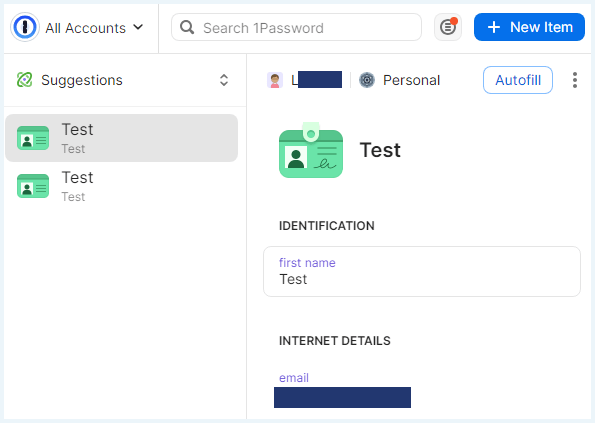
Keeper, on the other hand, mainly covers basic features. You get access to all your passwords and can easily use the password generator and auto-fill features. A plus is that the browser extension is available in multiple languages.
Mobile app: access your accounts anywhere
1Password and Keeper both have mobile apps for iOS and Android. Having access to your password manager on your phone or tablet is a great advantage! You can always access your passwords on-the-go.
The Keeper app gives you access to all the same features as you would on desktop, with the exception of password importing.
For 1Password, there is essentially no difference between the desktop app and the mobile version. You have access to recent and favorite credentials, which is an advantage. You can also use the Watchtower feature or enable auto-fill.
Note:
In the past, some iOS users have made complaints that indicate they couldn’t use Face ID. We’ve tested the app on ourselves on iOS and didn’t run into any issues.
Desktop apps: credentials on the big screen
For each password manager, you can find the most advanced features in the desktop app. For 1Password, the installation is a very straightforward process. You can start your free trial right away and don’t even have to enter payment details.
Cross-platform synchronization works well. We had no issues switching between the desktop app, mobile app, or browser extensions. The interface works intuitively and is well-organized.
For Keeper, the user experience is also very decent. One advantage to Keeper is its multi-language support, which is not something all password managers offer. We found it easy enough to import and generate passwords, as well as switch between the browser extension and app.
The extra features that Keeper offers are a plus. However, the downside is that they come at an extra cost — something you won’t have to worry about with 1Password.
Password importing
When it comes to importing your passwords, we prefer Keeper’s extensive list of options. With Keeper Importer you can import passwords from other password managers (including 1Password). The feature is also compatible with Chrome, Firefox, Edge, Safari, and Opera.
1Password has fewer browser options: Chrome, Firefox, and Safari. However, you can important passwords from a range of other managers: Dashlane, KeePass, KeePassx, LastPass, RoboForm, and Thycotic Secret Server.
Password generator
Creating strong, secure passwords is no easy feat. That’s why it helps if your password manager has a password generator. We don’t have any complaints on this front for either password manager. They are very comparable.
For Keeper, the maximum length of a password is 100 characters. You can also check how secure your existing passwords are and get rid of any reused passwords.
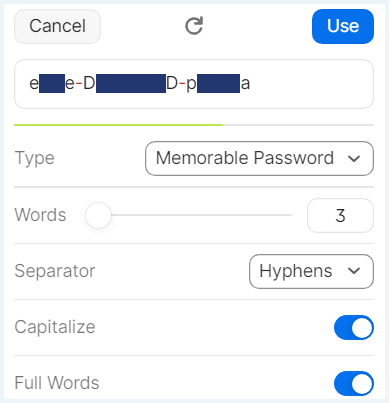
1Password has a few more customization options in comparison to Keeper. A Smart Password immediately fits the requirements. Besides this, there’s a classic password generator that will generate a 4-syllable password that combines numerals and symbols. The maximum length is also 100 tokens.
You can also request a PIN code (3-10 characters) or ask for a Memorable Password, which is easier to remember. 1Password also has a feature that assesses the strength of your existing passwords.
Ease of use: head-to-head
These password managers each offer a fantastic user experience. However, when we list all features and benefits, we ultimately prefer 1Password over Keeper on this front.
With 1Password, almost all features are included in your subscription. This means you rarely have to pay extra. For Keeper, you do have to purchase certain features as an add-on before you can use them.
On top of that, we find the cross-platform synchronization to be best with 1Password, which has virtually no differences between its browser extensions, mobile apps and desktop version.

Pricing: Plans Compared
Each password manager offers different subscription plans at different prices. We’ve listed them for you below.
Keeper pricing
Keeper is one of the few password managers that offers a free version. However, before you get too excited, there are quite a few restrictions on the free plan. For one, you can only store up to ten vault credentials. Most of us have more accounts we want to secure.
On top of that, free Keeper users don’t have access to customer service; they can only use information from the FAQ section on the site, as well as the training videos.
Want to unlock all features? In that case, you have to choose a premium plan:
- Keeper Personal: $34.99/year ($2.91/month)
- Keeper Family: $74.99/year for five vaults ($6.24/month)
- Keeper Business: $24.00/year/user (support for up to 10 users) or $45.00/year/user (administration rights-sharing options)
- Pro tip: Check out Keeper Security discount codes to save on your subscription and get the best deal.
1Password pricing
In terms of pricing, 1Password is comparable to Keeper. They do not offer a free version but there is a 14-day free trial you can make use of. You have the following options:
- 1Password Individual: $2.99/month
- 1Password Families: $4.99/month for five vaults
- 1Password Teams Starter Pack: $19.99/month/user
- 1Password Business: $7.99/month/user
- Looking for discounts? You can also browse the 1Password coupon codes page to check for current deals and promotional offers that may help you save on your subscription.
Pricing: head-to-head
In terms of pricing, 1Password and Keeper are quite comparable. Unfortunately, 1Password doesn’t offer a free version. Having said that, Keeper’s free plan doesn’t offer much value.
It’s worth noting that 1Password’s business plans are comparatively more expensive than Keeper’s plans. However, Keeper only offers extra features at additional cost, which is a downside. It really depends on your personal needs.
When looking at value-for-money, however, we prefer 1Password since it offers many different plans and a wide range of features that are automatically included in its premium plan.

Customer Support: How Useful is It?
Anyone using a password manager will appreciate good customer service. For this 1Password vs. Keeper comparison, we’ve reviewed each password manager’s support options.
Keeper support
You can reach out to the Keeper customer service team in various ways. There’s a 24/7 live chat option, which requires a verification code to start. This will be sent to your e-mail address.
You can also find a lot of information on the website, including an FAQ and several video tutorials. If you’re located in the United States, you also have the option to reach out via phone.
1Password support
1Password has extensive support options available. The website offers a support page with a lot of information and direct access to the 1Password community. You do need to create a separate account to access the community.
It’s possible to contact customer support via email ([email protected]) or chat with an AI assistant. You can also reach out via X (Twitter).
Account recovery
Should you ever get locked out of your account, you might still be able to get access via a recovery feature. 1Password uses an emergency kit, which has a recovery key in it. This is a PDF file that you have to store somewhere separately from your password vault.
1Password recommends keeping a digital, as well as a printed copy of this document. On Family and Team accounts, though, an administrator can restore access.
By comparison, Keeper’s options are more solid and accessible. You can select five contacts who can get access to your vault should you be locked out. It’s also possible to regain access via a security question that will allow you to reset your master password.
Pro Tip:
If you do keep an offline record of your master password, security question(s), or emergency kit anywhere, make sure you keep it in a safe — and preferably locked — place. Alternatively, ask a trusted person to keep a copy.
Customer support: head-to-head
Again, it’s a very close call. We’ve had positive experiences with 1Password’s customer support for years. However, Keeper has multi-language support and a large knowledge base on the website that is also very useful.
You can’t really go wrong with either option here.

Keeper vs. 1Password – Which is the Right Choice for You?
Trying to decide between Keeper and 1Password? Since both password managers are very comparable, we’ve outlined which one is best for which audience.
Try Keeper if you’re looking for a secure password manager that is compatible with all major browsers and systems and offers encrypted storage and unique features as add-ons. You can read more in our Keeper review.
Try 1Password (our choice!) if you’re looking to get the most bang for your buck, with a secure, easy-to-use, and versatile password manager that offers great extras you can’t find anywhere else. You can read more in our 1Password review.
How we Test: Password Managers
In order to give you the best recommendations, we test password managers according to specific practices. These include:
- Reviewing security: We analyze encryption, review privacy policy, and assess the validity of third-party audits.
- Testing features: Each password manager is tested, with specific attention to auto-fill, password importation, the differences in mobile/desktop apps, and platform compatibility.
- Contacting customer service: We speak to customer service representatives and review the service.
- Comparing unique selling points: What extra features does each password manager offer that give it an advantage over competitors?
- Comparing pricing: Does the password manager offer a free plan or free trial? Do you get value-for-money?
For more information, have a look at these related articles:
- The Best Password Managers of
- Best 1Password Black Friday Deal
- The Best Free Password Managers
- Nordpass vs. 1Password: Account Security Made Easy
- Best Password Manager for iPhone: Simple & Secure
Do you have any questions about 1Password or Keeper? Find your answers in our FAQ section below!
Overall, 1Password is the better password manager. While Keeper offers high security and easy-to-use apps, you get more value for your money with 1Password. On top of that, the user experience for 1Password is also better.
No, Keeper has never been hacked. However, there was a security incident in 2017 where a bug was found in the browser extension. Since then, Keeper has invested in improving its security program to manage bug bounty.
1Password has never been hacked.
Yes, Keeper is still safe. After a security incident in 2017, the password manager has invested a lot in optimizing its bug detection systems. On top of that, Keeper has been independently and successfully audited multiple times.