Based on my tests, NordPass is the best password manager overall, while RoboForm takes second place thanks to its versatility and affordability. ProtonPass, 1Password, and Keeper were also strong contenders.

Currently, all of us have dozens of accounts that require unique passwords to maintain online security, especially as data breaches, identity theft, and phishing attacks occur constantly. However, creating strong passwords and remembering them all can quickly become a hassle. That’s where a password manager comes in.
A password manager is a secure tool that creates, stores, and organizes your passwords in an encrypted vault. It removes the need to write down or remember passwords, and it helps you avoid weak passwords and password reuse. With a password manager, you can generate strong passwords, autofill forms, and protect your accounts across every device.
Our 2026 guide to the best password managers compares top providers based on security, ease of use, pricing, and platform compatibility. Whether you need a simple personal plan, a shared family vault, or advanced enterprise tools, this guide will help you choose the right password manager for your needs.
Our recommended password managers
Top 5 password managers: detailed review
Based on our rankings, the best password manager right now is NordPass. Beyond that, we suggest considering RoboForm, Proton Pass, 1Password, and Keeper, respectively. All these password managers are pretty solid, but some excel in key areas compared to others.
So, let’s take a deep dive into the top password managers we recommend to enhance your online security.
1. NordPass: overall best password manager in 2026
- Rating: 8.8⭐⭐⭐⭐
- Price: $ 1.49/month
- Free version? Yes
NordPass is the best password manager because it combines strong security, flexible customization, and affordable pricing, making it ideal for both everyday users and professionals. It protects your data with modern XChaCha20 encryption and offers a range of customizable features that let you tailor the service to your needs without breaking the bank.
During my testing, NordPass proved to be more than just a password vault. It offers comprehensive and detailed data breach reports, including dark web monitoring and a password health report that highlights weak or reused credentials. I also liked the secure, encrypted cloud storage for passwords and notes, plus emergency access for trusted contacts if you ever lose your device. Recent updates have added passkey support for passwordless logins and introduced email masking to make sign-ups safer. On the business side, admins can now see how often weak passwords are used and receive alerts when team members are involved in a breach.
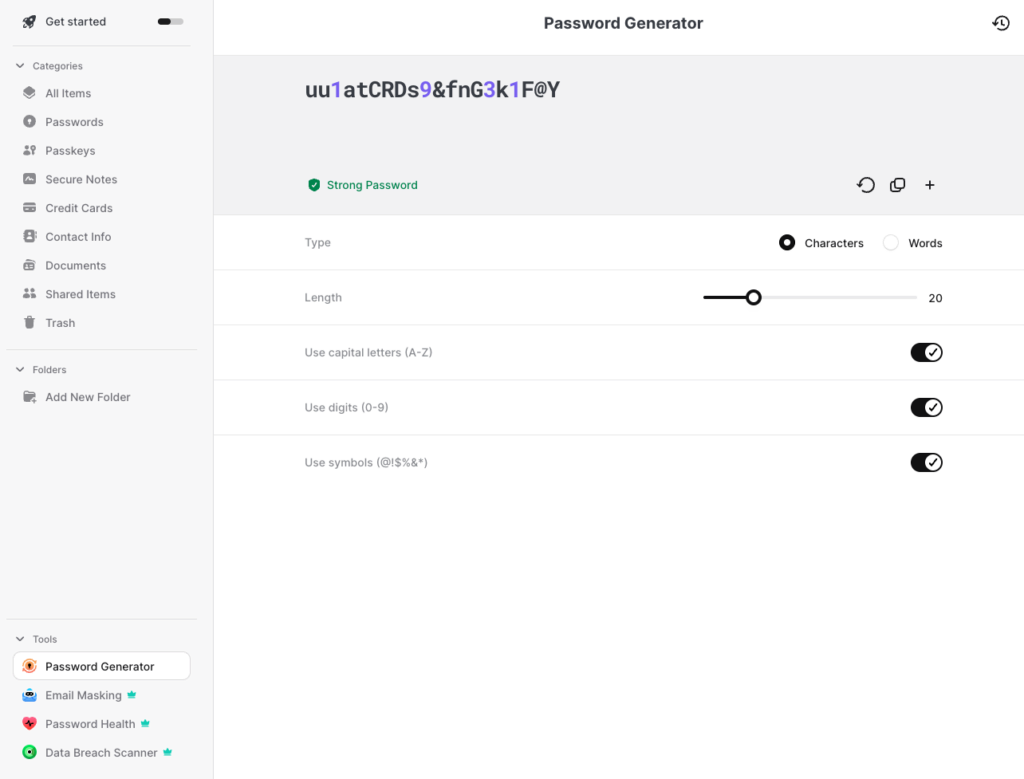
While you can use it for free on one device, the paid version supports multiple devices simultaneously. When we tested the premium version, it synced our passwords between devices and let us import them from our browsers. I found the app easy to use on any device – Windows, macOS, Linux, Chrome OS, Android, iOS.
For security, NordPass uses zero-knowledge architecture: only you know what’s stored in your password vault. It also protects passwords using XChaCha20 encryption with 256-bit keys, and you can even secure your password vault with biometric data.
There’s also NordPass Authenticator, a multi-factor authentication feature that generates a temporary code when logging in to further secure your account.
Mark of Approval:
NordPass is audited annually by independent firms. In 2021, German firm Cure53 audited NordPass, and in 2022 and December 2023, Nord again passed a Systems and Organization Controls 2 (SOC 2) audit by an independent firm.
NordPass lets you store Wi-Fi passwords, bank details, and other important data with its Secure Notes feature. You can also scan and store your credit/debit cards with its built-in OCR scanner. While you can store some files, this only goes up to 3 GB.
NordPass is a relatively inexpensive password manager. A two-year subscription costs $ 1.49/month. NordPass also often runs deals that can cut the price by half or give you extra months for free, so it’s worth checking the latest NordPass coupon codes. NordPass also offers a 30-day money-back guarantee, plus there is a NordPass Business subscription.
Why we chose NordPass
I am also a huge fan of NordVPN service, which never fails to impress. With that kind of stellar reputation backing up this password manager, I am absolutely reassured of the security of our credentials and data in general.
In short, NordPass is the best password manager. It offers a lot of extra security features, is easy to use, and is affordable compared to other password managers.
What we like:
- Uses XChaCha20 and 256-bit encryption
- Syncs your passwords across all of your connected devices for convenience
- Priced competitively if you decide to upgrade and subscribe for a longer period
- Works with macOS, iOS, Windows, Android, and Linux devices
- Browser extensions available for Chrome, Firefox, Safari, Opera, Vivaldi, Edge, and Brave
What we didn't like:
- Saving passwords can be tricky with the browser extension
- Doesn't support extensive file storage
If you’d like to know more, check out our comparison between NordPass and 1Password.
2. Roboform: affordable password manager software
- Rating: 8.3⭐⭐⭐⭐⭐
- Price: $ 0.99/month
- Free version? Yes
Roboform is one of the top password managers with rock-solid AES-256 encryption and a zero-knowledge policy. This means only you have access to your data. You can install the Roboform app on Windows, macOS, Linux, Android, and iOS.
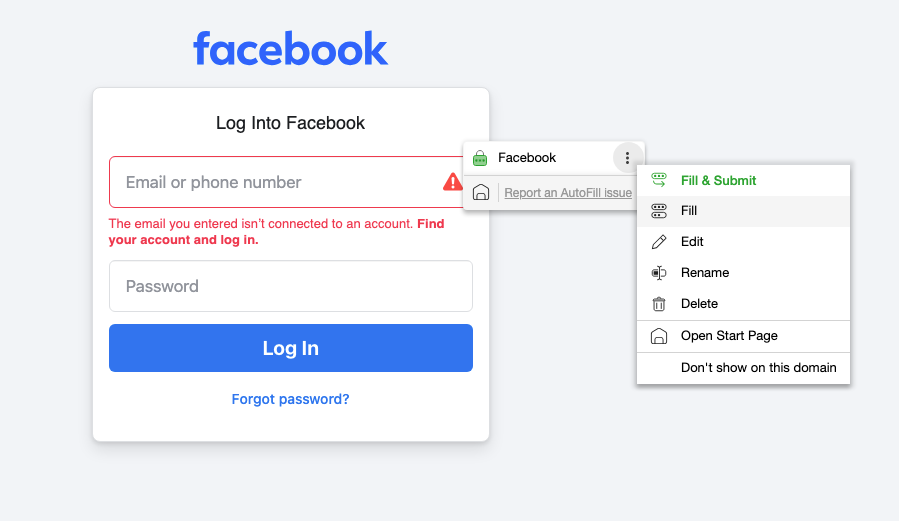
Roboform has an excellent auto-fill feature that performed smoothly during my tests. Beyond storing passwords, I was also able to securely save notes, payment details, and full identity information, which made online checkouts and account creation much faster. I especially liked advanced features such as batch logins, built-in TOTP authentication, and support for logging in to desktop applications.
RoboForm also gives you the option to keep your data local-only rather than synced to the cloud, which is a big plus for privacy-focused users. The Security Center was genuinely useful during my tests, as it flagged weak or reused passwords and highlighted accounts that may be exposed in breaches. On the authentication side, RoboForm has expanded its options significantly, now supporting advanced 2FA methods, including hardware security keys and passkeys for passwordless unlock. I was able to access our vault using face recognition, fingerprint, a PIN, or a security key, which made logging in both secure and convenient.
Roboform’s premium subscriptions are very affordable, only $ 0.99/month. There are also subscriptions for families and businesses. In addition to the affordable premium subscriptions, Roboform also offers a free version. Unfortunately, this free version is limited and does not support synchronization between devices.
In addition, Roboform does not offer built-in storage for documents or files, which other password managers on this list do offer. Roboform also lacks other advanced features, such as dark web monitoring and automatic password changes. Read our comprehensive RoboForm review for more details
Why we chose Roboform
Roboform is a secure and affordable password manager that excels in password storage and auto-fill. This password manager offers the perfect basic toolkit and is especially suitable for users who don’t need all kinds of extra options.
Want to try Roboform for yourself? You can test the premium version for free for 30 days. After that, you can either continue with the free version or subscribe to the premium plan for just $ 0.99/month.
Keep in mind that pricing may vary depending on the plan and subscription length, so it’s worth checking dedicated RoboForm pricing page for the latest details.
What we liked:
- Works on all operating systems and via browser extensions
- Secure storage of passwords, notes, credit card information, and more
- Secure end-to-end encryption
- Very cheap premium subscription
- Plans for family and business
- Autofill works well
- Free version available
What we didn't like:
- Free version is limited
- No built-in storage for documents
Take advantage of this RoboForm deal today and boost your security!
3. Proton Pass: most secure password manager
- Rating: 8.0 ⭐⭐⭐⭐
- Price: $ 2.49/month
- Free version? Yes
Proton Pass is a secure end-to-end encrypted password manager with a zero-knowledge policy. The password manager offers apps for all major operating systems and provides automatic synchronization if you have the app on multiple devices.
Using Proton Pass has felt like a real upgrade to my digital life: I relied on emergency access, encrypted cloud storage with easy file uploads, password health alerts, secure sharing, and email aliases with dedicated mailboxes to keep everything organized and protected. It also has a password generator and offers dark web monitoring. Passkeys are also supported.
What I like about Proton Pass is that you can also access the entire Proton ecosystem, which includes free versions of Proton’s Calendar, Docs, Drive, Mail, and Proton VPN apps, making it ideal if you want everything in one place.
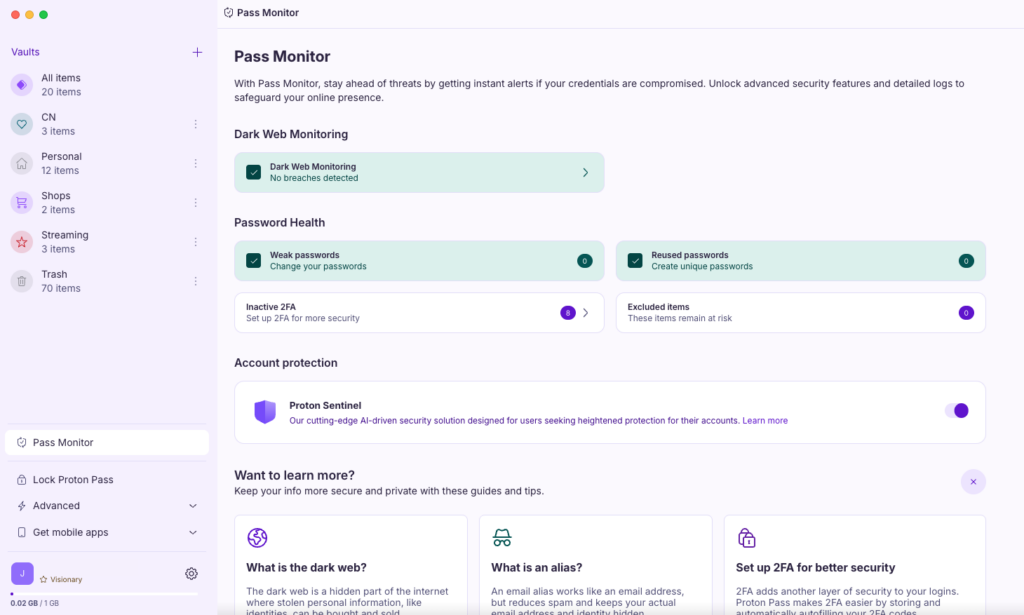
What makes Proton Pass unique is the ability to create hide-my-email aliases. With each new account, you can create an alias that is automatically linked to your inbox. This protects your real e-mail address from data leaks.
Proton Pass, like Proton’s other services, is also free to use. The free version lacks advanced features such as dark web monitoring and password sharing. Also, you can only create a maximum of 10 hide-my-email aliases. However, you can still get by just fine with the free version.
Upgrade to premium for only $ 2.49 using the Proton Pass discount code, and you can store unlimited passwords from unlimited devices. This, coupled with all its other privacy and security features, means that Proton Pass offers a pretty unique service.
Why we chose Proton Pass
Proton Pass is a highly-rated password manager. I found it very user-friendly, liked that it offers 256-bit encryption, and was impressed by Proton’s dedication to privacy across all its products. Its free version is a nice extra, although it does come with its own limitations.
What we liked:
- An open-source app that is independently verified
- Available for iOS, Android, Windows, macOS and Linux
- Unlimited hide-my-email aliases
- Dark web monitoring
- Free version available
What we didn't like:
- The free version does not offer secure sharing capability
- Live chat only available for paying customers
4. 1Password: robust password vault manager
- Rating: 8.5⭐⭐⭐⭐
- Price: $ 2.99/month
- Free version? Yes
1Password is a solid choice for a password manager. It boasts a high level of security with features like multi-factor authentication and biometric logins, powerful 256-bit encryption to secure your data, syncs your passwords across all devices, and has a user-friendly interface. All of this makes it an ideal password manager for business teams.
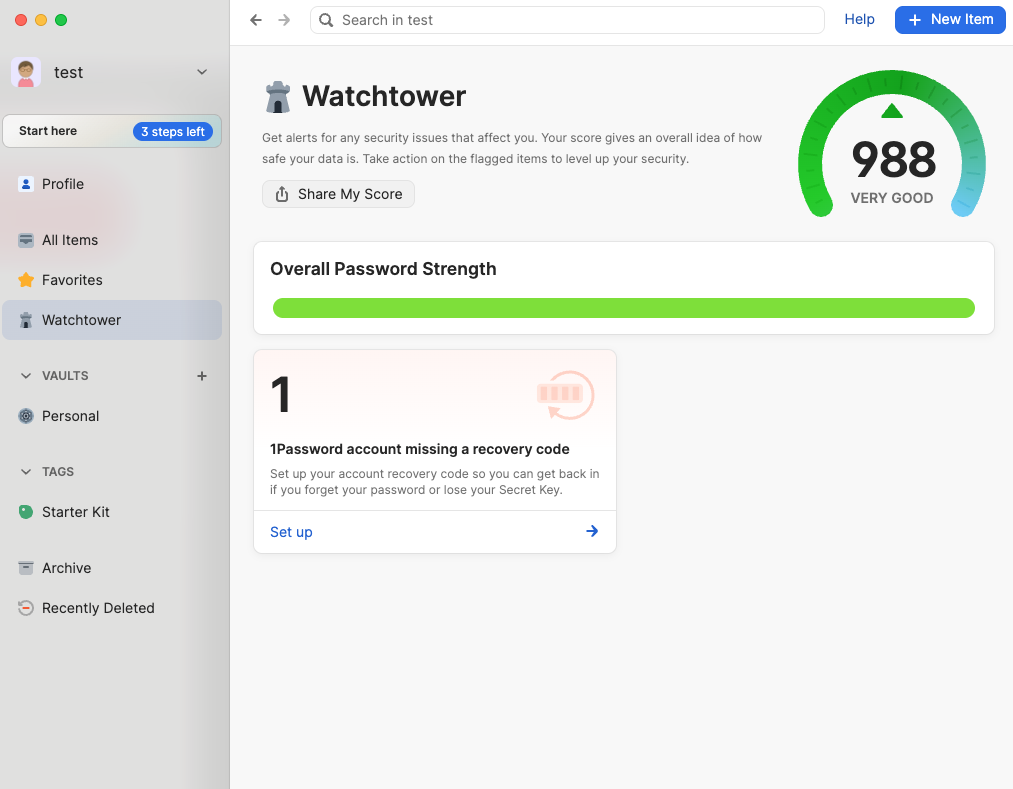
While testing 1Password, I also found that it offers data breach monitoring. The Watchtower feature tracks whether any of the websites you use have suffered a security breach. If so, the service will advise you to change the password associated with that website. Essentially, it’s a little like the website “Have I Been Pwned,” which we’ve recommended using in the past.
No Free Tier:
Unfortunately, you can’t use 1Password for free indefinitely. You can get a 14-day 1Password free trial, and you don’t have to provide any payment details. But after that, it’s a case of upgrading or moving to a different service.
1Password supports two-factor authentication, which made my most sensitive accounts much harder to compromise. The password generator consistently proposed highly secure, complex passwords that were easy to save and autofill.
As a Mac user, I also appreciated being able to unlock 1Password with an Apple Watch, which made access fast and convenient without sacrificing security. On mobile, both the iOS and Android apps supported passkeys, which I found to be a smooth and modern way to unlock the vault. I also discovered that adding new devices requires your Secret Key, so I strongly recommend downloading and printing your emergency kit during setup to avoid getting locked out.
Overall, 1Password is one of the most secure password managers we’ve seen. In our 1Password review, our cybersecurity expert scored it highly across the board. It’s just a shame that it’s lacking a free-use option.
1Password’s pricing is pretty affordable, just $ 2.99/month with deals applied. There are cheaper password managers out there, but for its level of security and the features it provides, 1Password’s price is unmatched.
Why we chose 1Password
Despite a lack of free tiers, we chose 1Password due to its incredible security. More than that, we think it’s perfect for teams. You can store unlimited passwords, manage multiple password vaults, and share a password vault with members of your team.
What we liked:
- User-friendly
- Suitable for individuals, families, and businesses
- High level of security and add-on security options
- Allows you to store files securely
- Works with macOS, iOS, Windows, Android, Linux, and Chrome OS
- Browser extensions for Chrome, Firefox, Safari, Edge, and Brave
What we didn't like:
- There are cheaper password managers available
- Other managers have a better import process
- No free tier
Keep an eye out for special Black Friday savings to get an even better deal.
5. Keeper: user-friendly password protection app
- Rating: 8.0 ⭐⭐⭐⭐
- Price: $ 1.79/month
- Free version? Yes
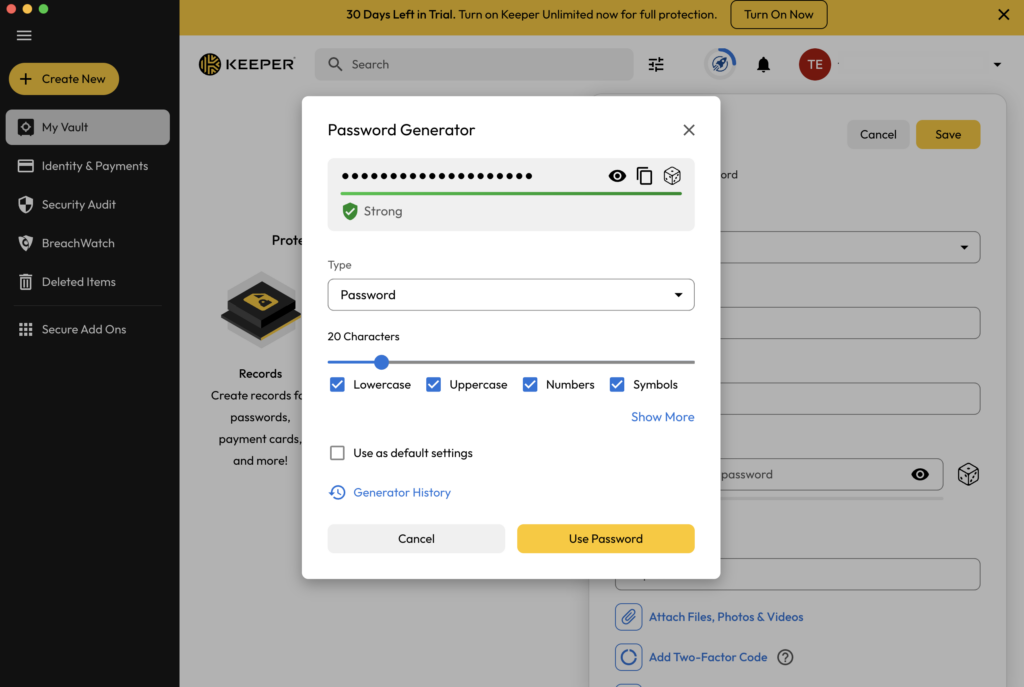
Keeper stood out as one of the best password managers thanks to its strong security, ease of use, and wide range of features. It uses AES-256 encryption and a zero-knowledge architecture. I especially enjoyed BreachWatch, which quickly alerted me when my credentials appeared in data breaches. I also appreciated practical features such as password importing, a built-in password generator, flexible password sharing, and the self-destruct sharing option that automatically deletes shared records after a set time.
Good for Businesses:
One of Keeper’s strengths is their support for businesses. Employee management controls include an admin console, security reporting, enforcement policies, and training plans. We think these are great tools for families, too!
During my tests, Keeper felt polished and reliable across devices, with support for many multi-factor authentication (MFA) methods, including biometric login and third-party authenticator apps. Recent updates further improved the experience, particularly enhanced vault sharing, expanded record types, and a new notification center for business plans. While I liked the 30-day free access to all premium features, the free tier becomes quite limited afterward, and many advanced tools require paid add-ons. Still, for users who value top-tier security, granular sharing controls, and a feature-rich platform, Keeper delivers a robust and professional password management solution.
The Personal Keeper plan starts at $ 1.79/month for unlimited passwords and sync options. Upgrade to Family for $4.50/month, and you can access five more password vaults and additional storage (10 GB). Also, be sure to check out Keeper coupon codes to potentially save on your subscription.
Why we chose Keeper
Keeper remains one of the most secure and capable password managers I tested, but it ranks fifth largely because many features that competitors include for free are locked behind paid add-ons. However, some users can find it useful. If you don’t need extra storage, for example, you won’t pay for it. But depending on your needs, you can add 10, 50, or 100 GB for between $9.99 – $79.99.
I don’t often see such flexibility in subscriptions, so Keeper is a great choice if you like having control over the features you use and pay for – especially for companies.
What we like:
- Excellent security features
- 30-day free premium features (simplified free tier afterward)
- Packages available for families and businesses
- Secure chat feature that could be useful for businesses
- Additional security features (charged separately)
- Works with macOS, Windows, iOS, and Android devices
- Browser extensions available for Chrome, Firefox, Safari, Edge, Internet Explorer, and Opera
What we didn't like:
- Free version felt pretty limited to us
- Charges for almost every extra add-on
- Encrypted storage limits are quite small
Compare top password managers
| Password manager | Rating | Price | Free trial | Encryption | 2FA | Password generator | Password generator | Password recovery | Data breach monitoring | Email masking |
|---|---|---|---|---|---|---|---|---|---|---|
| 1. NordPass | 8.8⭐⭐⭐⭐ | $ 1.49/month | ✅ Yes | ✅ Yes | ✅ Yes | ✅ Yes | ✅ Yes | ✅ Yes | ✅ Yes | ✅ Yes |
| 2. RoboForm | 8.3⭐⭐⭐⭐ | $ 0.99/month | ✅ Yes | ✅ Yes | ✅ Yes | ✅ Yes | ✅ Yes | ❌ No | ✅ Yes | ❌ No |
| 3. ProtonPass | 8.0⭐⭐⭐⭐ | $ 2.49/month | ✅ Yes | ✅ Yes | ✅ Yes | ✅ Yes | ✅ Yes | ✅ Yes | ✅ Yes | ✅ Yes |
| 4. 1Password | 8.5⭐⭐⭐⭐ | $ 2.99/month | ✅ Yes | ✅ Yes | ✅ Yes | ✅ Yes | ✅ Yes | ✅ Yes | ✅ Yes | ✅ Yes |
| 5. Keeper | 8.0⭐⭐⭐⭐ | $ 1.79/month | ✅ Yes | ✅ Yes | ✅ Yes | ✅ Yes | ✅ Yes | ✅ Yes | ✅ Yes | ❌ No |
How we chose the best password managers
In our experience, not all password management tools are the same. Depending on how you use your devices day to day, some password managers may be better suited to you.
We tested 20 password managers extensively to determine the top five providers. We assessed their features, security, ease of use, price, and performance. Here’s a quick overview of what we were looking for while conducting our research:
| Feature | Importance |
|---|---|
| Knowledge policy | Your password manager shouldn’t have knowledge of your stored data. Choose a password manager with end-to-end encryption (preferably 256-bit) and a zero-knowledge policy. |
| Password generator | A password generator is a standard feature on most password managers, but it’s good to check if it’s included. This feature makes it easy to create secure passwords and will improve your general online security. |
| Autofill passwords | Have your password manager fill in login credentials with the click of a button. It’s something you may overlook, but it’s incredibly convenient and reduces the risk of keylogging. |
| Synchronization | Synchronizing saved passwords between different devices can be handy. This is available on most premium password managers, but free software usually lacks this feature. |
| Safely storing files and other data | In addition to storing and managing passwords, some password managers offer secure file storage. This allows you to store sensitive files and other data. |
| Multiple password vaults | Some password managers let you create and manage multiple password vaults. These are separate, secure folders containing a collection of passwords that can be useful for organizations, teams, and families. |
| Free version or free trial | Not every password manager offers a free version. Some have a 30-day money-back guarantee. We recommend trying out a password manager first before you pay for a subscription plan. |
| Price | Password managers are generally not very expensive. With certain password managers, such as NordPass or 1Password, you can also create a family account. This means you can split the cost with others. |
| Web app vs. offline software | Some password managers are only available online, while others also have offline software. Online password managers receive security updates quickly. Offline password managers are more secure, but you may require additional browser extensions to autofill passwords. |
| Customer service | If you encounter issues with your password manager, it’s important to be able to get help from the provider’s customer service department. That’s why we recommend assessing the quality of the customer service of any password manager you choose. |
Note:
We review new password managers and update our rankings regularly, so our top five list is subject to change.
What is the best password manager for you?
Below, I present my password manager recommendations for specific cases.
Best password manager for Mac and Windows
The best password managers for Mac and Windows are 1Password and NordPass. 1Password offers the most “Mac-like” experience with a native app that supports Touch ID, Apple Watch unlocking, and Universal Autofill, which works in system prompts and non-browser apps. Meanwhile, NordPass is optimized for the modern Windows user with a sleek app that supports Windows Hello (fingerprint/facial recognition) for instant unlocking.
Best password manager for iPhone and Android
The best password manager for iPhone and Android is 1Password. Its apps integrate well with iOS and Android systems, making signing in to apps and websites easier and faster. It is also ideal for Apple users who need to sync passwords with non-Apple devices like Windows PCs or Android tablets.
Best password manager for multiple devices
The best password manager for multiple devices is 1Password. It works smoothly across all your devices, no matter whether it is a phone, a tablet, or a computer. Its apps and browser extensions make it easy to fill in and generate strong passwords wherever you are. With a single account, your vault stays updated on every device you use, giving you consistent access and peace of mind.
Best password manager for business
The best password manager for business is NordPass. It securely stores and shares company passwords with strong encryption and zero-knowledge security, protecting sensitive data from breaches. It also offers features like shared folders, activity logs, and centralized admin controls that make team and credential management easier. With tools like breach monitoring and SSO integration, NordPass helps improve security and productivity across your organization.
Best free password manager
The best free password manager is Proton Pass Free. It is a strong free password manager that lets you store unlimited passwords and sync them across all your devices with end-to-end encryption for privacy and security. It includes useful features like a password generator, passkey support, and up to 10 “hide-my-email” aliases to protect your real address.
Free vs paid password managers

Free password managers are a good option if you need just basic password storage, where you can generate and manage them in one place. However, there’s a chance that free services could share your data with third parties, especially marketing agencies, to generate revenue. Meanwhile, paid password managers also provide similar service, but also include advanced features like unlimited device sync, secure sharing, dark web monitoring, encrypted file storage, and priority support, making them more ideal for comprehensive security.
- Free password managers are designed for individual use, while you can get family and business plans with paid services.
- Free password managers offer basic password storage and autofill, while premium services include advanced features like password sharing, secure notes, and security reports.
- Free plans often limit device syncing to one device or platform, while paid plans have more flexibility and offer unlimited sync across multiple devices and operating systems.
- Free plans usually restrict password sharing, while it is not the case with premium services.
- Free services usually have limited or non-existent customer support; meanwhile, with premium services, you can get all the help you need through priority customer support.
- Free password managers are designed for individual use, while you can get family and business plans with paid services.
Your privacy is priceless. That’s why we recommend choosing security over saving a few dollars.
Final thoughts: get the best password managers to improve your online safety
Password managers are a great tool to store and manage all your passwords in one place. No more repeating passwords or forgetting them. They also help improve your online security by generating strong, unique passwords for every account.
After testing many popular password managers, I concluded that NordPass is the best password manager out there. It offers strong security with modern encryption and a clean, easy-to-use interface that works well across devices. NordPass also provides useful features like password health checks and passkey support, making it both secure and convenient for everyday use.
Interested in learning more about passwords and internet safety? Here are some insightful articles to help you get started:
- Best Free Password Managers
- Best 1Password Black Friday Deals
- Best Password Manager for Families
- The Five Best Cybersecurity Tools to Protect Yourself
FAQ
Got a question about password managers? Take a look at the FAQ section below. If we haven’t answered your question, let us know in the comment section.
A password manager is a tool that allows you to generate and store secure passwords. It can also autofill your login information, protecting you from keylogger software and speeding up your internet use. Some password managers even notify you if your account has a weak password.
A passkey is a modern, secure way to sign in without using a password. It uses cryptography and is stored on your device, such as a phone or computer. Passkeys work with biometrics like fingerprints or face recognition, making logins faster, safer, and resistant to phishing attacks.
Yes, you should use a password manager. It helps you create and store strong, unique passwords for every account, which greatly improves security. And you only need to remember one master password. Password managers also protect you from data breaches and make logging in faster and more convenient.
NordPass is the best password manager overall. This password manager is affordable, easy to use, and has some remarkable security features. Our in-depth NordPass review contains more information about what makes this service so powerful.
First, choose a reliable password manager to securely store your passwords. Then you will have to create one strong master password. It will help you access all the other passwords. When you sign in to websites, opt to save your logins. Furthermore, most password managers can help you generate strong and unique passwords and automatically fill them in when needed.
Most password managers are extremely cheap, charging up to $5 per month. Currently, RoboForm offers the lowest premium password manager price – only $0.99 per month. While there are free password managers in the market, they tend to have limited features and may be unsafe, so I recommend investing a few bucks per month for a premium one.
Free password managers are generally unsafe, as they’re more likely to share your data with third parties to generate revenue. If you must use a free password manager, we recommend trying out one of the options in our article on the best free password managers.