
- What is cyber hygiene?
- Common cyber hygiene problems
-
8 steps to improve your cyber hygiene
- 1. Update your operating system software
- 2. Use one of the best antivirus software
- 3. Install a firewall to protect your devices
- 4. Use one of the best VPNs for security and privacy
- 5. Store your passwords securely with a password manager
- 6. Avoid phishing emails and unsecured websites
- 7. Keep your device clean and uncluttered
- 8. Stay alert when going online
- Practice cyber hygiene to stay safe online
- FAQ
Cyber hygiene means taking care of your online life just like your daily routine. It’s about building small habits that keep your personal information safe. Most online risks come from simple things like weak passwords, outdated apps, and clicking the wrong links, not complex hacks. With some awareness, you can easily avoid these. Here’s a quick overview of 8 tips for good cyber hygiene:
- Keep your devices updated to be protected against the latest security vulnerabilities.
- Install antivirus software to routinely scan your system for malware.
- Use a VPN to protect your network by encrypting your traffic and hiding your IP address.
- Use a password manager to securely store your passwords and generate secure passwords whenever you register for a new website.
- Don’t click on suspicious emails or links, and avoid unsecured websites to protect your data.
- Clean up your device regularly to remove unused apps and files.
- Turn on 2-factor authentication to add an extra layer of security, so even if someone gets your password, they still can’t access your account.
- Stay aware before sharing any personal information on social media or downloading anything on the internet.

In this guide, I will explain the concept of cyber hygiene and provide practical tips you can start using today to stay safe online.
What is cyber hygiene?
Just as you’ve established a personal hygiene routine to keep yourself healthy and presentable, you should also follow good cyber hygiene habits. This means establishing a routine to protect your devices, your sensitive data, and your networks from attacks. This is becoming more and more important, as phishing emails, malware and viruses, fake websites, and unprotected networks are everywhere. With good cyber hygiene practices, you’ll be better protected against the risks that the internet poses to your privacy and security. To better understand the logic behind these tips, let’s first go over the risks of not practicing good cyber hygiene.
Common cyber hygiene problems
You or your company may be encountering some common cybersecurity hygiene problems without even realizing it. With so many points of entry for malicious software, we see more and more people and organizations dealing with security incidents. Here are the most common cyber hygiene problems with a quick summary of each:
- Data loss: If you’re not securely backing up your data at regular intervals, data can be left vulnerable to attacks from malicious actors. Data could also be lost through corruption, leaks, and breaches.
- Security breaches: Data breaches are becoming more common and serious. They can happen due to weak security, poor data handling, or unprotected networks. When they occur, they can expose sensitive information and damage both your finances and reputation.
- Out-of-date software: It’s essential to keep hardware and software up to date with the latest patches. One of the most significant examples of outdated computer software in recent years was the WannaCry ransomware attack, which cost the United Kingdom’s NHS £92 million and affected countless patients.
- Outdated cybersecurity software: New vulnerabilities are constantly discovered by malicious actors, even in software that has been around for years. To ensure you’re not exposed to the latest vulnerabilities, keep your security software (such as your antivirus and virtual private network) up to date.
8 steps to improve your cyber hygiene
If you want to improve your cyber hygiene, you need to know what tools and techniques to use and where to download the software you need. Here are the steps you need to take to improve your cyber hygiene:
1. Update your operating system software
When operating systems like Microsoft and Android release an update, they often include fixes and security patches for vulnerabilities found in earlier versions. Older operating systems (like Windows XP or OS X El Capitan) stop getting updated after reaching a certain age.
This can cause security issues, as cybercriminals regularly develop new techniques to infiltrate your personal devices. When you keep your operating system up to date, you automatically opt in to your operating system’s improved cyber defenses.
How to check system updates on Windows
To check if your system is up to date, you’ll need to go into your computer’s settings. If you’re on Windows, you can find this information by following 3 simple steps
- Click on the Windows logo in the bottom left corner of your taskbar, or click on the Windows logo or Win button on your keyboard.
- Click the gearwheel icon labeled Settings. If you can’t find this icon, simply start typing in Settings using your keyboard.
- Once in the Settings window, click the Updates & Security button. This should lead you to a new page.
- In this new window, click Check for updates. Windows should guide you from here and show you a list of updates (most of which your computer will download automatically).
If, for some reason, your computer isn’t showing the Settings window, simply click the Windows icon again and start typing Update. You should be shown a Click for Updates button, which will let you skip steps 3 and 4 above. If you have Windows 10, that process should look a little something like this:

Windows 10 updates your operating system automatically, so if you use this version, you shouldn’t need to worry about updates. If you have an older version of Windows, things could look and work slightly differently. Note that Microsoft has discontinued updates and support for Windows 7 and Windows XP.
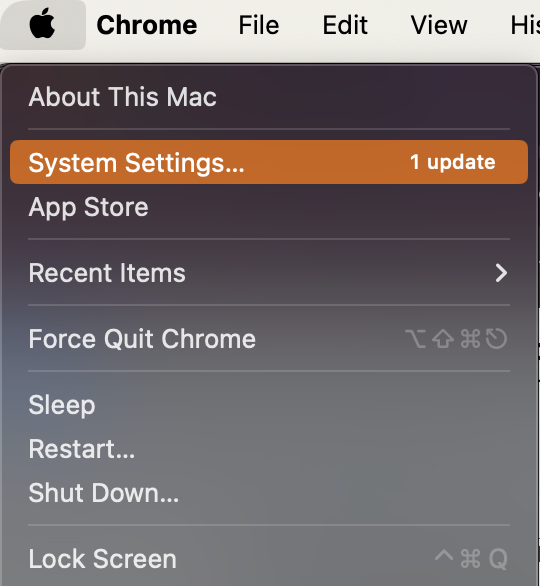
How to check system updates on Mac
Things are a little different on Mac, though Macs are generally less susceptible to many of the viruses that affect Windows computers. Here’s how to check system updates on your Apple device:
- Click on the Apple logo in the upper-left corner of your screen.
- Besides System Preferences, you should see “1 update” (or more, depending on when you last updated) if there are updates available.
- Click on System Preferences, then check if there’s a notification besides “Software Update.” If there is, it’s time to update.
2. Use one of the best antivirus software
Installing antivirus software on your device is crucial to good cyber hygiene. In fact, it’s one of the most important cybersecurity tools you can use to be safe online.
Most antivirus software nowadays can check for harmful files, malicious software, and suspicious webpages. For example, antivirus software Norton 360 will block any suspicious files when you download them. This type of software is very easy to install, and if you choose one of the best antivirus software, you won’t even notice it running in the background.
When choosing the right antivirus, focus on a few key factors to make the choice easier: look for strong protection features, a clear privacy policy, fair pricing, and minimal impacts on your device’s performance.
Based on my research and testing, I recommend Norton Antivirus. It offers reliable malware protection, an easy-to-use interface, and smooth background operations without slowing down your device, making it a practical choice for everyday use.

3. Install a firewall to protect your devices
Network firewalls are security software that protect your computer from viruses, worms, Trojans, and other kinds of malware (including killware), and, to some extent, from hackers. Firewalls scan everything that enters your computer and can identify whether it’s harmful. When something is deemed dangerous, that file is quarantined and then deleted.
Most new computers are equipped with a firewall, though it’s important to check whether it’s switched on by default. You can check this in your device’s settings.
Does Windows have a firewall?
If you have a Windows 10 computer, you can find these settings by typing Firewall into the search bar of your Start menu.

While Windows computers come with a firewall preinstalled, you can also install one yourself. Companies specializing in online security, like Norton and Bitdefender, offer their own firewalls.
This software is often bundled together with an antivirus, which could save you money. However, bear in mind that if you use a firewall other than Windows, you’ll need to turn off Windows Firewall.
Do Macs have a firewall?
Yes, Macs come with a firewall by default. You might also be glad to hear that malware that affects Macs is on the decline. Recent reports show that while malware targeting macOS has fluctuated over time, the overall threat has not disappeared, and in some cases, it has become more sophisticated. As Apple devices grow in popularity, they continue to attract attention from cybercriminals, making security just as important as on other platforms. However, to be fully protected, you should still use a firewall on your Mac.
What might surprise you is that the firewall often comes disabled by default on Macs. If you didn’t know, chances are you’ve been browsing unprotected since you bought the device. However, enabling this software takes only a few moments. Here’s how to do it:
- Click on the Apple logo in the upper-left corner of your screen.
- Click on System Settings.
- Click on Security & Privacy in the next menu. It’s a little house and looks a bit like a keyhole or padlock.
- Click the lock to make changes and do just that. You’ll need to enter your Mac’s login credentials.
- Finally, click the Turn On Firewall button, and you’re finished.
Bonus: There’s another little-known, neat trick here to up your cyber hygiene. If you also click on Firewall Options and Enable Stealth Mode, you’ll help to shield your Mac while on public Wi-Fi networks.
4. Use one of the best VPNs for security and privacy
Aside from protecting your computer with software like an antivirus program, it’s also important to secure your internet connection. Wi-Fi networks, especially public ones, aren’t always safe. In fact, public Wi-Fi in places like hotels and airports can be risky, and even your home network can be manipulated.
Wi-Fi networks often fall victim to hackers because an unsecured network is an ideal way for a cybercriminal to access your personal or sensitive data. Moreover, websites build a profile of their visitors by tracking all the pages you visit on your web browser. They can use this information themselves or sell it to other companies. This type of profile can also be used in identity fraud.
Luckily, you can protect your connection with a virtual private network (VPN), such as NordVPN, which will keep you anonymous and ensure your data is protected. A VPN is a cyber security tool that will:
- Hide your IP address, making you harder to track
- Encrypt all of your data so that you’re safer, even on unsecured networks
- Allow you to bypass geographical restrictions and view region-locked websites from overseas or restricted videos

A VPN creates a secure, encrypted connection between your devices and the internet. This ensures that any data you send or receive, such as passwords, messages, or browsing activity, remains private and unreadable to others, especially on public Wi-Fi networks.
It also hides your IP address, adding an extra layer of privacy and making it harder to track your online activity. You can use a VPN across multiple devices, including phones, laptops, and even your home router.
Based on my testing, NordVPN stood out as the best VPN for its strong combination of speed, security, and ease of use. It provides reliable encryption, intuitive apps, and useful features like a kill switch and split tunneling, allowing you to stay protected without complicating your daily internet use.

Black Friday offer! Get 78% OFF NordVPN + 3 months free
How to install a VPN: A step-by-step guide
In case you’re new to using a VPN, here’s a quick guide on how to install a VPN:
- Choose a reliable VPN. My top choice is NordVPN with 78% discount.
- Download the VPN app and install it on your device.
- Connect to a VPN server in your preferred country.
- From now on, your internet connection is private and secure.
5. Store your passwords securely with a password manager
Some people use just the same password for every account. In fact, research suggests that up to 60% of online users have a single password for most or all of their accounts. This puts you at risk of having your accounts taken over, as hackers only need to figure out your single password to access all your sensitive information. In this case, you need to create a secure password for every single account.
To ensure your privacy, passwords need to be relatively long and complex, avoiding common words or phrases, and using a mix of letters, numbers, and special characters.
Long, complex user passwords are necessary because hackers don’t try to guess your password manually. Instead, they use brute-force software that tries numerous combinations in a short space of time. So the longer your password, the harder it is for the software to crack.
However, this raises a problem: how do you remember your passwords when you’ve got so many, and they’re becoming so complex? After all, the average person has around 100 passwords, according to NordPass. I recommend installing a password manager, such as 1Password, to store all your passwords securely. These programs can also generate completely random passwords for you, guaranteeing a password that’s nigh-on impossible to crack.
6. Avoid phishing emails and unsecured websites
Phishing emails and unsecured websites are becoming more common than ever. You’ve probably received a phishing email or two in recent years, and the problem is extending to text messages and WhatsApp scams. The premise is simple: you visit a website that appears legitimate, but it’s a phishing site that’s designed to capture your data. This kind of sensitive data could be usernames, passwords, or even your payment card details.
Sadly, reading an email or clicking a corrupted link without taking any further action can still be harmful. Opening an infected message can already spread the scam, with your account being hijacked to send it to other contacts. For this reason, it is important to always check the subject and sender of an email to gauge whether if it’s legitimate.
What’s more, avoid opening or downloading email attachments, especially from untrusted sources. Never, ever run an executable (.exe) file from an email!
For websites, always check if the web address you are about to visit appears legitimate. Some scammers create duplicates of legitimate websites. Sometimes, the only difference is a single letter being changed in the web address. Other times, the entire website is actually a background image stolen from the real company, with a simple pop-up form that will steal your data. This is a common approach used by cybercriminals impersonating delivery companies like FedEx, DPD, DHL, Hermes, and so on.
Here are some quick cyber hygiene tips for spotting a dodgy website:
- Carefully check the URL bar where the website address is displayed. Make sure that there’s nothing suspicious; for example, a single letter having been changed (e.g., facebook.com becomes faceboolc.com).
- Look for any grammatical mistakes. Spelling mistakes, incomplete sentences, and other problems with the text are all common indicators of a poor-quality, untrustworthy website.
- Check that the website uses HTTPS, which means it has a valid security certificate. It would be extremely uncommon for a scam website to fake this security measure.
7. Keep your device clean and uncluttered
Once you’ve had your computer for a while, it’s common to notice it slowing down. Over time, you tend to collect installation files, photos, images, and other files that fill up your hard drive, and few of us ever delete them regularly.
Moreover, you tend to gather cookies, trackers, and other files that are practically invisible but can affect your machine and online experience.
It shouldn’t be surprising that a cyber hygiene checklist includes cleaning your computer to maintain system health. For this purpose, I recommend specialized cleaning software such as CCleaner. With CCleaner, you can easily rid your hard drive of unnecessary files. The software is simple to use, and you don’t even need to change any of the default settings out of the box.

This software can also clear your computer of Cookies, small files that remember when you visit a website and help it load more quickly in the future. You may wish to keep these, however, as removing cookies will mean you have to log back into all of your accounts across the internet. This is preventable by changing the settings for each individual browser you use in the CCleaner software suite, as shown in the image.
I recommend using cleaning software once a week to keep your computer uncluttered. On the off-chance that a malicious file has slipped past your antivirus or firewall, this tool could help ensure it doesn’t lie in wait on your hard drive. While you can use CCleaner for free, the paid version lets you schedule automatic scans.
8. Stay alert when going online
Hackers continue to devise new ways to mask their true identities. They can pretend to be one of your contacts, a reliable company, or a well-known website. So, a good cyber hygiene practice is always to be vigilant and be on the lookout for online scams.
Also, consider how you can put more barriers between you and those who would steal your data. Here are some final tips that you can follow to protect yourself online and improve your online security:
- Use common sense and caution when banking and trading online. While bank websites often have more data protection measures than other sites, your data could still be vulnerable. Always double-check the URL of the website you’re on.
- Use secondary bank accounts for checking out online purchases, and follow our other tips for online shopping safety.
- Upgrade your security by enabling two-factor authentication (2FA) on any accounts you can. Also called multi-factor authentication, 2FA requires you to verify your login to ensure unauthorized users don’t gain access to your personal data.
- Consider installing an ad blocker to prevent tracking across websites. We compiled a list of the best ad blockers for your reference.
Practice cyber hygiene to stay safe online
Every day, people face common online risks, like scam emails, unsafe websites, or unsecured Wi-Fi. Those attacks aren’t just targeting businesses or experts; they’re targeting everyone. In most cases, these risks can be avoided with a bit of awareness and consistency. Building good cyber hygiene habits will make it much harder for anyone to access your personal information. A quick reminder of the essential steps to protect your personal data:
- Keep your devices updated
- Use antivirus software
- Turn on your firewall
- Use a secure VPN like NordVPN
- Create strong passwords and use a password manager
- Be careful with emails and websites
- Keep your devices clean and organized
- Stay alert before clicking links, downloading files, or sharing personal information
You don’t need to do everything perfectly. Just start with a few of these habits and stick to them. Over time, they’ll become a part of your routine, and staying safe online will feel natural.
FAQ
Cyber hygiene refers to the online safety habits that you can adopt to protect your computers and internet networks. Using new cybersecurity tools such as VPNs, antivirus software, and password managers, you can protect yourself from cybercriminals and avoid falling victim to identity fraud or financial crime.
Good cyber hygiene is all about thinking proactively and taking steps to improve it. Ideally, you should be putting as many obstacles as possible between you and the hackers who might try to steal your data or cheat you out of money. You can use numerous cybersecurity tools and other software features to improve your online security and be safe online, including:
You can stay safe online by combining simple habits with the right tools. Along with using a VPN, antivirus, and a password manager, being mindful of how you browse can make a big difference. Here are some easy things to keep in mind:
- Check websites before using them. Look for a small padlock in the address bar, and make sure the website starts with https, especially before entering personal details.
- Don’t click on links or download files from unusual or unexpected messages.
- Turn on two-factor authentication to add an extra step when logging in, making your accounts harder to access.
- Using a VPN on public Wi-Fi, such as in cafés, airports, or hotels, keeps your connection private.
Staying safe online is mostly about being more mindful. A quick pause before clicking or sharing information can prevent most problems.