- How to use VPN on Apple TV
- Best Apple TV VPN apps: a detailed overview
- Compare best VPNs for Apple TV
- How I tested VPNs on Apple TV
- Is there a free VPN for Apple TV?
- How to setup VPN on Apple TV
- How to use region locked apps on Apple TV
- Apple TV not working with VPN: troubleshooting steps
- Conclusion
- FAQ
Apple TV now supports native VPN apps, but only if you’re running tvOS 17 or later. Since 2023, third-party VPNs can be installed directly, removing the need for previous workarounds like Smart DNS or router-based setups. However, the setup on Apple TV can be confusing, especially if you’re using an older tvOS version or your VPN provider doesn’t offer a native app.
To solve this, I tested various setup methods and tried out multiple VPNs to see which ones actually worked. I focused on easy setup, reliable performance, and smooth streaming.
Based on my extensive testing, NordVPN is the best VPN for Apple TV in 2025. It has a dedicated Apple TV app, so setup is quick and easy. Even if you prefer other methods, NordVPN also supports Smart DNS and virtual router setups. With its fast, reliable streaming, I was able to unblock Netflix, Hulu, BBC iPlayer, and many other streaming services without buffering.

How to use VPN on Apple TV
To use a VPN on Apple TV, you’ll either need to install a VPN app from the App Store (available on tvOS 17+) or set up the VPN on your router. Once your VPN is active, simply connect your Apple TV to the VPN-enabled network or use Smart DNS if your VPN offers it. Here’s a more detailed breakdown:
- Choose a reliable VPN that supports Smart DNS, routers, or has native Apple TV apps. I recommend NordVPN, now 78% off!
- Download and install the app from the App Store on your Apple TV
- Sign in or create a new VPN account
- Connect to a server location from the VPN app’s server list
- Once connected, launch your favorite streaming app!
Best Apple TV VPN apps: a detailed overview
I tested 28 VPN providers to find the best VPNs for Apple TV in 2025. I focused on services that offer Smart DNS, router support, or a dedicated Apple TV app. My goal was to find a VPN that would work with Apple TV, unblock popular streaming platforms, and maintain fast speeds. After thorough research, NordVPN, Surfshark, and Proton VPN stood out as the best Apple TV VPNs. As a result of their exceptional streaming performance, ease of use, and compatibility with Apple TV.
Top 1. NordVPN – the best VPN for Apple TV in 2025
- Rating: 9.3⭐⭐⭐⭐⭐
- Dedicated Apple TV VPN app: ✅ Yes
- Price: $ 3.49/month
NordVPN is the best VPN for Apple TV in 2025, offering unmatched streaming performance, a native app for tvOS, and top-tier security. I tested several VPNs on my Apple TV, and NordVPN was the only one that consistently delivered 4K streaming without buffering, worked straight from the App Store, and required no manual setup on newer models.
Compatibility with Apple TV
NordVPN has a native tvOS app for Apple TV, available on the App Store for devices running tvOS 17 or later. I simply opened the App Store on my Apple TV, searched for NordVPN, downloaded the app, and signed in. The setup took less than two minutes.
Once I launched the app, the interface was clean and easy to use. As soon as I selected a US server, I was able to stream US content in seconds. In case you have an older Apple TV model, NordVPN is flexible with Smart DNS and router support options. I tested on my older Apple TV (HD) and had no problem accessing Netflix US and BBC iPlayer.
Global server network and streaming performance
NordVPN offers 8900 servers in 149+ countries, including key regions such as the US, UK, Japan, and Australia. With such a large server network, you can access a wide range of geo-restricted content, ensuring you can always connect to the streaming library.
I used the NordLynx protocol and achieved an average speed of 468Mbps, which was fast enough for smooth, buffer-free 4K streaming. I connected to servers in the US, UK, and Australia, and NordVPN consistently unblocked Netflix, Hulu, BBC iPlayer, Disney+, and other streaming services without issues. Server switching was fast, and I never ran into playback errors or annoying lag. Based on my experience, NordVPN offers one of the fastest and most reliable streaming performances of any VPN I’ve tested for Apple TV.
Security and features
NordVPN uses AES-256 encryption, has a strict no-logs policy, and includes built-in Threat Protection that blocks ads, trackers, and malware. I really liked Meshnet, a unique feature that allows secure connection of up to 50 external devices or 10 of your own devices via encrypted tunnels. NordVPN also supports split tunneling, a kill switch and offers Double VPN servers for an extra layer of protection. Keep in mind, though, that not all of these features are available on Apple TV or router setups. If you want to use everything NordVPN offers, including Threat Protection and specialized servers, you can share your VPN connection instead from Windows or macOS.
NordVPN price starts at $ 3.49/month, and you get a 30-day money-back guarantee. You can test it risk-free on Apple TV and cancel it easily if it doesn’t suit you.
Things I like
- Native Apple TV app
- Unblocks all major streaming apps
- SmartPlay DNS for older Apple TV models
- Fast speeds with NordLynx
- Robust security features
- 30-day money-back guarantee
Things I didn’t like
- Slightly more expensive than other VPNs
Top 2. Surfshark – excellent Apple TV VPN app for streaming
- Rating: 9.0⭐⭐⭐⭐⭐
- Dedicated Apple TV VPN app: ✅ Yes
- Price: $ 2.49/month
Surfshark is the best Apple TV VPN, impressing me with its fast performance, strong security, and budget-friendly pricing. It’s ideal for families or households with multiple devices streaming Apple TV simultaneously, thanks to its unlimited device connections. In my experience, it offers a compelling combo of value and functionality.
Compatibility with Apple TV
Surfshark offers a native tvOS app for Apple TV. It was easy to install: I just opened the App Store, searched for it, downloaded it, and signed in within minutes. After launching the app, I chose a server location and connected. With its clean interface, streaming was instant. As for older Apple TV models, Surfshark supports Smart DNS and router-level installation.
Global server network and streaming performance
Surfshark has over 4500 servers in 100+ countries, offering numerous options to unblock content from various regions. Whether I connected to the US, UK, or Australia, I was able to find a stable, fast server for streaming videos on Apple TV.
During my tests, Surfshark consistently unblocked Netflix, Hulu, Disney+, and BBC iPlayer on Apple TV. Using the WireGuard protocol, I received average speeds of 466Mbps. I switched between different streaming libraries without issues. Streaming in both HD and 4K was smooth, and I didn’t notice any buffering or lag. Besides, server connections were quick and reliable, and switching between regions didn’t disrupt my usage. Everything loaded fast, from live streams to on-demand content.
Security features
Surfshark uses AES-256 encryption, maintains a strict no-logs policy, and runs on RAM-only servers. I appreciated the built-in kill switch and CleanWeb ad blocker, which enhanced privacy and removed trackers during my streaming sessions. Additionally, Surfshark’s NoBorders mode automatically activates on restricted networks, making it easier to stream geo-blocked content in countries with heavy censorship. Furthermore, Surfshark stands out with its unlimited simultaneous connections.
Surfshark price starts at just $ 2.49/month, works on Apple TV via its native tvOS app, and offers a 30-day money-back guarantee. And unlike NordVPN’s free trial, which is only for Android users, Surfshark offers a full 7-day free trial on mobile and macOS, making it easier to test the service before committing.
Things I like
- Unlimited simultaneous connections
- CleanWeb ad and tracker blocker
- Native Apple TV app
- Consistently fast speeds with WireGuard
- Excellent streaming and unblocking abilities
- Very competitive pricing
Things I didn’t like
- Smaller server network than NordVPN
Top 3. Proton VPN – easy-to-setup VPN app for Apple TV
- Rating: 8.9⭐⭐⭐⭐⭐
- Dedicated Apple TV VPN app: ✅ Yes
- Price: $ 2.99/month
Proton VPN is a privacy-first VPN for Apple TV, ideal for users who prioritize strong encryption, transparency, and security. It is a Swiss-based provider of reliable connections and robust security features for privacy-conscious users.
Compatibility with Apple TV
Proton VPN offers a dedicated Apple TV app for devices running tvOS 17 or later. Like previous VPNs, I downloaded it from the Apple Store and signed in directly from the App Store on my Apple TV. There was no need to set up an extra router or use Smart DNS workarounds with Proton VPN. While the installation process was smooth and the UI was clean, it wasn’t quite as fast as NordVPN.
Global server network and streaming performance
Proton VPN boasts a growing network of over 20700 servers in 149+ countries. Many of these are optimized for streaming, and I found that switching between the US, UK, and EU servers was convenient, as the provider has the biggest server fleet.
I tested Proton VPN using the WireGuard protocol, and my average speeds were around 428Mbps, which is solid for HD and 4K videos. I streamed Netflix US, Hulu, and BBC iPlayer without buffering or playback issues. Let’s not forget that the free version of Proton VPN works for basic use, but it doesn’t unblock major platforms. I had to upgrade to the Plus plan to access region-locked content consistently. Once I did, I could enjoy smooth streaming.
Security features
Proton VPN uses AES-256 encryption, operates fully open-source apps, and provides Secure Core, which routes traffic through privacy-friendly countries before it reaches the VPN server. This adds an extra layer of protection, especially when using public Wi-Fi. I also appreciated its kill switch, Tor over VPN, and DNS leak protection, all of which ran smoothly in my tests. Plus, Proton VPN follows a strict no-logs policy and is independently audited for transparency. During my testing, I shared my VPN connection from a Windows device, which provided me with full access to these advanced streaming features on Apple TV.
Proton VPN offers a free plan, but not for streaming. You’ll need to subscribe to the Plus plan, starting at $ 2.99 per month, to access fast servers and full unblocking support for watching content on Apple TV. It comes with a 30-day money-back guarantee, so you can test it risk-free.
Things I like
- Native Apple TV app
- Excellent privacy and encryption features
- Great speeds with VPN Accelerator and WireGuard
- Transparent, open-source, no-logs policy
- 30-day money-back guarantee
Things I didn’t like
- No Smart DNS support
- Free plan is not ideal for streaming
Top 4. PIA – secure Apple TV VPN with flexible configurations
- Rating: 8.6⭐⭐⭐⭐
- Dedicated Apple TV VPN app: ✅ Yes
- Price: $ 2.19/month
Private Internet Access is a reliable option for Apple TV, as it stands out for its massive server fleet, strong US coverage, and unbeatable pricing.
Compatibility with Apple TV
Unlike NordVPN or Surfshark, PIA has a native Apple TV app. I downloaded it directly from the App Store, signed in, connected to a server, and was streaming in just a couple of minutes – no extra configuration needed. It’s a much smoother process than configuring CyberGhost Smart DNS, which was somewhat complicated and time-consuming.
Compatibility with Apple TV
One of PIA’s strongest points is its extensive network, which includes over 35000 NextGen servers in 91 locations, and covers all 50 US states. That gave me the flexibility to access region-locked streaming libraries, such as local Fox Sports and NFL coverage.
PIA retained around 81% of my base speed during testing, which was more than enough for smooth 4K streaming. I had no trouble accessing Netflix, BBC iPlayer, Hulu, and ESPN+ through the Apple TV app. While a few US servers were slightly overloaded, switching to a different location resolved the issue quickly. Overall, the experience was fast, reliable, and buffer-free once connected.
Security features
PIA offers robust baseline security, featuring AES-256 encryption, a strict no-logs policy, and DNS/IP leak protection. One standout feature I appreciated during my test was MACE – a built-in ad tracker and malware blocker. It helped speed up streaming on my Apple TV by cutting out unwanted traffic in the background. Additionally, you can also gain access to Shadowsocks and SOCKS5 proxies for added obfuscation. While it lacks advanced features like NordVPN’s Meshnet or Threat Protection, PIA still provides all the essentials for private and secure Apple TV streaming.
PIA is one of the most affordable VPNs on the market. It starts at $ 2.19/month, has a native Apple TV app, and supports unlimited device connections. Plus, a 7-day free trial is available on Android and iOS, and you can get a 30-day money-back guarantee.
Things I like
- Huge US coverage (servers in all 50 states)
- Very affordable
- Offers a native tvOS app, Smart DNS, and router setups
- Strong encryption and customizable security settings
- Unlimited simultaneous device connections
Things I didn’t like
- Slower server switching than NordVPN
Top 5. CyberGhost – secure Apple TV VPN with optimized servers
- Rating: 8.8⭐⭐⭐⭐
- Dedicated Apple TV VPN app: ❌ No
- Price: $ 2.19/month
CyberGhost is a secure VPN for streaming. It offers an impressive global network and specialized servers to access geo-restricted content smoothly.
Compatibility with Apple TV
CyberGhost isn’t available as a native Apple TV app, so you’ll need to set it up using Smart DNS or install it on a compatible router. During my testing, I tried CyberGhost’s Smart DNS tool and got it running on my Apple TV HD in under 10 minutes. While not as seamless as NordVPN or Surfshark, I found CyberGhost’s setup manageable, particularly with the Smart DNS feature. The support guide was helpful, and once I configured DNS on my Apple TV, I could access geo-blocked libraries without issues.
Global server network and streaming performance
CyberGhost offers a large server fleet of over 9800 in more than 100 countries. I liked that the provider offers streaming-optimized servers for services like Netflix US, Hulu, and BBC iPlayer. It made picking the right one easier, especially when switching between regions for testing.
In my tests, CyberGhost reliably unblocked Netflix, Hulu, Disney+, and ESPN+ when connected to optimized servers. After setting up the VPN on my router, I used WireGuard on my laptop to test its speeds, which averaged around 402Mbps – enough for fast 4K streaming. Once the setup was done, I didn’t notice buffering or playback delays on my Apple TV. Compared to PIA, CyberGhost’s performance felt a bit faster with better server response in the US and UK.
Security features
CyberGhost uses AES-256 encryption and enforces a strict no-logs policy. I appreciated its built-in ad and tracker blocker, as well as support for split tunneling and DNS leak protection.
CyberGhost starts at just $ 2.19/month, and you can take advantage of a generous 45-day money-back guarantee, which is the longest of any VPN I tested. While it doesn’t offer a native Apple TV app, you can still use it on Apple TV through Smart DNS or by setting it up on a router.
Things I like
- Easy-to-use Smart DNS for Apple TV
- Extensive server network
- Great streaming performance on optimized servers
- 45-day money-back guarantee
- Built-in ad/tracker blocker
Things I didn’t like
- No native tvOS app
- Requires manual DNS setup or router configuration
Compare best VPNs for Apple TV
| VPN for Apple TV | Rating | Servers | Dedicated Apple TV VPN app | Smart DNS | Router setup | Price |
|---|---|---|---|---|---|---|
| 1. NordVPN | 9.3⭐⭐⭐⭐⭐ | 8900 servers in 149 locations | ✅ Yes | ✅ Yes | ✅ Yes | $ 3.49/month |
| 2. Surfshark | 9.0⭐⭐⭐⭐⭐ | 4500 servers in 100 locations | ✅ Yes | ✅ Yes | ✅ Yes | $ 2.49/month |
| 3. Proton VPN | 8.9⭐⭐⭐⭐⭐ | 20700 servers in 149 locations | ✅ Yes | ❌ No | ✅ Yes | $ 2.99/month |
| 4. PIA | 8.6⭐⭐⭐⭐ | 35000 servers in 91 locations | ✅ Yes | ✅ Yes | ✅ Yes | $ 2.19/month |
| 5. CyberGhost | 8.8⭐⭐⭐⭐ | 9800 servers in 100 locations | ❌ No | ✅ Yes | ✅ Yes | $ 2.19/month |
How I tested VPNs on Apple TV
To find the best VPNs for Apple TV, I tested 28 providers by setting each up and trying out their features directly on Apple TV. Here’s how I evaluated each VPN:
- Apple TV setup (40%). My top priority was the ease of setup. I tested whether the VPN offered a dedicated Apple TV app, clear Smart DNS instructions, or straightforward router configuration. NordVPN stood out with its consistently polished and intuitive app interface on tvOS.
- Servers and streaming performance (30%). I reviewed how well each VPN handled the major streaming platforms, including Netflix, Hulu, Disney+, and BBC iPlayer. I also evaluated multiple server locations, the rating stability, loading times, and streaming quality.
- Security and privacy (20%). I reviewed each VPN’s encryption protocols, logging policies, DNS leak protection, and overall reputation. In this case, Proton VPN ranked first in privacy focus due to its Swiss jurisdiction and Secure Core technology.
- Price (10%). Lastly, I compared prices and overall value. Some of the cheaper VPNs lacked Apple TV support, while others charged more without additional functionality. For example, Surfshark and PIA offer the cheapest monthly rates on their longest plans, including unlimited simultaneous connections.
Is there a free VPN for Apple TV?
Yes, you can install Proton VPN’s free app directly on your Apple TV. However, it’s not ideal for streaming because it offers basic privacy and limited browsing capabilities. But if you want to stream Netflix, Hulu, or other platforms, you’ll need to upgrade to its paid Plus plan for full access to all the features and faster speeds.
If you’re looking for a better free VPN experience on Apple TV, NordVPN and Surfshark are excellent options to consider. While neither offers a fully free plan like Proton VPN, both provide free trials and 30-day money-back guarantees that let you test their Apple TV VPN apps risk-free. In my tests, they unblocked major streaming services, kept speeds fast, and were easy to setup via tvOS apps, Smart DNS, and routers. A risk-free trial is the only way to see if a premium VPN works well for Apple TV streaming.
How to setup VPN on Apple TV
I tested several methods for setting up a VPN on Apple TV to find out which worked best. That also depends on the type of device you have. For example, if you have a newer model running tvOS 17 or later, you can download a VPN app, such as NordVPN, directly from the App Store, sign in, and then connect to a server. However, if your Apple TV does not support VPN apps, you’ll need to set up your VPN on your router or share it from your computer. This works in three steps:
- Install VPN on your router
- Connect the Apple TV to the router
- Share the VPN connection from a PC or Mac manually
Method 1: Install a VPN app on Apple TV
There are only a few VPNs that offer native Apple TV apps, which you can download directly from the App Store. In my testing, NordVPN, Surfshark, and Proton VPN were among the best options, easy to install, smooth to use, and great for streaming. However, popular VPNs like CyberGhost don’t offer Apple TV apps. That means you’ll need to set up such VPNs manually – either using a router, Smart DNS, or by sharing a VPN connection from another device, such as a laptop. Here are the steps you need to follow:
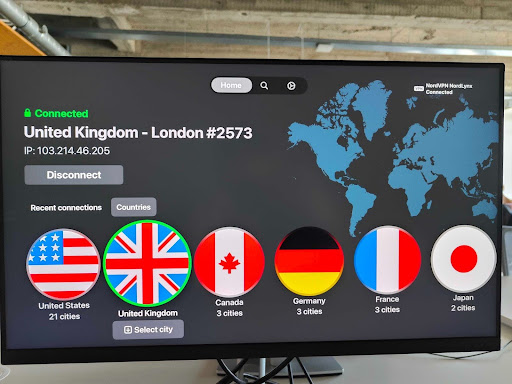
1. On your Apple TV, open the App Store and search for a VPN provider, such as NordVPN.
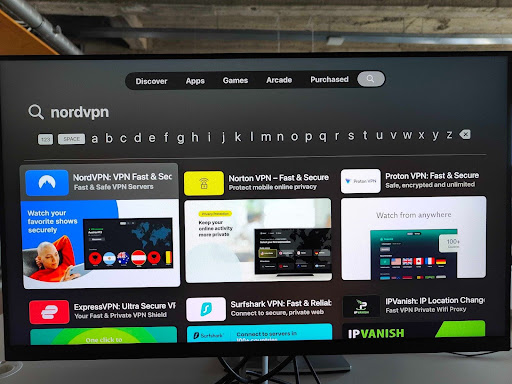
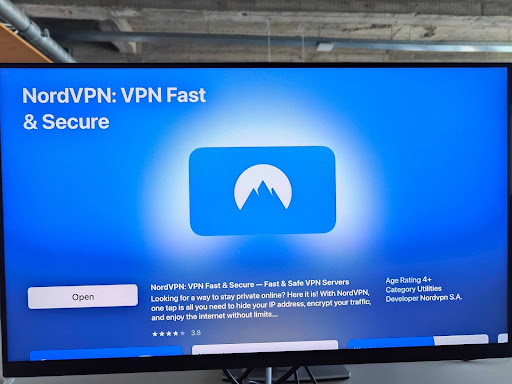
2. Select the app, click Get, and download and install it.
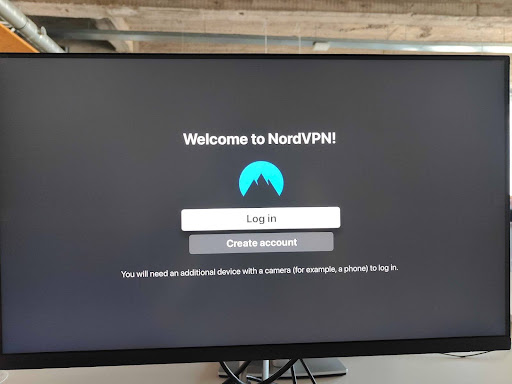
3. Once installed, open the app and sign in using your VPN account.
4. Select a server location and click Connect. Now you can access geo-restricted content on your Apple TV.
Method 2: Set up a VPN on your home router
Setting up a VPN on your router is one of the most reliable ways to use a VPN with Apple TV, especially if you’re using an older model that doesn’t support VPN apps. When you install a VPN on your router, every device connected to Wi-Fi (including your Apple TV) automatically uses a VPN connection. Plus, because not all routers support VPNs, I recommend checking your router model first or using a VPN-compatible router.
You can find some helpful tips and a troubleshooting guide in our article on setting up a VPN on your router.
Method 3: Use Smart DNS on Apple TV
Smart DNS is one of the simplest ways to unblock geo-restricted streaming content on Apple TV, especially if you don’t want to install anything or modify your router settings. Unlike a VPN, Smart DNS doesn’t encrypt your traffic, but it reroutes your DNS requests to bypass location blocks. Here’s how to do it:
1. Choose a reliable VPN that offers Smart DNS. I recommend NordVPN, which is 78% off.

2. Log in to your VPN account on the VPN’s website.

3. Enable Smart DNS and whitelist your IP address (it could take up to 10 minutes to receive a confirmation email). Enter “what’s my IP” into your browser to find out your IP address.

4. After activating Smart DNS, on your Apple TV, go to Settings > Network > Wi-Fi and select your current network.
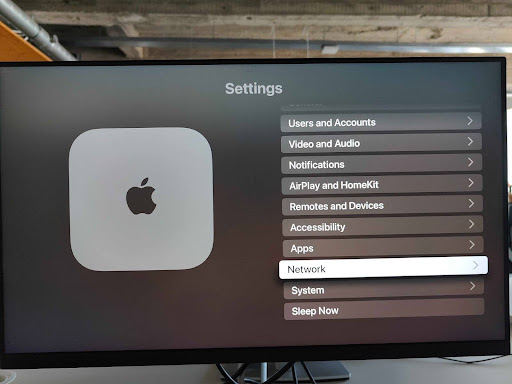
5. Choose Configure DNS > Manual.
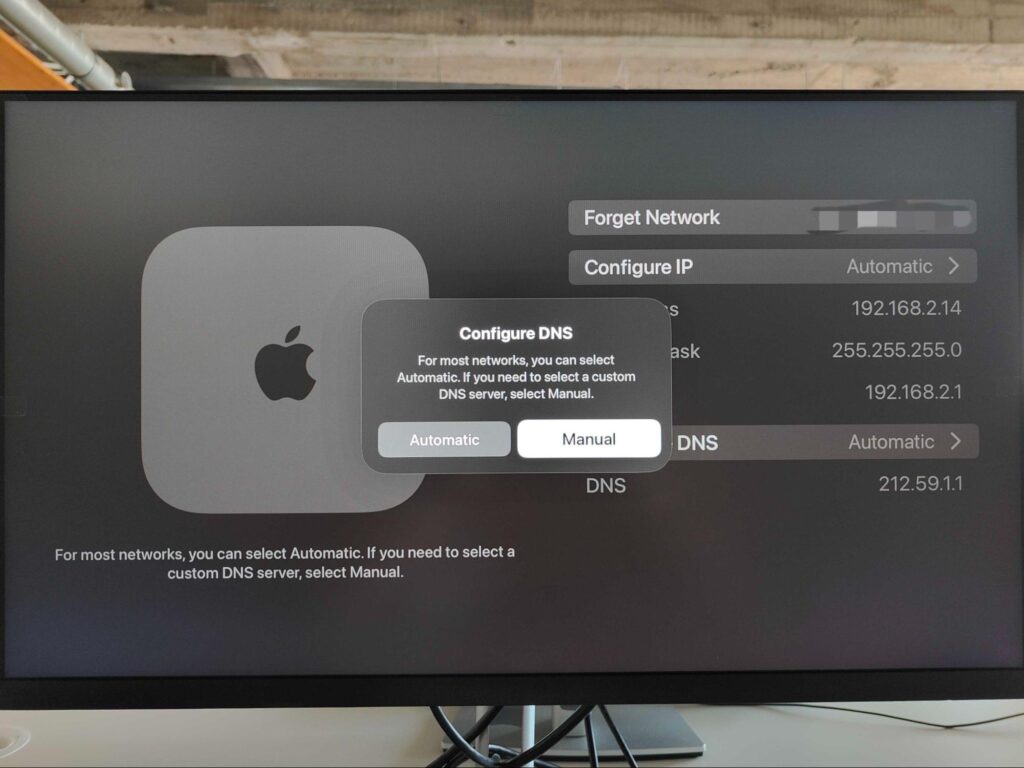
6. Enter your VPN provider’s Smart DNS server address. You can find it on the dashboard of your account.
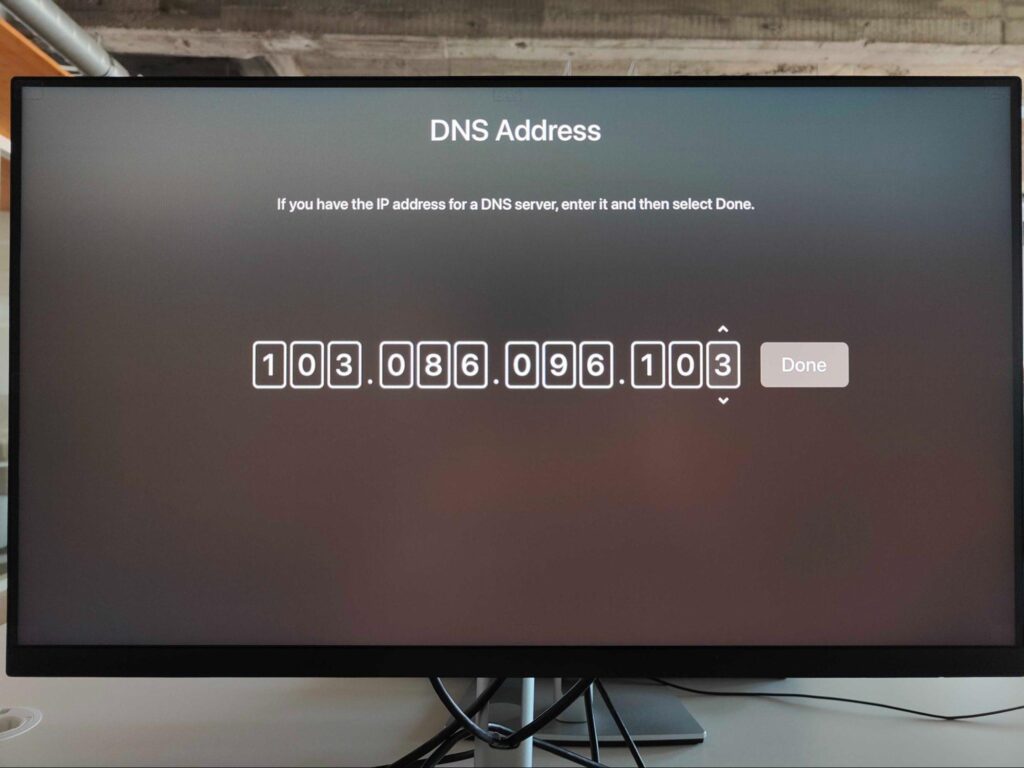
7. Once saved, your Apple TV will reroute streaming requests through the Smart DNS server, providing you with access to services such as Fubo TV, Paramount+, or Peacock TV.
Method 4: Share a VPN connection via Wi-Fi hotspot (Windows)
Sharing your VPN connection via a Wi-Fi hotspot is a great alternative if your router does not support VPNs or your provider does not offer Smart DNS. This method works well on Windows and lets your Apple TV connect to a VPN-protected network without installing anything on the device itself. Once set up, your Apple TV will route all traffic through your PC’s VPN. Here’s how to do it on Windows:
1. Open Settings on your Windows computer. Then press Network & Internet Network, and select Mobile Hotspot.
2. Choose Wi-Fi and toggle the hotspot On.

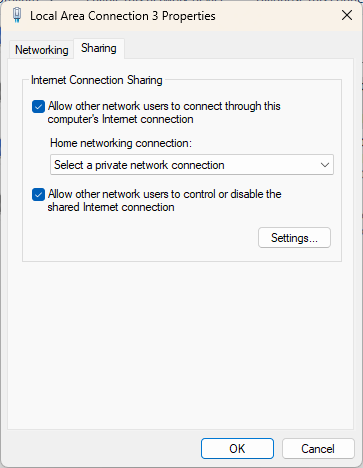
3. Go to Advanced network settings > More network adapter options.
4. Find your VPN adapter, right-click, and go to Properties.
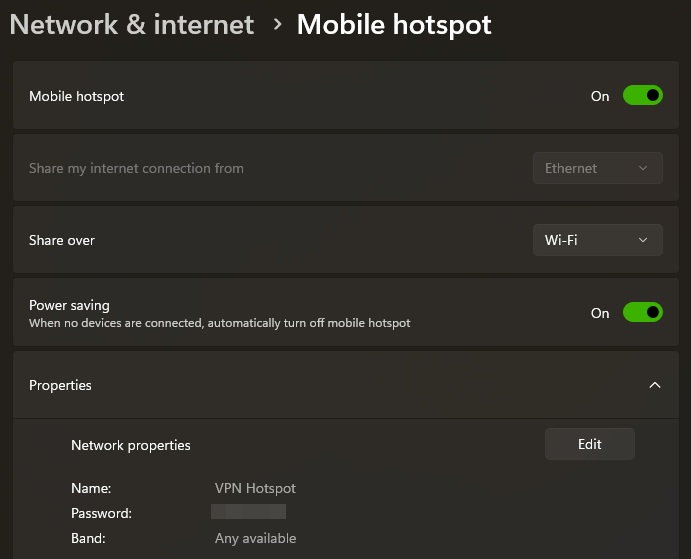
5. Under the Sharing tab, check the box that says “Allow other network users to connect through this computer’s internet connection.” Click OK to save.
6. Connect your Apple TV to your PC’s Wi-Fi network.
Method 5: Mirror or cast content from a Mac or iOS device
It’s a simple, no-installation way to solve the problem. Instead of setting up a VPN directly on your Apple TV, you can connect your Mac or iOS device to a VPN, then mirror or cast content using AirPlay. Follow the steps below:
For iOS:
- Connect your iPhone/iPad and Apple TV to the same Wi-Fi network.
- Enable a VPN by opening your VPN app (such as NordVPN), logging in, and then connecting to a server.
- Open Control Center, then swipe down from the top-right (iPhone X or later), or up from the bottom (older devices).
- Tap Screen Mirroring, then choose your Apple TV or compatible AirPlay device.
- Enter the passcode if prompted (it will appear on your TV).
- To stop mirroring, return to Control Center > Screen Mirroring > Stop.
For Mac:
- Ensure that AirPlay support is available on your Apple TV.
- Launch your VPN app and connect to a server.
- Go to System Settings > Displays and choose your Apple TV from the AirPlay Display dropdown.

4. Enter the passcode if prompted (it will appear on your TV).

5. Mirror or extend your screen as needed.

6. Stop mirroring via the AirPlay icon in your menu bar.
How to use region locked apps on Apple TV
Accessing region-locked apps on Apple TV can be frustrating. Many streaming services, like Hulu or BBC iPlayer, are only available in specific countries due to licensing agreements. VPNs won’t work if your Apple ID isn’t registered in the right country. Your Apple ID controls which App Stores you can access, meaning a VPN alone won’t let you download geo-restricted apps. During my testing, I explored two main methods to bypass these restrictions and access region-locked apps on Apple TV:
1. Change your Apple ID region
This method lets you update your existing Apple ID to a new country. Let’s see how to do it:
- Connect to your VPN. I recommend NordVPN for its easy-to-use interface on Apple TV and connecting to a server in your target country (e.g., the US for Hulu).
- Update the Apple ID region. On your iPhone, go to Settings > [Your Name] > Media & Purchases > View Account > Country/Region > Change Country or Region.
- Enter local details. Select your new country and agree to the new terms and conditions. Then, you need to enter the country’s local address and phone number.
Tip.
If you live in another country and need a local address or phone number, you have a few options. When I tested this, I used an online address generator, but you can also ask a friend or family member who lives in that country for their details. Just make sure the information matches the country you’re switching to.
- Once confirmed, your Apple ID now matches the App Store of your choice.
2. Create a new Apple ID for the desired region
This method is helpful if you want to keep your main Apple ID unchanged or if changing it is too complicated due to subscriptions or account balances. Besides, this step requires a local phone number for verification in some cases. Here is what you need to do:
- Use a reliable VPN: Connect to the desired country with your VPN.
- Log out and create a new ID: Log out of your current Apple ID on your iPhone (Settings > [Your Name] > Sign Out). Then, go back to Settings and choose “Don’t have an Apple ID or forgot it?” to create a new one.
- Create a new Apple ID: Follow the prompts, selecting the desired country as your region. In some cases, you may need an online SIM card service to get a local phone number from that country for verification.
- Use your new ID: Once created, use this new Apple ID on your Apple TV.
After successfully completing each of these methods and using your VPN, you can finally download and use those previously geo-blocked streaming service apps directly on your Apple TV, opening up a world of content.
Apple TV not working with VPN: troubleshooting steps
If your Apple TV VPN isn’t working, the first step is to ensure your VPN is correctly configured and that you have the latest version of the VPN app. If the issues persist, based on my testing, here are a few things you can do:
- Check your VPN setup: Always double-check if the VPN app is properly connected to your Apple TV. If you’re using a router-based VPN, verify that the router’s admin panel settings are correct. For Smart DNS, verify that the DNS addresses are correct in Apple TV’s network settings and that your real IP address has been whitelisted.
- Update your VPN: Make sure you’re running the latest version of your VPN app on Apple TV (or the latest firmware, if it’s on a router).
- Try switching servers: Sometimes, a specific VPN server might be overloaded or even detected and blocked by a streaming service. The issue often resolves itself when you switch to another server in the same country during troubleshooting.
- Clear Apple TV cache/restart: Just like any device, Apple TV can store old data. Try restarting your Apple TV (Settings > System > Restart) or reinstalling the streaming app. This clears any cached location data that might conflict with the VPN.
- Enable Smart DNS (if available): Although Smart DNS isn’t a VPN, it can help bypass geo-blocking on Apple TV for certain streaming services.
- Test your internet connection: Temporarily disconnect the VPN and check the speed and connectivity of your regular internet connection on Apple TV. If your internet is slow, a VPN isn’t the problem.
- Contact VPN Support: If nothing works, your VPN’s support team can guide you through advanced troubleshooting steps.
Conclusion
Using a VPN for Apple TV is essential for unblocking geo-restricted content, improving your streaming experience, and keeping your online activity private. Your data will be protected when you use a reliable VPN to access global libraries from services like Hulu, BBC iPlayer, and Netflix.
After extensive testing, NordVPN proved to be the best VPN for Apple TV. It offers a native tvOS app for quick setup, as well as Smart DNS, router compatibility, and the option to share a VPN connection via a virtual router. In my tests, NordVPN consistently unblocked all major platforms, like Netflix, BBC iPlayer, and Hulu, and delivered fast, stable streaming with no buffering.
You may like to read:
How to set up a VPN on your Smart TV
Installing a VPN on Your Android TV
Installing a VPN on your Roku device
Set up VPN on Kodi
FAQ
Yes, you can use a VPN on Apple TV, but the setup is different from regular devices. There are 3 main ways to do it: using a native tvOS app, setting it up on a router, or sharing the VPN connection from another device. If your Apple TV runs tvOS 17 or later and your provider offers a native app (like NordVPN), you can download it directly from the App Store, sign in, connect to a server, and start streaming geo-restricted content from platforms like Netflix, Hulu, and BBC iPlayer.
Yes, but it depends on your model. New Apple TVs running tvOS 17 or later support VPN apps directly from the App Store. VPN setup is quick: install the app, log in, and connect to a server. However, if you have an older model (such as a 3rd-generation or earlier model), it won’t support VPN apps directly. In this case, use a VPN by setting it up on your router, using Smart DNS, or screen mirroring from a VPN-connected device, such as an iPhone or Mac.
The best VPN for Apple TV in 2025 is NordVPN. It offers a native App Store app for tvOS that makes setup incredibly easy. NordVPN also supports Smart DNS, router configuration, and virtual hotspot sharing, so it is compatible with older Apple TV models as well. Additionally, it unblocks all major streaming platforms such as Netflix, Hulu, BBC iPlayer, and 9Now at consistent speeds without buffering.
To change the iTunes region on your Apple TV, you need to update the country or region settings of your Apple ID. First, connect to your desired country using a VPN, such as NordVPN. Then, on your iPhone or iPad (linked to your Apple TV account), go to Settings > Apple ID > Media & Purchases > View Account > Country/Region and select your new region. You’ll need to enter a valid local address and phone number, which you can get by asking friends or family in that country or using an online SIM card. Once saved, your Apple ID will match the App Store of the selected country, and you can download region-specific apps directly on your Apple TV.
No, Apple TV doesn’t block VPNs, but it doesn’t support them natively on models that run tvOS 16 and older. For tvOS 17 and newer, you can download a VPN app, like NordVPN, directly from the App Store on your device, just like on a phone or computer. For older Apple TV models that don’t support apps, you can still use a VPN by connecting it to a router that’s configured with a VPN, or by using a SmartDNS service.